

 Magento 1

How to use Data Feed Manager?
STEP 1: Configure Data Feed Manager in a general way
Before being able to configure your data feeds, you should configure the extension in a general way. To do so, go to:
System Config Wyomind Data Feed Manager
Cron job reporting
In the Cron job reporting tab, you can activate the cron job reporting and fill in an email address to receive the reports. You can also rename the reports as you want.

Core Settings
In the Core Settings tab, you'll need to configure a certain number of fields.
- Items in preview
By default, there are 10 items in preview, if you want you can reduce or increase that number. - Items in buffer
By default, products are inserted into the file on the server every 10 items but you can reduce or increase that number. - Items in each MySql query
By default, there are 1500 items in each MySql query. - Number of advanced filters
By default, you have 10 advanced filters. If you need more, you can at any time increase that value. - Include disabled products
You have the possibility to include or not disabled products in your data feed. - Use of OR/AND statements in advanced filters
and/or statements can be used in the advanced filters simply by enabling that option. - Use canonical URLs
You have the choice between several options. You can choose to use the shortest category URL, the longest one, or the product URL. - Include not in menu categories
You can also include the categories of products that are not in the menu. - Use configurable product categories instead of the child product categories
Use the categories of the configurable products instead of the child ones. - Php memory limit
The default memory limit is 1024. - Allow trans-domain import/export
Allow import and export options. - Enable log file
Enable or disable log file.

STEP 2: Manage your data feeds with Data Feed Manager
To create and configure your data feeds, click on Create new template from:
Catalog Data Feed Manager Data Feeds
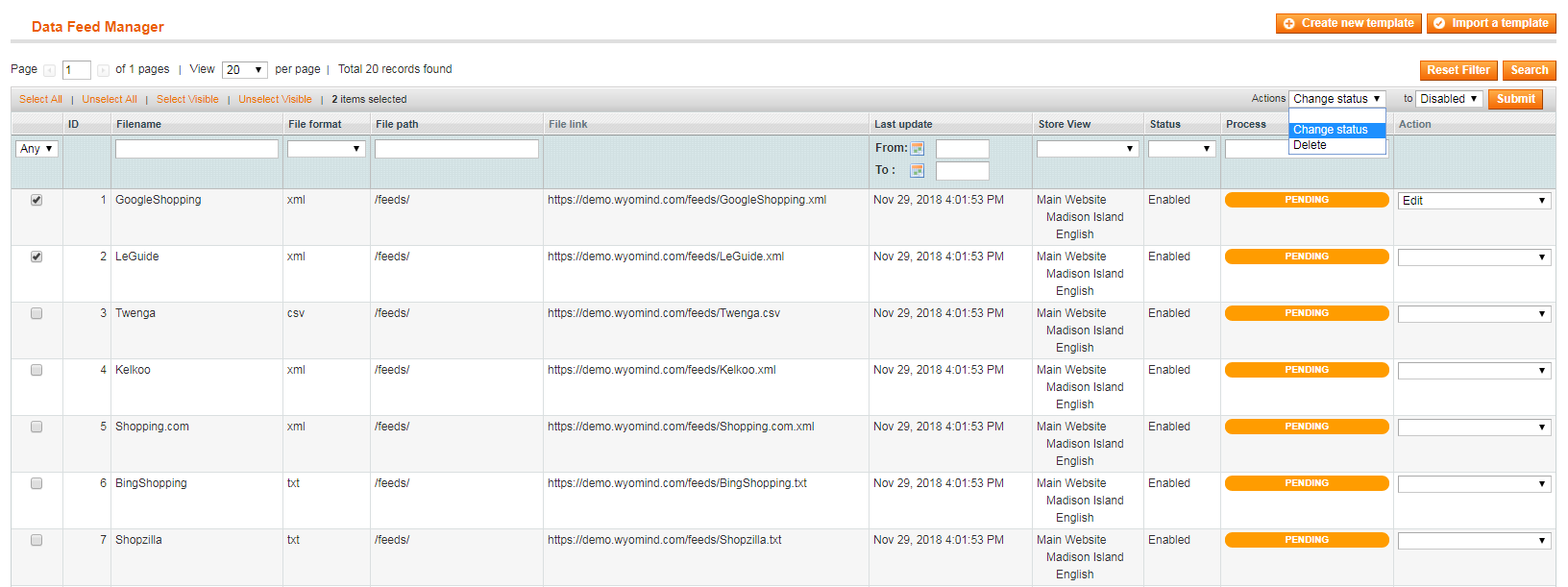
From there, you can also apply mass actions, for example, delete or change the status of several data feeds in one time.
The Tool Box or so-called "Black Box"
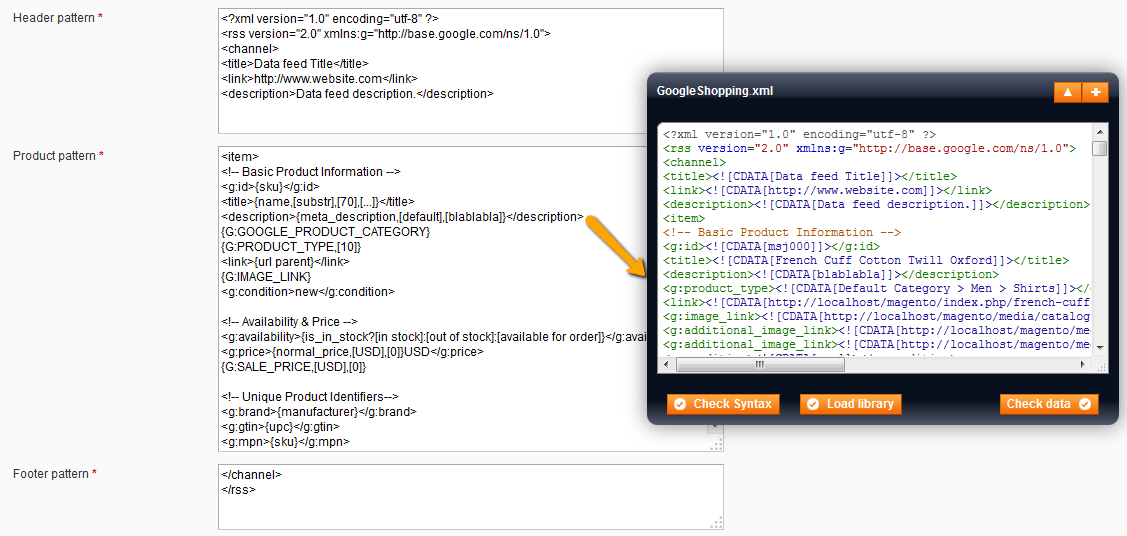
When creating a data feed, you should see a blackbox on the right of your screen. The Data Feed Manager extension includes that tool to help you create your feed and see what is wrong.
The blackbox is inevitably a very useful tool. This will help you to configure your data feed more quickly.
Here are the different options of the blackbox:
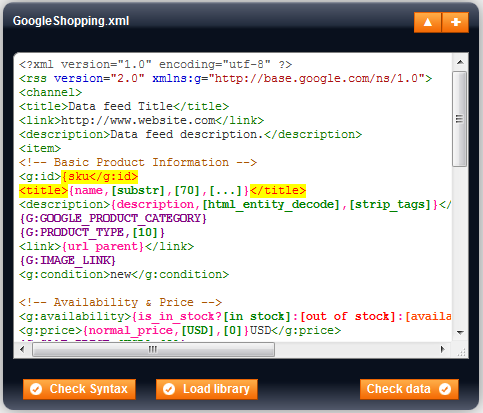
Syntax Validation
The Check syntax button allows you to check if your syntax is correct. It helps you to see if you have forgotten a bracket or a comma by underlining in yellow the part of text that contains a mistake.
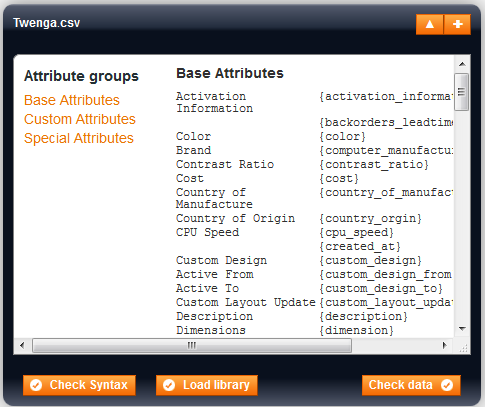
Library
If you click on Load Library, a library of your store attributes will be displayed. This makes it easier to find very quickly which attribute you need to add into your template.
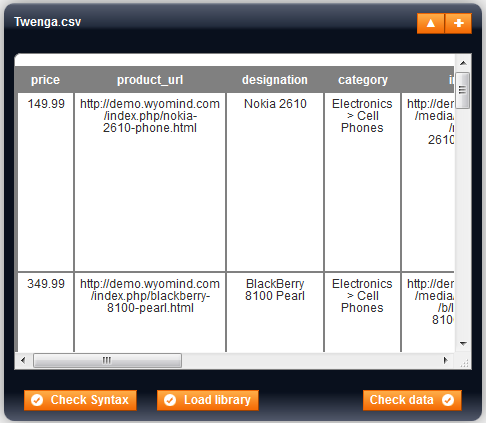
Data Preview
When clicking on Check Data, you'll see a preview of your data feed. It's very useful to see if the values of your attributes are correctly retrieved or if your filters are working.
Export and import your templates
Data Feed Manager also allows you to export and import templates into/from your Magento admin.
Export
To export a template, select an existing feed from:
Catalog Data Feed Manager Data Feeds
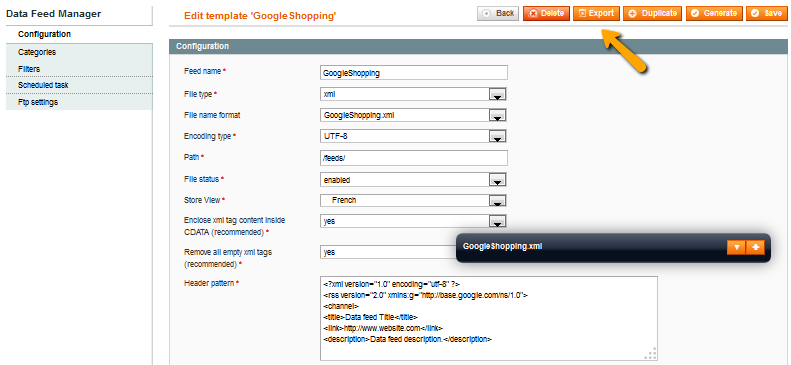
From the dropdown under the Action column, you can choose to Export that data feed template. You can also choose to Edit the data feed and then click on Export.
Via both ways, a popup window opens and allows you to save the data feed template as a .dfm file. After that, you should find the data feed template in your 'Downloads' folder.
Import
Before anything, to import a data feed template, it must be a .dfm file.
To do so, go to:
Catalog Data Feed Manager Data Feeds
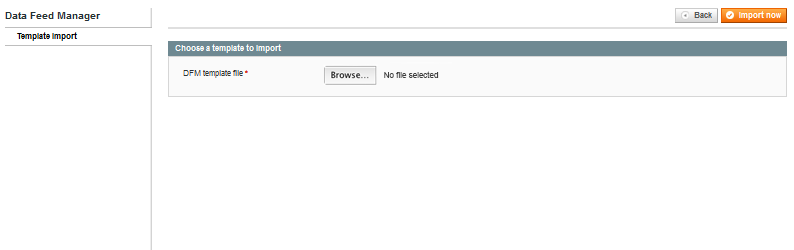
Click on Import a template. Browse the .dfm file and click on Import now.
Now, you should see that the data feed has been imported at the end of the grid in:
Catalog Data Feed Manager Data Feeds
Configuration
When creating a new data feed, you have to configure a certain number of parameters from:
Catalog Data Feed Manager Data Feeds
In that first tab is the main configuration of the data feed. You'll find several fields to fill in.
- Feed name
Enter the name of your feed. For example:
GoogleShopping - File type
Choose the format of your file between XML, CSV, TXT, and TSV. - File name format
You have several format possibilities for your file name.
GoogleShopping-2015-01-26.xml - Encoding type
Choose the encoding type of the data feed. - Path
Define the path where you want the data feed to be generated.
/feeds/ - File status
Enable or disable the file. - Store View
Define which store view is concerned.
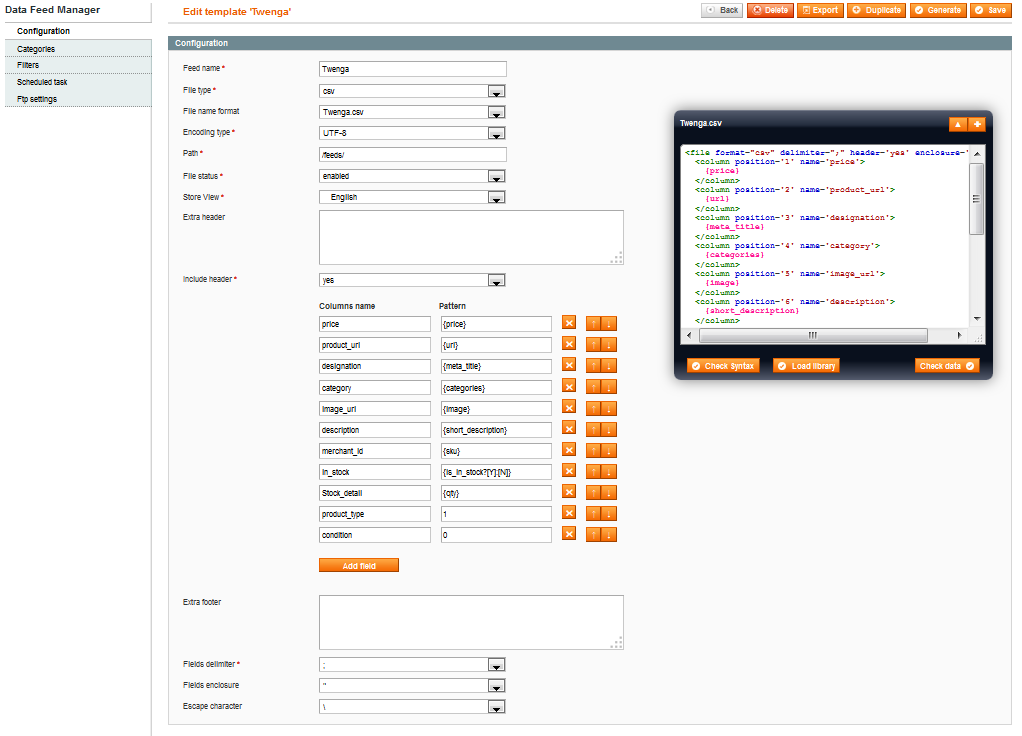
The following fields vary according to the file type you're configuring.
XML files
If you want to configure an XML file, fill in:
- Enclose xml tag content inside CDATA (recommended)
Enclose xml tags inside CDATA or not. - Remove all empty xml tags (recommended)
Remove empty xml tags or not. - Header pattern
Add your header pattern in that field. - Product pattern
This field is inevitable to configure your product pattern. - Footer pattern
Add your footer pattern in that field.
CSV, TXT, TSV files
For CSV, TXT and TSV files, fill in:
- Extra header
It will add whatever you write on the top of your file (fit in with Amazon requirements). - Include header
Allows you to include or not columns names in the first row of your file. - Columns name
Is for the attribute name (you need to look in the shopping engine specifications to know which names are required). - Pattern
Works in the same way than XML files. For example, {url} will return the product's url. You can also add any static values. - Add field button
Click on it to add a new column to your template. The fields order can be easily reordered by using the up and down arrows. - Extra footer
You can add an extra footer in that field. - Fields delimiter
Lets you choose which kind of delimiter you want to use to separate your fields. - Fields enclosure
Lets you choose which kind of enclosure you want for your data. - Escape character
Define the escape character between \ or ''.
Categories filter
You can filter your categories according to two different ways:
- Exclude all products from the selected categories.
- Include all products from the selected categories.
For example, if you wish to include only products of the Apparel category, you can configure your filter in two different ways.
First of all by ticking the Include option that will allow you to include all categories that you have selected.
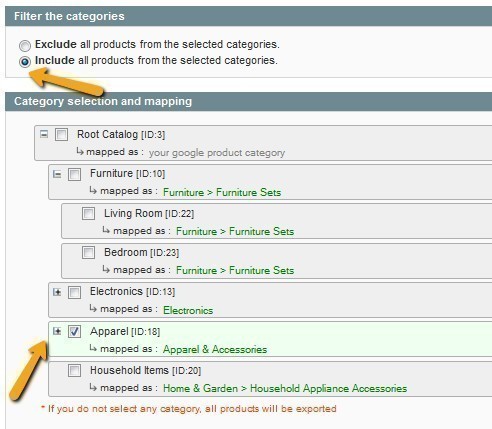
Or via the Exclude option that will exclude all categories you have selected.
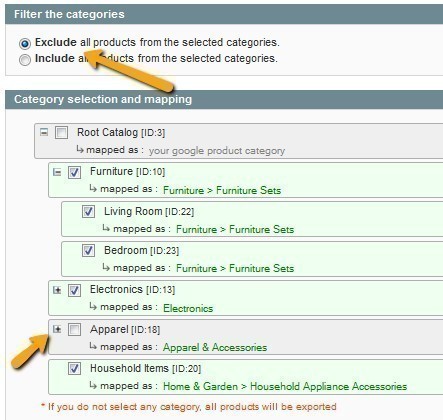
Category mapping
In that subtab, you can map your categories to the ones of marketplaces. This step is very important so that they can make a link between their product categories and yours.
What is a category mapping?
The category names you are using in your Magento aren't always the same as the ones used by marketplaces to reference your products.
This means you have to find out which categories have the best matching with yours, according to their taxonomy.
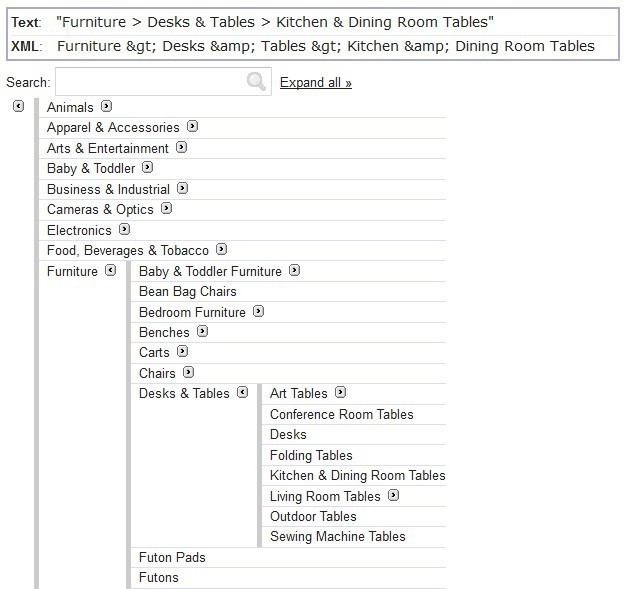
For example with Google Shopping, if you're selling furniture like coffee tables, you'll have a Coffee table category in your Magento admin. But Google Merchant doesn't handle this kind of category. The closest Google product category could be Kitchen & Dining Room Table.
Map your categories with Data Feed Manager
Data Feed Manager provides you an easy way to input the categories of the marketplaces that are matching yours.
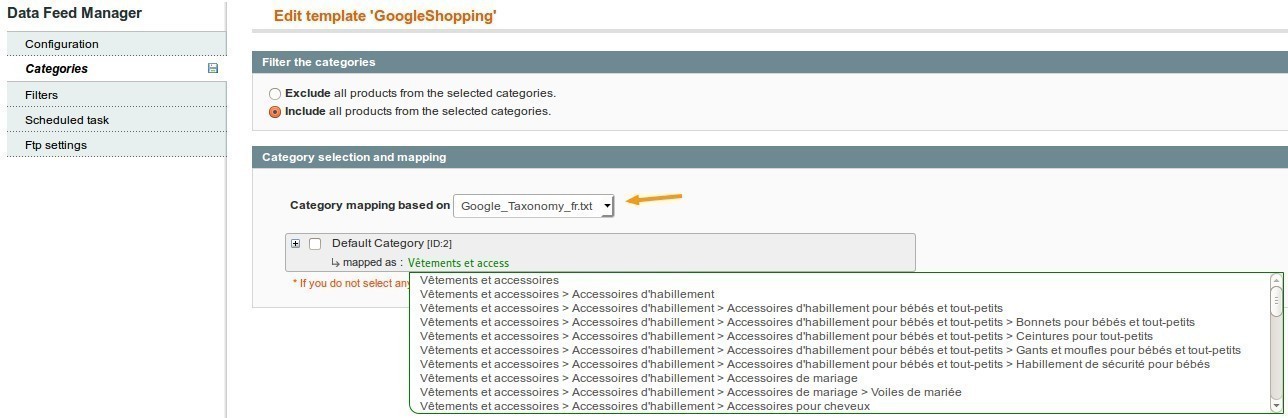
In your data feed configuration, for example, Google Shopping. Go in the Categories tab. Then, in Category selection and mapping section, you'll find a tree view of all your categories.
First, select the Google Taxonomy source on which the category mapping is based.
Taxonomy files for the main countries are directly included to allow you to map your categories more easily. You can also have a look at the below documentation to know how to add a new taxonomy file.
For each category, you have a little arrow followed by mapped as. There, you'll be able to start typing a keyword in order to display a list of all categories including that keyword. You simply need to select the one you need.
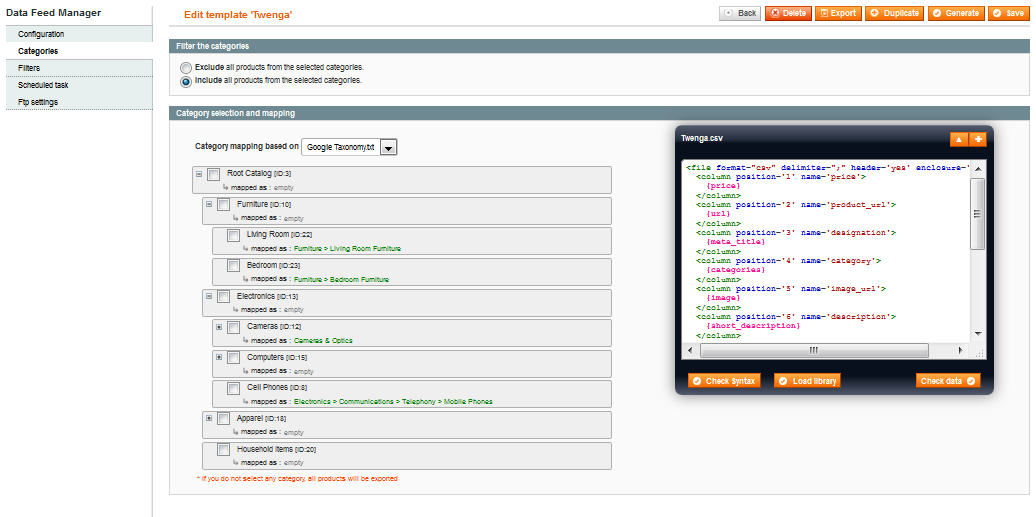
Once all your categories are mapped, you can click on SAVE.
Here are a few guidelines for choosing the most appropriate category:
- Use the category that best describes your item. To do this, first determine the primary function of the products you are submitting. For specific items like MP3 Players, select the MP3 Players category. While some MP3 players can also serve different functions, like those that contain a clock, they are primarily MP3 Players.
- Use only one category. For some products, more than one category might be relevant. For example, an adapter to allow an MP3 player to be used in a car could be in both categories Motor Vehicles > Audio & Video and Electronics > Audio > Audio Accessories > MP3 Player Accessories. In such cases, choose the category that seems the most appropriate to you, but don't include more than one.
- Use the most specific category possible. Being specific will help to improve your data quality and so ensure that offers are presented in the right category. When viewing the taxonomy, try to navigate to the most specific category that still covers all the products that are being submitted. For instance, if you are submitting MP3 player chargers use the MP3 Player Chargers category. Conversely, if you are submitting multiple types of chargers use the Chargers category.
How to include the category to the XML template?
Finally, so that the category is retrieved in your data feed, you must add the following attribute to the XML template:
<category>{category_mapping,[0]}</category>or for Google:
<g:google_product_category>{category_mapping,[0]}</g:google_product_category>
or
{G:GOOGLE_PRODUCT_CATEGORY}How to add a new taxonomy file?
The taxonomy is a tree of categories that will help you match your categories to the ones of marketplaces. For example with Google Shopping, it lists all possible values for the 'Google product category' attribute.
In that page, choose the language you want to use for your taxonomy at the bottom right. Then, in the Downloadable taxonomy, open the Plain Text link that contains full category names.
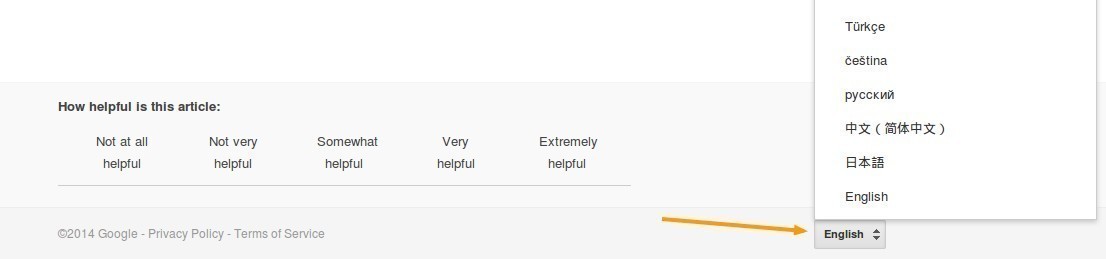
Save that file and paste it in:
Magento Root DirectoryLibWyomind google
Don't forget to apply the permissions 755 to the file.
You'll then be able to choose that specific taxonomy from your data feed configuration in the Categories tab.
Filters
Data Feed Manager also allows you to filter your products on several levels according to their attribute sets or their visibility for example.
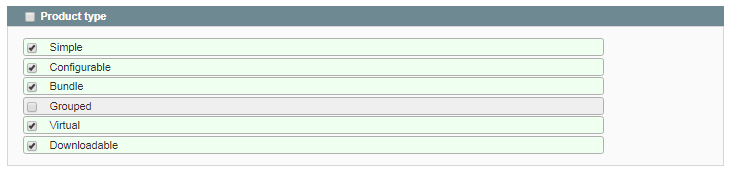
Product Type
First of all, you can choose to include products to your feed according to their type. For example, don't include grouped products.
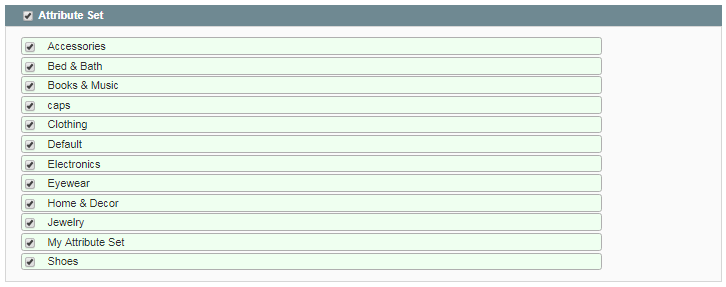
Attribute Set
You have the choice to include the attribute sets you want.
Product Visibility
Then, choose the products that will be included to the feed between the products that are not visible individually, products from the Catalog, the Search results, or both.

Advanced Filters
In the Advanced filters, you can go further by setting more personalized filters.
For example, we wanted to include only products which are enabled, and which SKU and name are not null.
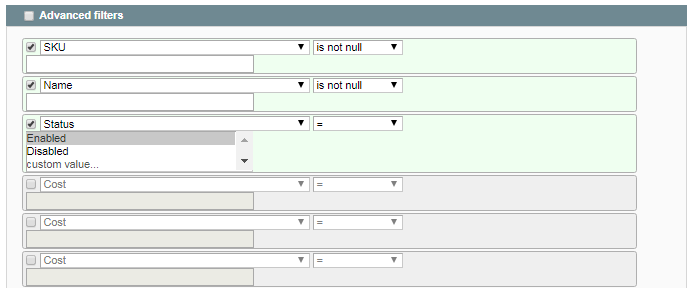 Here again, you have the possibility to configure your advanced filters according to several options.
- LIKE / NOT LIKE
name like %shirt: will include all products which name ends with 'shirt'.
name like Apple%: will include all products which name starts with 'Apple'.
name like %women%: will include all products which name contains the 'women' character string.
name not like %shirt: won't include any product which name ends with 'shirt'.
name not like Apple%: won't include any product which name starts with 'Apple'.
name not like %women%: won't include any product which name contains the 'women' character string.

- IS NULL / IS NOT NULL
Special price is null: will include all products that don't have special prices.
SKU is not null: will include all products which SKU is not null.

- IN / NOT IN
Brand in Acer Apple Sony: will include only products from these 3 brands.
Brand not in Dell Toshiba: will include all products which brand is not Dell or Toshiba.

Advanced filters can be grouped into sub-division by using AND/OR clauses.
(SKU LIKE ABC% AND Brand = Acer) OR (Brand IN Dell, Toshiba AND Price >= 99.99)
The option must be enabled in:
System ConfigurationWyomind Data Feed Manager
Scheduled Tasks
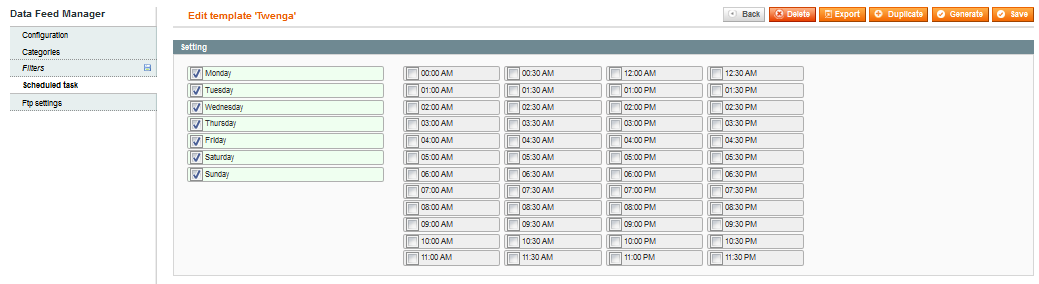
Data Feed Manager provides you a fully configurable schedule in the Scheduled task tab of your template configuration for each data feed. You just have to tick the days and hours when you want your feed to be generated.
FTP Settings
In Data Feed Manager, you can specify ftp settings to upload your data feeds.
Select a data feed and go to the Ftp Settings tab. There you'll be able to configure some parameters:
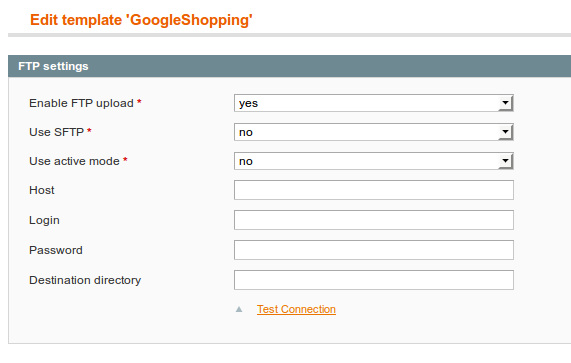
- Enable FTP upload
Select Yes if you want to upload your data feed using FTP. - Use SFTP
Select Yes if you are using SFTP.
Secure connection (sftp) is only available in the latest version of Data Feed Manager. - Use Active mode
If you are using SFTP, you don't have to care about the passive/active mode.
For more info about Active and Passive mode, have a look to that documentation. - Host
In that field, fill in the host. For example:
ftp.wyomind.com - Login
Is your login to connect to server - Password
Is your password to connect to server - Destination directory
Is a relative path from the entry directory when you connect to the ftp. For example:
upload/
or
/
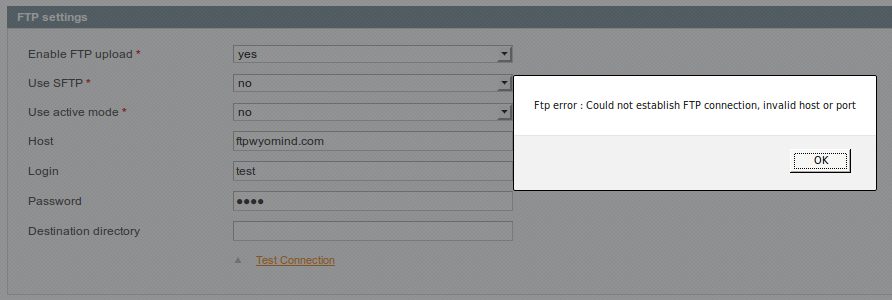
In order to be sure your settings are correct, click on Test Connection .
- If you don't have an error message, it means the connection succeeded.
- If you have an error message, you'll certainly have to check your credentials.
STEP 3: Generate and download the data feeds
Generate the data feeds
With Data Feed Manager, you can generate your data feed manually or automatically.
Manually
There are two different ways you can use to generate your data feeds manually:
- You can generate your data feeds in the grid from the action dropdown.

- Or you can do it from the data feed configuration panel by clicking on GENERATE
.

Via the cron tasks
You can generate your data feeds automatically using the
First, check that the main
 If it is disabled, a warning message will appear in Data Feed Manager:

Then, you have to select in the Scheduled Task tab, the days and time frames when you want the data feed to be updated.

From the command lines
Data Feed Manager allows generating data feed via the command lines
php -f shell/wyomind_datafeedmanager.php -- [options]The following options are available:
- --generate
Generate all data feeds - --generate id1,id2,...,idN
Generate data feeds from the given list - --list
List all data feeds
Download the data feeds
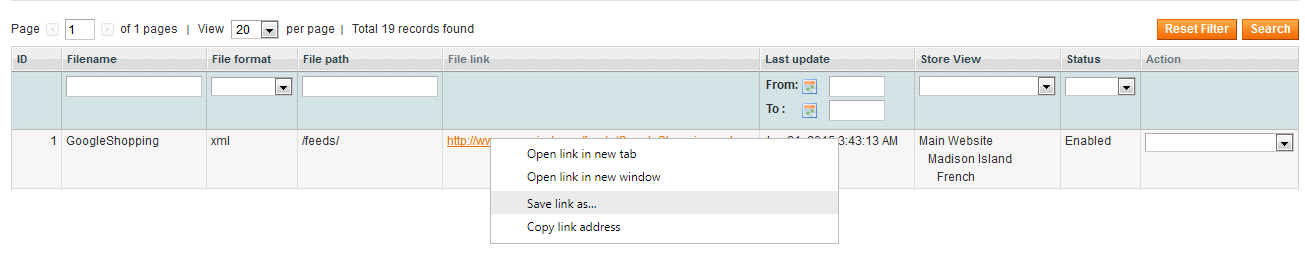
When a data feed is ready to be downloaded, the link is displayed in both, the data feed grid and the data feed page at the top of the page. You can download the data feed directly by right-clicking + saving link as or from your ftp client if the directory where the data feed is stored is not publicly accessible.
Manage your data feed templates thanks to Data Feed Manager
10 things to know when creating an XML data feed
All XML data feeds used by shopping engines, like the one used by Google Shopping, are really simple to build but often have their own specifications.
Simple Google Shopping and Data Feed Manager provide one or more ready-to-configure templates. These templates will allow you to build a valid and well-structured data feed quickly.
- An XML data feed is using an opening and closing tag that includes a value.
<tag>value</tag> - A data feed template is made of several tags including dynamic or fixed values.
<g:id>{sku}</g:id> <price>{price}</price> <g:brand>Fixed Brand</g:brand> - Dynamic values are called variables and use the attribute codes of your Magento website. Attribute codes must be surrounded by brackets
<g:id>{sku}</g:id> <title>{name}</title> <g:color>{color}</g:color> - Between every opening and closing tags, you can also include some fixed values. Fixed values are simply text.
<g:brand>YOUR BRAND</g:brand> - You have also the possibility to add several attributes and fixed values in a same tag.
<title>{name},available in {color}-{size} for only ${price}</title> - You're allowed to use PHP code if you want to customize the pattern. You just have to write your PHP code in one single line, and it will work perfectly (check how to add PHP scripts into your templates).
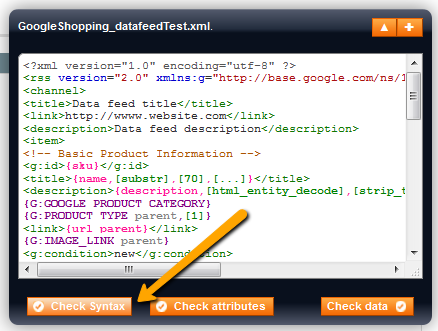
<g:gender><? if (stristr($product->getName(),"dress")) return "Female"; else "Male"; ?></g:gender> - The syntactic coloration in Data Feed Manager will help you to avoid any error in your template. First, the errors will be underlined in yellow. You need to correct each error before checking syntax once again. Finally, you'll be able to check data.
- Some Magic variables will act as shortcuts to create complete portions of XML in your data feed including the appropriate variables.
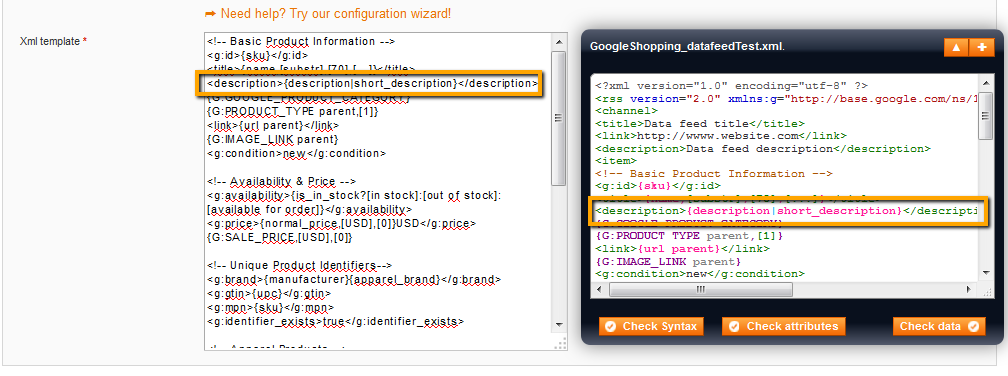
{G:PRODUCT_TYPE} - You can use one or more fallback variables in case the previous is empty or null.
{color | colour | custom_color}If attributeA exists then the value will be attributeA, otherwise, the value will be attributeB, etc...
- CDATA are recommended. CDATA stands for Character Data. It means that the data in between these tags include data that could be interpreted as XML markup, but should not be. (Wikipedia article).
<description> <![CDATA[<p>Fantastic <b>Watch</b>, that not only tells you what time it is, but also gives the weather trends</p>]]> </description>
10 things to know when creating a CSV/TXT data feed
Data Feed Manager allows you to generate CSV/TXT files in addition to XML files. This particular kind of file format is required by some shopping engines like Amazon, Shopzilla, Twenga, etc.
Data Feed Manager provides you all you need to create any specific CSV/TXT file that you want.
Each shopping engine has its own requirements and column names. Some require fields enclosure, others need specific delimiters.
You may also need to add a special header to your file (for Amazon data feeds for example).
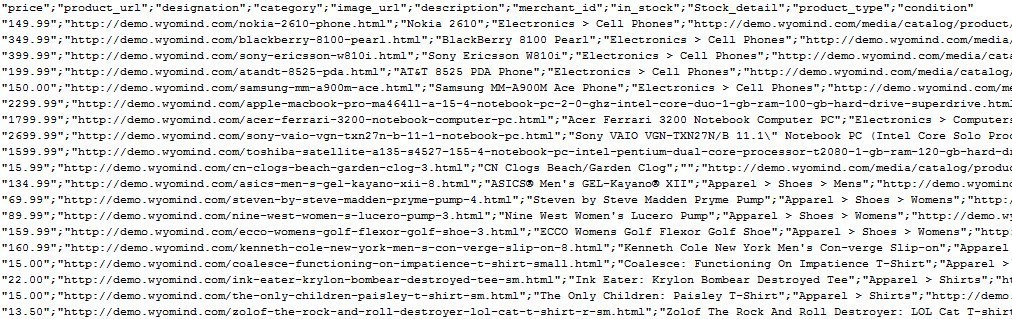
- A CSV file consists of any number of records. Each record consists of fields, separated by some other characters or strings. There is one row per record (so, one per product).
Here is an example of CSV file content:
- You need to define delimiters to separate your fields ( '; ', ', ', or tab for example) and enclosures for your data (" or ').
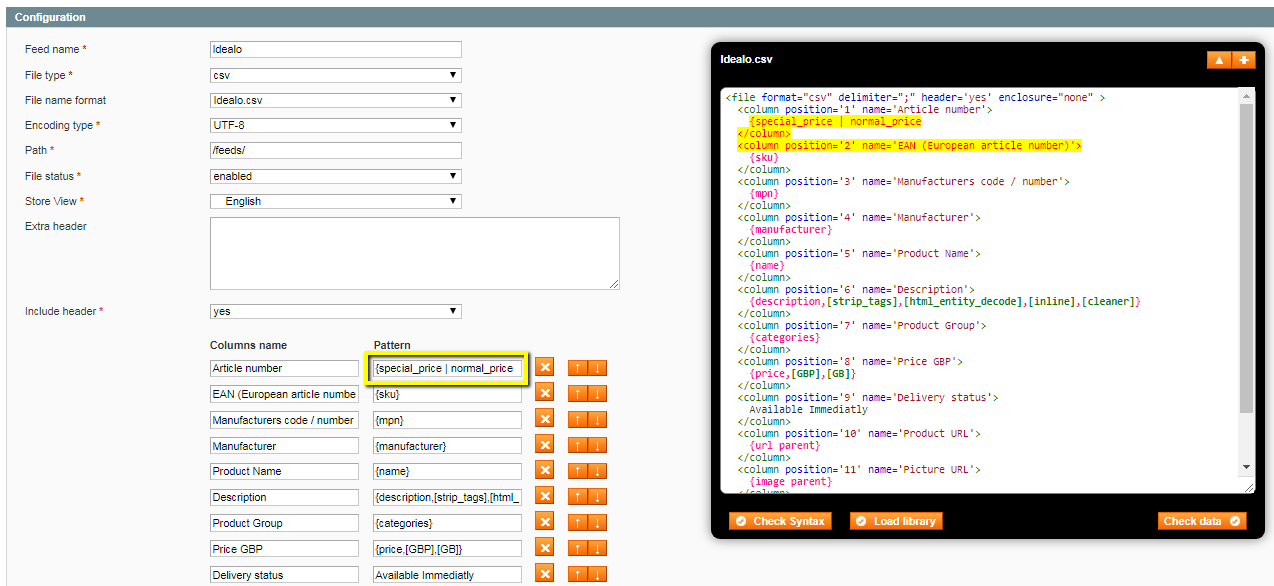
- You can enter the attribute names in each Columns name fields (check the shopping engine specifications to know which names are required). For example:

- You can include in each Pattern field one or several Magento attributes. An attribute is specified by its code name and must be enclosed using brackets. For example, to return the product's description, you should use:
{description}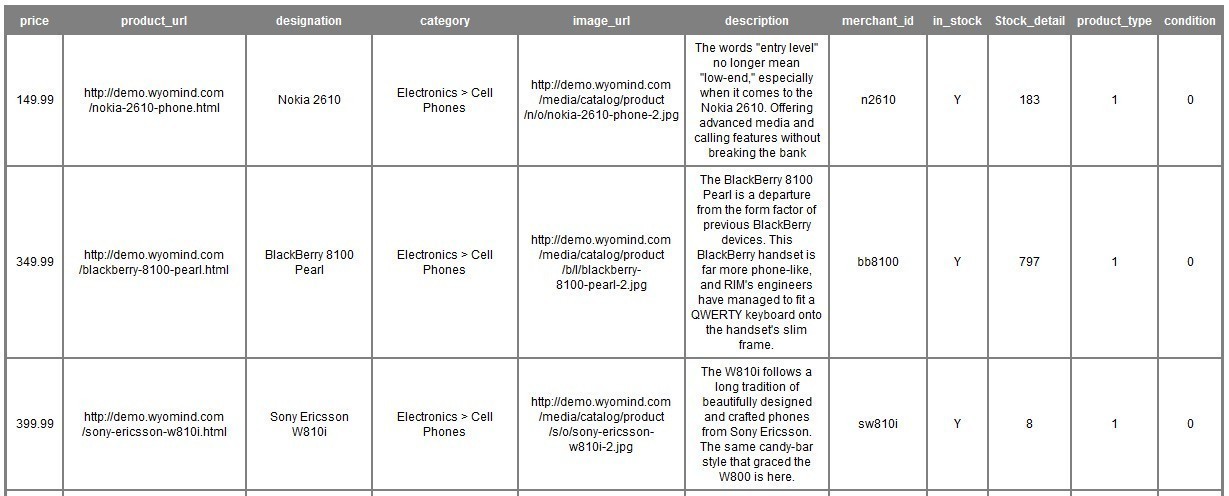
- You can also include some fixed values. Fixed values are simply text. For example, instead of the {manufacturer} attribute, you could use directly:
YOUR BRAND - You have also the possibility to add several attributes and fixed values in the same field. For example, instead of {url}, you could use:
{url}?_campaign=google&_adwords=test123 - You can use one or more fallback variables in case the previous is empty or null.
{brand | manufacturer} - You're allowed to use PHP code if you want to customize the pattern. You just have to write your PHP code in one single line, and it will work perfectly (check how to add PHP scripts into your templates).
- You can add a field by using the button Add field. The fields order can be easily reordered by using the up and down arrows.
- The syntactic coloration in Data Feed Manager will help you to avoid any error in your template. First, the errors will be underlined in yellow. You need to correct each error before checking syntax once again. Finally, you'll be able to Check data .
Attribute specifications
PARENT ATTRIBUTES
Most of the time simple products are related to parent products like configurable, grouped and bundle products. That is why you might need to retrieve Parent attribute values instead of simple product attribute values such as url, image, description...
All the above attributes (Basic, Special and Magic) may be used to retrieve a Parent attribute value instead of a product attribute value.
All options are still available, for example:
{description parent,[htmlentities]}{attribute_code parent}
Retrieves the first parent attribute value.
The parent value is retrieved only if the simple (item) product is associated with a parent product, if not, its own attribute value is retrieved.
The parent product may be a configurable, a grouped or a bundle product. The first parent product that matches the simple product is used to get the attribute value.
For example:
{G:PRODUCT_TYPE parent}
<g:product_type>{categories parent,[last]}</g:product_type>
{attribute_code configurable}
Retrieves the first configurable parent attribute value.
The configurable product value is retrieved only if the simple product is associated to a configurable product, if not, its own attribute value is retrieved.
For example:
{G:IMAGE_LINK configurable}
<g:image_link>{image configurable}</g:image_link>
{attribute_code grouped}
Retrieves the first grouped parent attribute value.
The grouped product value is retrieved only if the simple product is associated to a grouped product, if not, its own attribute value is retrieved.
For example:
{G:GOOGLE_PRODUCT_CATEGORY grouped}
<link>{url grouped}</link>
{attribute_code bundle}
Retrieves the first bundle parent attribute value.
The bundle product value is retrieved only if the simple product is associated to a bundle product, if not, its own attribute value is retrieved.
For example:
{G:SALE_PRICE bundle}
<g:price>{price bundle}</g:price>
PRODUCT IDENTIFIERS
{id}
Retrieves the product id.
For example:
<g:id>{id}</g:id>{G:ID}
Is the shortcut for:
<g:id>{sku}</g:id>You can retrieve the id instead of the sku by adding an option:
{G:ID,[id]}{G:ITEM_GROUP_ID}
Is the shortcut for:
<g:item_group_id>{sku configurable}</g:item_group_id>{sku}
Retrieves the product SKU.
For example:
<g:mpn>{sku}</g:mpn>{brand}
Retrieves the brand of the product.
For example:
<g:brand>{brand}</g:brand>{manufacturer}
Retrieves the brand of the product.
For example:
<g:manufacturer>{manufacturer}</g:manufacturer>BASIC INFORMATION
{inc}
<g:increment>{inc}</g:increment>{name}
Retrieves the product name.
Par exemple:
<g:title>{name}</g:title>{G:TITLE}
Is the shortcut for:
<title>{name}</title>{description}
Retrieves the description of the product.
For example:
<g:description>{description}</g:description>{G:DESCRIPTION}
Is the shortcut for:
<description>{description}</description>You can retrieve the short description instead by adding a parameter:
{G:DESCRIPTION,[short]}{short_description}
Retrieves the short description of the product.
For example:
<g:description>{short_description}</g:description>{condition}
Retrieves the condition of the product.
For example:
<g:condition>{condition}</g:condition>{weight}
Retrieves the weight of the product.
For example:
<g:weight>{weight}</g:weight>{magento_product_type}
Retrieves the Magento product type (simple, configurable...).
For example:
<magento_product_type>{magento_product_type}</magento_product_type>PRICES AND PROMOTIONS
{price}
Retrieves the normal price or the special price if it exists.
If prices are exclusive of VAT and the product is liable to a unique VAT rate, the price retrieved will include this rate. Otherwise, the price exclusive of tax is retrieved.
For example:
<g:price>{price}</g:price>You also have the possibility to use some parameters with this attribute:
- currency is for currency conversion. This option automatically converts the original product price to a specified currency. It uses an exchange rate already stored by you in your admin panel. By default, your local currency is used.
- vat_rate is a floating value between 0.00 and 100.00 that represents an arbitrary VAT rate to apply. This option rewrites the VAT rule for the product except if the product doesn't have any tax class.
<g:price>{price,[currency],[vat_rate]}</g:price>Here are some examples:
To convert the prices to EUR and apply a 20% VAT rate:
<g:price>{price,[EUR],[20.0]}</g:price>To convert the prices to USD and not apply any VAT rate:
<g:price>{price,[USD],[0]}</g:price>If the prices of your catalog are already including VAT:
<g:price>{price,[EUR]}</g:price>To use an ISO2 code corresponding to one of the countries for which you specified a VAT rate in your tax settings (from Simple Google Shopping >= 5.1.0, and Data Feed Manager >= 3.0.0 ):
<g:price>{price,[EUR],[FR]}</g:price>This code may also be completed by an area code:
<g:price>{price,[USD],[US/NY]}</g:price>To apply the VAT corresponding to a country/area:
<g:price>{price,[USD],[-US/NY]}</g:price>To retrieve prices including different price values for simple products associated to a configurable one (from Data Feed Manager v7.3 ):
<g:price>{price parent,[EUR],[20.0]}</g:price>{G:PRICE}
Is the shortcut for:
<g:price>{price}</g:price>{normal_price}
Retrieves the price and ignores any existing special price value.
<g:price>{normal_price}</g:price>{special_price}
Retrieves the promotional price (special price) if exists.
If this price doesn't exist the value is null.
<g:price>{special_price}</g:price>{price_rules}
Retrieves either the price or the special price or the price including the catalog price rules if indicated.
For example:
<g:price>{price_rules}</g:price>You also have the possibility to use some parameters with this attribute:
- currency is for currency conversion. This option automatically converts the original product price to a specified currency. It uses an exchange rate already stored by you in your admin panel. By default, your local currency is used.
- vat_rate is a floating value between 0.00 and 100.00 that represents an arbitrary VAT rate to apply. This option rewrites the VAT rule for the product except if the product doesn't have any tax class.
- customer_group_id allows you to determine which price rules must apply for a given custom group id (by default the "NOT LOGGED IN" customer group applies).
<g:price>{price_rules,[currency],[vat_rate],[customer_group_id]}</g:price>{group_price}
Retrieves the group price if it exists. Otherwise, it displays the normal price.
For example:
<g:price>{group_price,[1],[USD],[0]}</g:price>You also have the possibility to use some parameters with this attribute:
- customer_group is the id of the customer group for which the group price is valid (check in:Customerscustomer groups).
- currency is for currency conversion. This option automatically converts the original product price to a specified currency. It uses an exchange rate already stored by you in your admin panel. By default, your local currency is used.
- vat_rate is a floating value between 0.00 and 100.00 that represents an arbitrary VAT rate to apply. This option rewrites the VAT rule for the product except if the product doesn't have any tax class.
<g:price>{group_price,[customer_group],[currency],[vat_rate]}</g:price>{G:SALE_PRICE}
<g:sale_price>{special_price}</g:sale_price>
<g:sale_price_effective_date>{special_from_date}/{special_to_date}</g:sale_price_effective_date><g:price>{normal_price}</g:price>
{G:SALE_PRICE}{is_special_price}
- value_if_yes value to retrieve if a special price exists. By default 1.
- value_if_no value to retrieve if no special price exists. By default 0.
For example:
<g:is_special_price>{is_special_price?[yes]:[no]}<g:is_special_price>{tier_price}
Retrieves the tier price if it exists, otherwise, the value is null.
For example:
<g:price>{tier_price}</g:price>You also have the possibility to use some parameters with this attribute:
- customer_group is the id of the customer group for which the tier price is valid (check inCustomersCustomer Groups).
index is the index of the Tier Price you want to retrieve.- currency is for currency conversion. This option automatically converts the original product price to a specified currency. It uses an exchange rate already stored by you in your admin panel. By default, your local currency is used.
- vat_rate is a floating value between 0.00 and 100.00 that represents an arbitrary VAT rate to apply. This option rewrites the VAT rule for the product except if the product doesn't have any tax class.
<g:price>{tier_price,[customer_group],[index],[currency],[vat_rate]}</g:price>{min_price}
Retrieves the minimum price.
<g:price>{min_price,[EUR],[20.0]}</g:price>{max_price}
Retrieves the maximum price.
<g:price>{max_price,[EUR],[20.0]}</g:price>{G:PROMOTION_ID}
Retrieves the product promotion id if exists.
To know more about the use of this attribute, check out our doc on Google Merchant Promotions extension.LINKS
{url}
<g:link>{url}</g:link>The url attribute can receive the currency code as a url parameter to display the landing page with a specific currency, for example:
<g:link>{url}?currency=USD</g:link>
With children of configurable products {url} can be used with one additional parameter as follows:
{url,[variant]}
- variant (optional): generates the url of the configurable product including additional parameters that may help to display the price of the variant and to pre-select the configurable attribute
<link>{url,[variant]}</link>
// return for example: https://www.website.com/product-page.html?c=583&391=768#391=768{G:LINK}
Is the shortcut for:
<link>{url}</link>{image}
- index is the index of any additional images to retrieve. By default 0 (the main image).
For example:
<g:image_link>{image,[0]}</g:image_link>{G:IMAGE_LINK}
<g:image_link>{image}</g:image_link>
<g:additional_image_link>{image,[1]}</g:additional_image_link>
<g:additional_image_link>{image,[2]}</g:additional_image_link>
...
{host}
Retrieves the host url, for example https://www.website.com.
An example with attribute {small_image}:
<g:image_link>{host}/media/catalog/{small_image}</g:image_link>{url_key}
<g:url>https://www.mywebsite.com/mystore_code/{url_key}</g:url>CATEGORIES
{categories}
Retrieves a list of category paths separated by "," in which the product may be found.
{categories,[number_of_category_path],[from_category_level],[number_of_categories_in_each_path]}
- number_of _category_path, by default infinity
- from_category_level, by default 1 (root catalog)
- number_of_categories_in_each_path, by default infinity
For example:
<g:categories>{categories,[INF],[1],[INF]}<g:categories>2 arguments can be used to specify the path separator and the category separator:
{categories,[path_separator],[category_separator]}
- path_separator, by default "comma" (,).
- category_separator, by default "higher than" (>)
For example:
<g:categories>{categories,[,],[>]}<g:categories>Only one argument can be used to get the first or the last (deepest) category path:
For example:
<g:categories>{categories,[last]}<g:categories>
<g:categories>{categories,[first]}<g:categories>
A complete list of all categories per product can be retrieved with the following method:
<? $product->getCategoriesArray(); ?>{G:PRODUCT_TYPE}
<g:product_type>category A > sub-category B </g:product_type>
<g:product_type>category A > sub-category B > sub-category C</g:product_type>{category_mapping}
Retrieves any new category that you have assigned (in the Categories filter) to the item's own product category. If no mapping is assigned to the first category found, the second category will be used etc.
{category_mapping,[index]}
- index: index of the category mapping
For example:
<category>{category_mapping,[0]}</category>
<category>{category_mapping,[1]}</category>
<category>{category_mapping,[2]}</category>
<category>{category_mapping,[3]}</category>
<category>{category_mapping,[4]}</category>
Will retrieve a maximum of 5 category mappings in 5 separate tags.
{G:GOOGLE_PRODUCT_CATEGORY}
Is the shortcut for:
<g:google_product_category>{category_mapping,[0]}</g:google_product_category>This magic attribute retrieves the Google category that you assigned (in filter section/category filter) of the first category found to which the product is linked. If no Google category is assigned to the first category found, the second category will be used, if no Google category is assigned to the second, the third will be used etc.
To find the Google categories that match with your categories:
Google Product Category documentation
{attribute_set}
Retrieves the attribute set in which the product is.
For example:
<attribute_set>{attribute_set}</attribute_set>That attribute can be useful for your Adwords campaigns.
AVAILABILITY
{status}
Retrieves either "enabled" if the product is enabled or "disabled" if the product is disabled.
{status,[value_if_enabled],[value_if_disabled]}
You can modify the default values:
- value_if_enabled: value to retrieve if the product is enabled
- value_if_disabled: value to retrieve if the product is disabled
For example:
<g:status>{status,[enabled],[disabled]}</g:status>{stock_status}
Retrieves the stock status "in stock" or "out of stock".
For example:
<g:availability>{stock_status,[instock],[outofstock]}</g:availability>{G:AVAILABILITY}
is the shortcut for:
<g:availability>{is_in_stock?[in stock]:[out of stock]:[available for order]}</g:availability>{is_in_stock}
- value_if_in_stock value to retrieve if the product is in stock
- value_if_out_of_stock value to retrieve if the product is out of stock
- value_if_preorder value to retrieve if the product is backorderable
For example:
<g:availability>{is_in_stock?[in stock]:[out of stock]:[preorder]}</g:availability>{qty}
Retrieves the available quantity.
The quantity retrieved for the configurable products is based on the sum of simple products.
For example:
<g:availability>{qty}</g:availability>{min_sale_qty}
Retrieves the minimal sale quantity.
For example:
<g:min_sale_qty>{min_sale_qty}</g:min_sale_qty>REVIEWS
{review_count}
{review_count,[storeview_id]}
- storeview_id is the id of your store view. If not specified the current store view is used.
"*" will count all reviews for all store views.
For example:
<g:product_review_count>{review_count,[*]}</g:product_review_count>{review_average}
Retrieves the average score of all the evaluations that your customers have left for the product.
{review_average,[storeview_id],[ base_value]}
- storeview_id id of your store view. If not specified the current store view is used.
"*" will count all reviews for all store views. - base_value the base number. By default 5.
For example:
<g:product_review_average>{review_average,[*],[3]}</g:product_review_average>{G:PRODUCT_REVIEW}
<g:product_review_average>{review_average}</g:product_review_average>
<g:product_review_count>{review_count}</g:product_review_count>PRODUCT VARIANTS
{gender}
Retrieves the gender of the product.
For example:
<g:gender>{gender}</g:gender>{age_group}
Retrieves the age group of the product.
For example:
<g:age_group>{age_group}</g:age_group>{color}
Retrieves the color of the product.
For example:
<g:color>{color}</g:color>{size}
Retrieves the size of the product.
For example:
<g:size>{size}</g:size>{material}
Retrieves the material of the product.
For example:
<g:material>{material}</g:material>{pattern}
Retrieves the pattern of the product.
For example:
<g:pattern>{pattern}</g:pattern>BASIC OPTIONS
Basic attributes are the default attributes defined in Magento and also include any attributes you have defined for your products. (eg: name, description, short_description, weight, size, color)
You can apply one or more options to all of these attributes by using the following syntax:
{attribute_code,[option1],[option2],[option3],[...]}All options are executed in the written order eg:
<title>{name}</title>
<title>{name,[htmlentities],[strtolower]}</title>
<title>{name,[htmlentities],[strtolower],[ucwords]}</title>
will produce:
<title>NOKIA© 2610 Phone</title>
<title>nokia© 2610 phone</title>
<title>Nokia© 2610 Phone</title>{attribute_code,[strip_tags]}
Remove all html tags.
For example:
<description>{description,[strip_tags]}</description>{attribute_code,[cleaner]}
Remove all characters that don't belong to the UTF8 charset.
For example:
<title>{name,[cleaner]}</title>{attribute_code,[substr],[max_length],[end_string]}
- max_length: maximum length of the value
- end_string: string that will be added at the end of the string. By default: [...]
For example:
<description>{description,[substr],[50],[...]}</description>{attribute_code,[strtoupper]}
Transforms the value to upper case.
For example:
<title>{name,[strtoupper]}</title>{attribute_code,[strtolower]}
Transforms the value to lower case.
For example:
<title>{name,[strtolower]}</title>{attribute_code,[inline]}
Removes all EOL characters from the value.
For example:
<description>{description,[inline]}</description>{attribute_code,[html_entity_decode]}
Converts all HTML entities to their applicable characters.
For example:
<description>{description,[html_entity_decode]}</description>{attribute_code,[htmlentities]}
Converts all applicable characters to HTML entities.
For example:
<description>{description,[htmlentities]}</description>{attribute_code,[implode],[separating_string]}
Joins all array elements in a string.
- separating_string: string used between each value. By default it is a comma (,).
May be useful for multi-select attributes like color.
For example:
<g:color>{color,[implode],[,]}</g:color>will give:
black, blue, red, green
{attribute_code,[float],[decimals]}
Converts a numeric value to a floating number.
- decimals: number of floating number. By default [0].
<g:shipping_weight>{weight,[float],[2]}kg</g:shipping_weight>STOCK IN THE CHANNEL USERS
The Stocks in The Channel users can use the following attributes in order to build their data feeds :
{SC:URL}
Retrieves the canonical URL of the product:
<link>https://www.example.com/product.html</link>{SC:EAN}
Retrieves the unique ean value of the product:
<g:ean>1234567891234</g:ean>{SC:IMAGES}
Retrieves the associated image of each product:
<g:image_link>https://www.example.com/media/catalog/image.jpg</g:image_link>{SC:DESCRIPTION}
Retrieves the description for the product:
<g:description>...product description ...</g:description>A default value is retrieved when the description is empty.
PHP API for Data Feed Manager
With Data Feed Manager you can use PHP scripts in different ways to fully customize and control the data feed output.
- Inline PHP scripts
Scripts that are added directly in the data feed template surrounded by PHP short tags (<? ... ?>).
For example, to resize your images:
<? /* {images} */ return Mage::helper('catalog/image')->init($product, 'image')->resize(265,265); ?>
- Custom attributes
Scripts that can be called by using the custom attribute name just like you do for any attribute in your data feed template.
See examples of custom attributes. - Custom functions
Functions that can be called by using the function name and additional parameters and that can be applied to any attribute in your data feed template.
See examples of custom options.
API coding standards
The Data Feed Manager PHP API uses the exact same syntax and standards as any PHP coding.
Attribute calls
For performance reasons, Data Feed Manager only loads in the collection of products the attributes that are explicitly required in the data feed template.
This means that only the attributes that are called using the template placeholders, {attribute_code}, will be added to the collection of products.
As a consequence, when you try to access the value of an attribute from the $product object, you must be sure that the attribute has been added to the collection.
Most of the time when the returned value is null for a given attribute, it means the attribute is not loaded in the collection of products.
The best way to be sure that all the attributes you need are well loaded in the
<?
/* list of required attributes
* {attribute_1} {attribute_2} {attribute_3} {attribute_4}...
*/
?>
Then you should be able to get the values of these attributes in your PHP script:
<? return $product->getAttribute1();?>
<? return $product->getAttribute2();?>
<? return $product->getAttribute3();?>
....
PHP functions in attribute calls
You can use any PHP function to apply in the attribute calls even if the function requires one or more additional arguments, for instance:
{name,[str_replace("Apple","Banana",$self)]}You can use several consecutive functions:
{ean,[str_pad($self,10,"0",STR_PAD_LEFT)],[str_replace("X","0",$self)]}Conditional values
To output values based on different conditions, use PHP conditional statements:
- if/else
<? /* attribute {sku} required */ if ($product->getSku()=="abc"){ return "Alphabetic"; } elseif($product->getSku()=="123"){ return "Numeric"; } else{ return "Mixed"; } ?> - switch/case
<?
/* attribute {sku} required */
switch($product->getSku()){
case "abc":
return "Alphabetic";
break;
case "123":
return "Numeric";
break;
default:
return "Mixed";
}
?>
Opening and closing tags
When using the PHP API inline directly in your data feed template, you must use the opening and closing short PHP tags (<? ... ?>)
<?
if($product->getData('size')=="X-Large") {
return "XL";
}
?>
Outputting a value
- Return
Any value that you want to output in your data feed, must be returned with the return instruction.
<? return "Don't miss! ".$product->getTitle(); ?>
/* This script adds for each product in data feed  a new ouput line
*  Don't miss! Iphone 5
*  Don't miss! Galaxy note 7
*  ...
*/- echo, var_dump, print_r
Any value printed in the data feed through these functions will be rendered at the top of the data feed and will not be added to the final file.
Such functions must be used for debugging purposes.
<? var_dump($product->getTitle()); ?>
/* This script adds for each product in data feed  a new debugging trace
*  String(8) "Iphone 5"
*  String(13) "Galaxy note 7"
*  ...
*/
Variables scope
All variables available in PHP scripts have a local scope, this means they can't be shared between several scripts.
If you wish to share a variable with different scripts all along the data feed generation process, then the variable must be set as a global variable.
<?
global $increment;
$increment++;
return $increment;
/* This script will output a incremental $variable
* 1
* 2
* 3
* ...
*/
?>
API Objects, Variables and Methods
Object $product
$product is an instance of Mage_Catalog_Model_Product. It contains all methods available by default and some other specific to Data Feed Manager.
The list below is not exhaustive but lists the most useful methods.
- $product->getCategoriesArray()
Retrieves an array of arrays that describes the categories to which belongs the products - $product->getCategoryIds()
Lists all category ids in which the product may be found - $product->getVisibility()
Returns the visibility of the product (1 = not visible individually, 2 = catalog, 3 = search, 4 = catalog and search) - $product->getStatus()
Returns the status of the product (1 = enabled, 2 = disabled) - $product->getData($attributeCode)
Returns the value of the given attribute code - $product->getAttributeText($attributeCode)
Returns the textual value of the given attribute code
Object $this
$this is an instance of Wyomind_datafeedmanager_Model_Feed. It provides a few useful methods.
- $this->hasParent($product, $type="parent")
Returns a Boolean value whether a product has a parent from the given type (parent, configurable, grouped, bundle) or not
- $this->getParent($product, $type="parent", $strict=false)
Returns a product object of the given parent type (parent, configurable, grouped, bundle) if available or the product object passed as 1st parameter when $strict parameter is set on false. - $this->skip()
Skips the current product, useful to filter out some products based on specific condition
String | Integer | Boolean | Array $self
$self is the value of the attribute for the current product.
This variable is available only in the custom attributes, and in the custom functions.Variable $param
The variable $param contains an array of the parameters that have been passed to the custom function.
{{ean,[str_pad],[10],[0]}}The custom function
<?
/* var_dump($param) gives
*  Array(3)[
*    0 => String(7) "str_pad",
*    1 => String(2) "10"
*    2 => String(1) "0"
*  ]
*/
return str_pad($self,$param[1],$param[2],STR_PAD_LEFT);
?>Use custom attributes
Create custom attributes
Data Feed Manager allows you to create your own attributes and to add them to your data feed.
To create custom attributes from your Magento admin, go to:
Catalog Data Feed Manager Custom Attributes
Some templates of use are loaded by default when installing the extension.
Here is how to proceed:
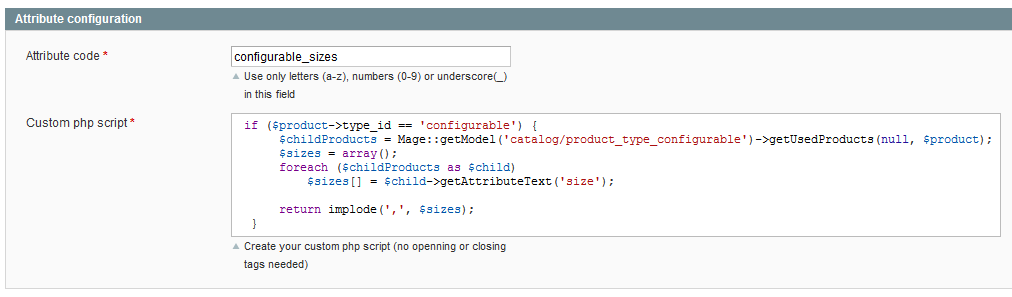
- Create a new attribute.

- Fill in the attribute code with the name of your custom attribute

- Add your custom script. No need to add the PHP tags (<? ... ?>)
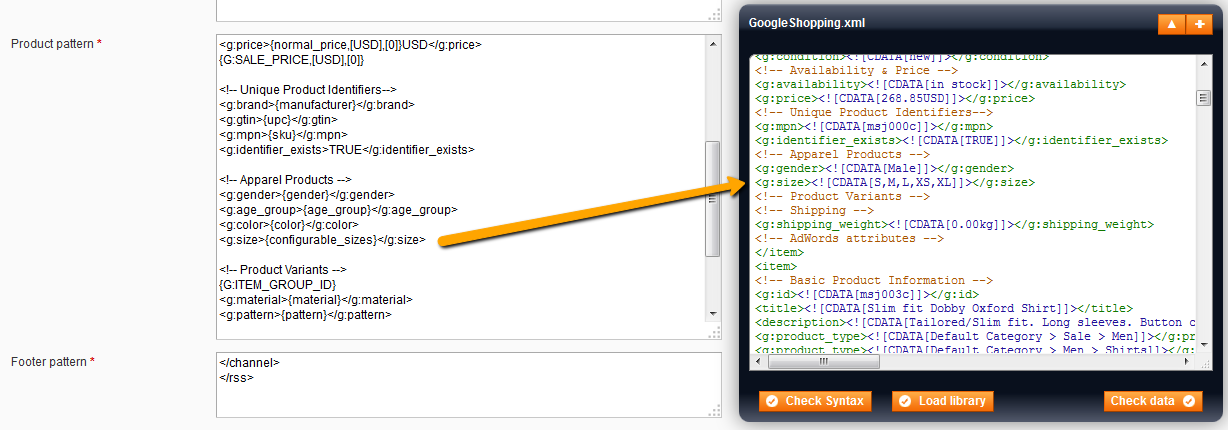
- Add the new custom attribute into your data feed template in:
CatalogData Feed ManagerData Feed
Examples of custom attributes
Replace some words in the product descriptions:
<?
$search=array('Nokia','BlackBerry','apple');
$replace=array("NOKIA","BLACKBERRY","APPLE");
return str_ireplace($search, $replace,$product->getDescription());
?>
Create a thumbnail of the product image:
<? return Mage::helper('catalog/image')->init($product, 'image')->resize(265,265); ?>
Filter out products that match a condition:
<?
if(strlen($product->getUpc())>=12) return $product->getUpc();
elseif ($product->getMpn()) return $product->getMpn();
else $this->skip();
?>
Calculate the sum of all quantity available for a configurable product:
<?
$childProducts = Mage::getModel('catalog/product_type_configurable')->getUsedProducts(null,$product);
$stock_count=0;
foreach($childProducts as $child){
$stock_count+=(int)Mage::getModel('cataloginventory/stock_item')->loadByProduct($child)->getQty();
}
return "<g:quantity>".$stock_count."</g:quantity> ";
?>
Use custom options
Create custom options
Data Feed Manager also allows you to create custom functions.
To create your own functions, go to:
CatalogData Feed ManagerCustom functions
Here is how to proceed:
- Create a new option.
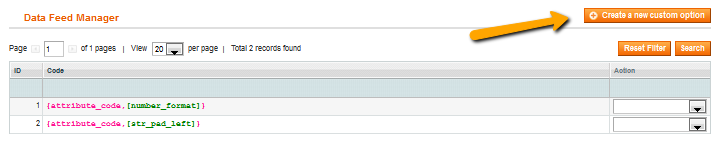
- Fill in the option name with the name of your custom option.
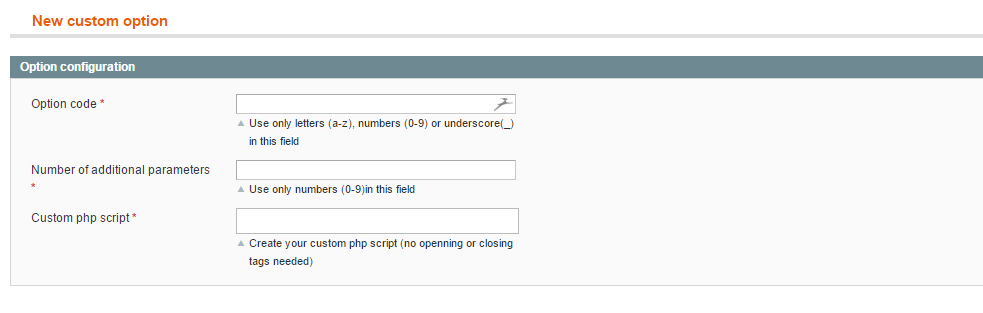
- Define the number of additional parameters expected by your custom option.

- Add your custom script - No need to add the PHP tags (<? ... ?>)
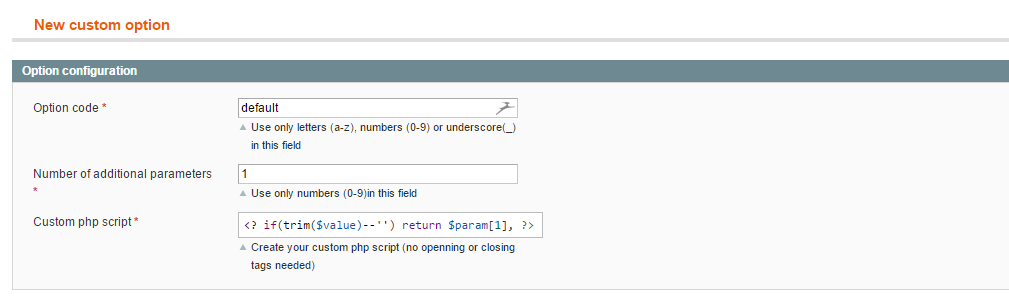
- Add the new custom option into your data feed template.
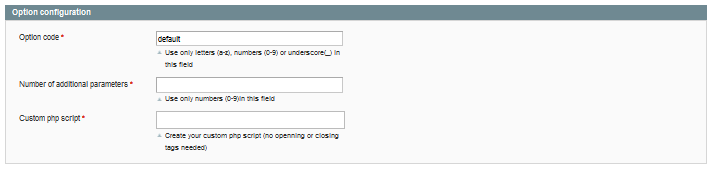

Examples of custom options
Pad an attribute to a certain length with another string:
<?
/*
* {{ean,[str_pad],[10],[0]}}
* when ean is 12345, then the output is 0000012345
*/
return str_pad($self,$param[1],$param[2],STR_PAD_LEFT)
/*
* could also be used as a inline function
* {{ean,[str_pad($self,10,0,STR_PAD_LEFT)]}}
*/
?>
Format a number:
<?
/*
* {{price,[number_format],[2],[,]}}
* when price is 9.99345, then the output is 9,99
*/
return number_format($self,$param[1],$param[2],' ')
/*
* could also be used as a inline function
* {{ean,[number_format($self,2,',',' ')]}}
*/
?>
Shopping engines configurations
How to configure my template with Google Shopping?
Useful links for Google Shopping
Google Shopping allows you to create data feed in destination of Google Shopping.
Here are some tips which will be useful to create your data feed.
First, we recommend you to look at these 2 links which will be helpful:
Once your data feed has been uploaded to your Google Merchant account, you can check what products have been added to the Google Shopping index:
https://www.google.com/products?authorid=[your Account ID]
File format with Google Shopping
Google Shopping handles CSV or XML file format (More information).
The following explanations will only concern the most used method: XML files.
File names should remain consistent for all updates.
Do not include the date in your file name.
File name cannot contain spaces or illegal symbols.
Required attributes with Google Shopping
Required attributes with Google Shopping depend on what kind of products you want to submit.
For complete information about required attributes, please refer to the dedicated page on the Merchant Center.
Here are the most frequent required attributes used by Google Shopping.
(Between brackets, specific name for XML files)
| Attribute | Description | |
|---|---|---|
| General attributes |
id (<g:id>) |
The unique identifier for your product (usually the SKU code) |
| Title (<title>) |
The name of your item (limited to 70 characters) For variant products, you are required to include the common title of the variant items. |
|
| Description (<description>) |
The description of the item. Google Shopping recommend you submit around 500 to 1000 characters, but you can submit up to 10000 characters. |
|
| Google product category (<g:google_product_category>) |
Google's category of the item. Indicates the category of the product being submitted, according to the Google product taxonomy. By example, for hard drives items: Electronics > Computers > Computer Components > Storage Devices > Hard Drives Please refer to our Category mapping FAQ to understand how to use it with Simple Google Shopping. |
|
| Link (<link>) |
The URL directly linking to your item's page on your website. Note: In addition, you may also specify an adwords_redirect attribute for tracking purposes. |
|
| Image link (<g:image_link>) |
The URL of the main image of the item. Google Shopping recommends images of at least 400 x 400 pixels. The accepted image formats are JPG (or JPEG), PNG, GIF, BMP and TIFF. |
|
| Condition (<g:condition>) |
The condition or state of the item. Only accepted values: new, used, refurbished. |
|
| Prices and Availability |
Availability (<g:availability>) |
The availability status of the item Only accepted values: in stock, available for order, out of stock, preorder |
| Price (<g:price>) |
The price of the item. Important : - For the US, don't include tax in the price. For all other countries, value added tax (VAT) has to be included in the price. - The price must include a currency according to ISO 4217 Standard. (by example : EUR for euros, USD for US Dollars, GBP for pounds). - For products on sale, you must use <g:sale_price> (see below) and use normal price in <g:price>. Example : <g:price>15.00 USD</g:price> |
|
| Unique Product Identifiers |
Note about unique product identifiers : except for custom made items, you need to submit at least two of the three attributes 'brand', 'gtin' and 'mpn'. | |
| Brand (<g:brand>) |
The brand of the item. You must not provide your store name as the brand unless you manufacture the product. |
|
| GTIN (<g:gtin>) |
Global Trade Item Number (GTIN) of the item. These identifiers include UPC (in North America), EAN (in Europe), JAN (in Japan), and ISBN (for books). |
|
| MPN (<g:mpn>) |
Manufacturer Part Number (MPN) of the item. This code uniquely identifies the product to its manufacturer. |
|
| Only Apparel Products |
Gender (<g:gender>) |
3 accepted values: male, female, unisex. Note: Required for all apparel items in feeds that target the US, UK, DE, FR, and JP. Recommended for other countries and product categories (might become required in the future). |
| Age group (<g:age_group>) |
2 accepted values: adult, kids. Note : Required for all apparel items in feeds that target the US, UK, DE, FR, and JP. Recommended for other countries and product categories (might become required in the future). |
|
| Shared by Apparel and Variants |
color (<g:color>) |
Color of the item. This defines the dominant color(s) of an item. Note : When a single item has multiple colors, combine them with '/' (/ with XML files) in order of prominence (dominant color first, then accent colors). |
| Size (<g:size>) |
Size of the item. Note : - required for 'clothing' and 'shoes' sub-categories within the 'apparel and accessories' category targeting the US, UK, DE, FR, and JP. - For apparel variants submitted to the US, UK, DE, FR, and JP: Each different size or size combination must be submitted as its own item, in conjunction with the 'item group id' (<g:item_group_id>). |
|
| Item group id (<g:item_group_id>) |
Shared identifier for all variants of the same product. Allows to identify all variations (size and/or color) of a same item. We recommend you to use the product'SKU parent as item group id value |
|
Recommended attributes with Google Shopping
Here are some attributes (non-exhaustive list) recommended by Google Shopping that we think could be quite useful to add in your template:
(Between brackets, specific name for XML files)
| Attribute | Description | |
|---|---|---|
| General attributes |
Product type (<g:product_type>) |
Your category of the item. This attribute also indicates the category of the product being submitted, but you can provide your own classification. You can include more than one 'product type' attribute value if products apply to more than one category. |
| Additional image link (<g:additional_image_link>) |
Additional URLs of images of the item. You can include up to 10 additional images per item by including the attribute multiple times. |
|
| Sale price (<g:sale_price>) |
Advertised sale price of the item. Important: - You must still include the <g:price> attribute in your feed, which must reflect the non-sale price you have previously sold the item for. - As the normal price, the sale price must include a currency according to ISO 4217 Standard. - You must not include a price value of 0.00 USD. |
|
| Sale price effective date (<g:sale_price_effective_date>) |
Used in conjunction with sale price, this attribute indicates the date range during which the sale price applies. Information about time format: Start and end dates separated by a forward slash (/). The start is specified by the format (YYYY-MM-DD), followed by the letter T, the time of the day when the sale starts, followed by an expression of the timezone for the sale. The end date should be in the same format. Example: 2011-03-01T13:00-0800/2011-03-11T15:30-0800 |
|
| Tax and Shipping |
Tax (<g:tax>) |
Value added tax (VAT). Providing this attribute for an item overrides the default tax costs specified in your Google Merchant Center settings. Note: This attribute is only accepted in the US, if your feed targets a country outside of the US, please do not use this attribute. |
| Shipping (<g:shipping>) |
Shipping cost. Providing this attribute for an item overrides the global shipping settings you defined in your Google Merchant Center settings. More information about shipping and tax |
|
| Shipping weight (<g:shipping_weight>) |
The weight of the product used to calculate the shipping cost of the item. If you have specified a global shipping rule that is dependent on shipping weight, this attribute will be used to calculate the shipping cost of the item automatically. Accepted weight units: lb, oz, g, kg. |
|
| AdWords attributes |
Note : These attributes help you to organize your AdWords campaigns and track the traffic to your website. | |
| Adwords grouping (<g:adwords_grouping>) |
Used to group products in an arbitrary way. It can be used for Product Filters to limit a campaign to a group of products, or Product Targets to bid differently for a group of products. Required if you want to bid differently to different subsets of products in the CPC or CPA % version. It can only hold one value. Example: <g:adwords_grouping>comforters</g:adwords_grouping> |
|
| Adwords labels (<g:adwords_labels>) |
Very similar to <g:adwords_grouping>, but it will only work on CPC. It can hold multiple values, allowing a product to be tagged with multiple labels. Example: <g:adwords_labels>clothing</g:adwords_labels> <g:adwords_labels>shoes</g:adwords_labels> |
|
| Adwords redirect (<g:adwords_redirect>) |
Allows advertisers to specify a separate URL that can be used to track traffic coming from Google Shopping. Example: <g:adwords_redirect>https://www.merchant.com/product.html </g:adwords_redirect> |
|
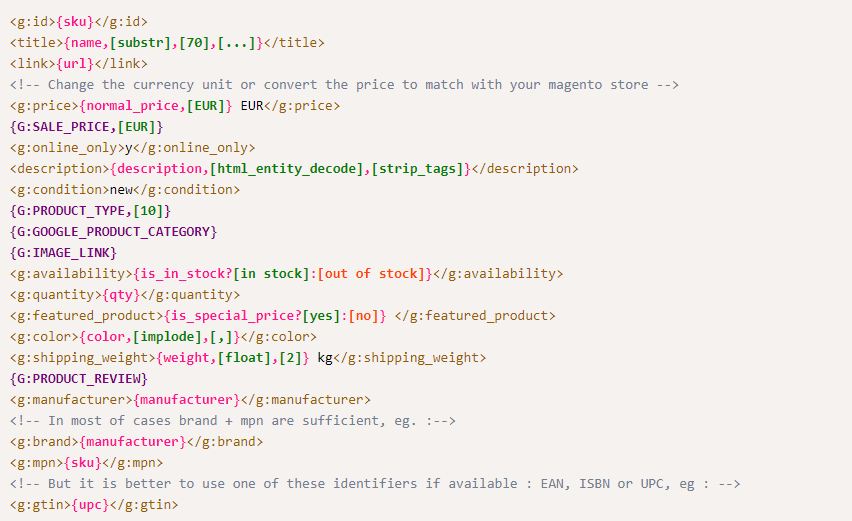
Example of template with XML format with Google Shopping
Here is an example of template in XML format:
How to create a data feed in Google Merchant Center?
In order to submit your products to Google Shopping, you'll have to create a data feed in your Google Merchant Center.
Once you're login into Google Merchant Center, go in the Data feeds section.
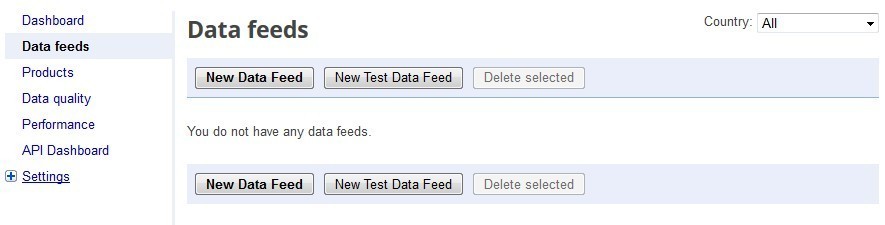
You can choose between creating a New Data Feed and a New Test Data Feed.
We recommend that you start by creating a New Test Data Feed.
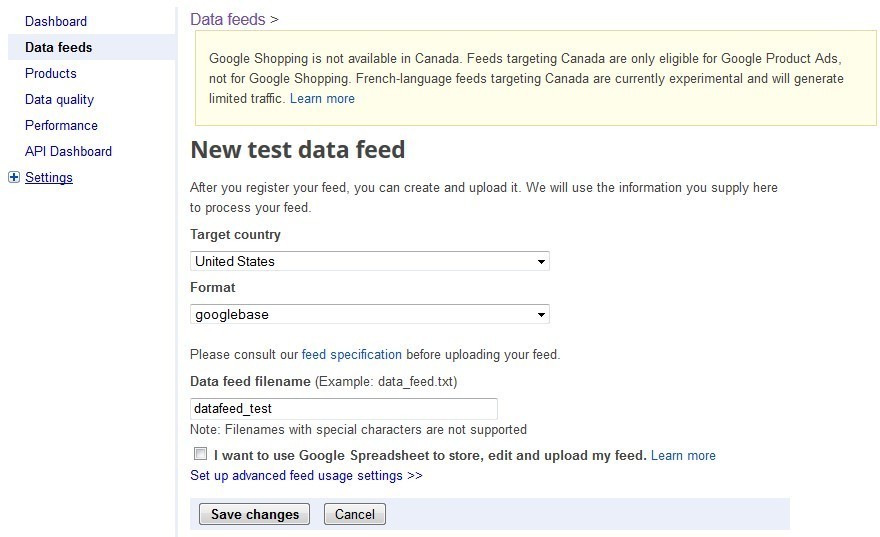
After clicking on New Test Data Feed, you have to choose the target country and a name for your data feed ("datafeed_test" by example).
You can confirm by clicking on Save changes.
Now you can see your data feed appears in the data feeds list.
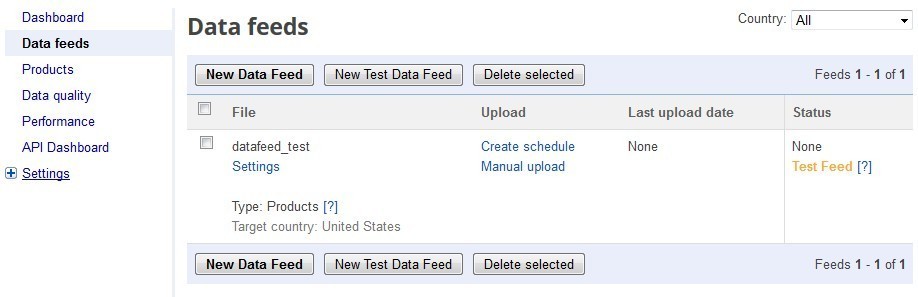
Next step will be to setup this data feed so it will import the data feed you created with the extension Simple Google Shopping in your Magento store.
Click on the link Create schedule. You are now accessing the schedule upload options.
You can manage the Google Merchant's importation frequency. You can choose to import you data feed monthly, weekly or daily at a specific time.
Paste your data feed's URL in the field Feed URL.
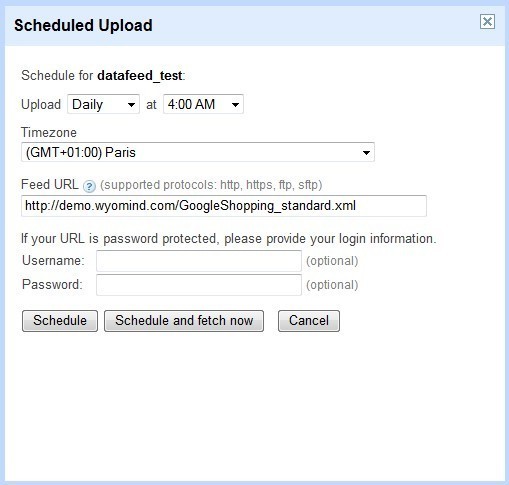
Click on Schedule and fetch now to start the importation and the process of your data feed.
Your data feeds' status shows Processing...

After a few minutes, Google Merchant Center shows you the number of inserted items and offers you to display errors in your data feed.

Click on View errors will show you errors in your data feed.
Google Merchant Center discerns 2 kinds of errors: errors and warnings.
As long it will remain errors in your data feed, Google Merchant will not display your items in Google Shopping.
It's very important to read the errors descriptions. It will help you to understand and fix quickly your data feed's issues.
Once the errors fixed, you'll be able to proceed to the creation of a new data feed (not a test one this time) which will perform the processing and referencing of your items by Google Shopping.
The validation of the first submission of your data feed to Google can take some days because it's performing manually by Google's teams. The next submissions will be validated almost instantly.
How to configure my template with Shopping.com?
Data Feed Manager allows you to create data feed in destination of Shopping.com.
Here are some tips which will be useful to create your data feed.
First, we recommend you to look at the following link which will be helpful:
Shopping.com's feed specifications
File format for Shopping.com
Shopping.com handle CSV or XML file format.
For CSV files, data should be enclosed within double quotation marks ( " ), and tab as field separator.
The following characters are forbidden within any cell:
- Smart Quotes Character ("?")
- Carriage Returns Character
- New Line Characters
- Any character whose ascii value is less than 32, e.g. Carriage Returns (ascii 10), Newline (ascii 13)
- HTML, CSS, or any other formatting languages, e.g. "\n\r", <p>, <br>.
File name should remain consistent for all updates. (e.g. MerchantnameSDC.csv). Do not include the date in your file name.
File name cannot contain spaces or illegal symbols.
Required attributes for Shopping.com
These 9 attributes are required. Products without these values will not display on Shopping.com:
(Between brackets, specific name for XML files)
| Attribute | Description |
|---|---|
| Unique Merchant SKU (Merchant_SKU) |
The unique SKU number you use internally to identify this item |
| Product Name (Product_Name) |
Product Names must be clear and concise. They should also be descriptive of the product being sold.(limited to 90 characters) |
| Product URL (Product_URL) |
URL on your website containing the product detail and buy button for the applicable product |
| Image URL (Image_URL) |
Provide the URL to the item's largest primary image. Minimum size accepted: 150 pixels on at least one side of the image. Any modern format is acceptable, i.e. JPEG, PNG, GIF, TIFF |
| Current Price (Current_Price) |
Provide your current selling price for the item before tax or shipping |
| Stock Availability (Stock_Availability) |
Denote Y or YES to show you have the product in stock and N, NO or NONE when the product is out of stock. Out-of-stock products will not be shown on Shopping.com. (Allowed values : In Stock, Yes, Y, 1, Limited availability, Out of Stock, No, N, None, Pre-Order, Back-Order) |
| Condition (Condition) |
Please use this field to indicate if the item is "New", "Used" or "Refurbished". IMPORTANT: Shopping.com currently displays "New" products only. "Used" and "Refurbished" products are rejected automatically |
| These 2 last attributes are only required for media | |
| MPN/ISBN (MPN ou ISBN) |
The ISBN is a unique machine-readable identification number. Shopping.com supports both the 10 and 13 digit versions of ISBN |
| UPC ou EAN (UPC ou EAN) |
Shopping.com supports both the 12-digit Universal Product Codes (UPC) and the 13-digit EAN codes. UPC or EAN are strongly recommended in all categories |
Recommended attributes for Shopping.com
Here are some attributes (non-exhaustive list) recommended by Shopping.com we think are quite useful to add in your template:
(Between brackets, specific name for XML files)
| Attribute | Description |
|---|---|
| Shipping Rate (Shipping_Rate) |
Shipping cost for this item. Use 0 to denote free shipping. Refer to the Merchant Account Center at Products > Edit-Shipping-Information page if you want to define Shipping Rates by Price ranges |
| Original Price (Original_Price) |
If your website displays a price drop and/or percent savings for this item, provide here the item's original price |
| Brand / Manufacturer (Brand ou Manufacturer) |
Brand, manufacturer, or publisher of the product |
| Product Description (Product_Description) |
Product Descriptions should elaborate on Product Names and provide all relevant product details (limited to 4000 characters) |
| Product Type (Product_Type) |
Provide an ordered list of nouns describing the type of product. Use a comma to separate them. Please refer to Shopping.com' specifications to find a list of relevant categories |
| Category (Category) |
Please provide a breadcrumb describing the classification of the respective product. For example: Electronics > Digital Cameras |
| Category ID (Category_ID) |
Use the Shopping.com's taxonomy to provide the right Shopping.com's Category ID for this item |
| Parent SKU (Parent_SKU) |
If the product is one variant in a family of similar products, provide here a SKU number that uniquely identifies the family |
| Parent Name (Parent_Name) |
The name of the parent product |
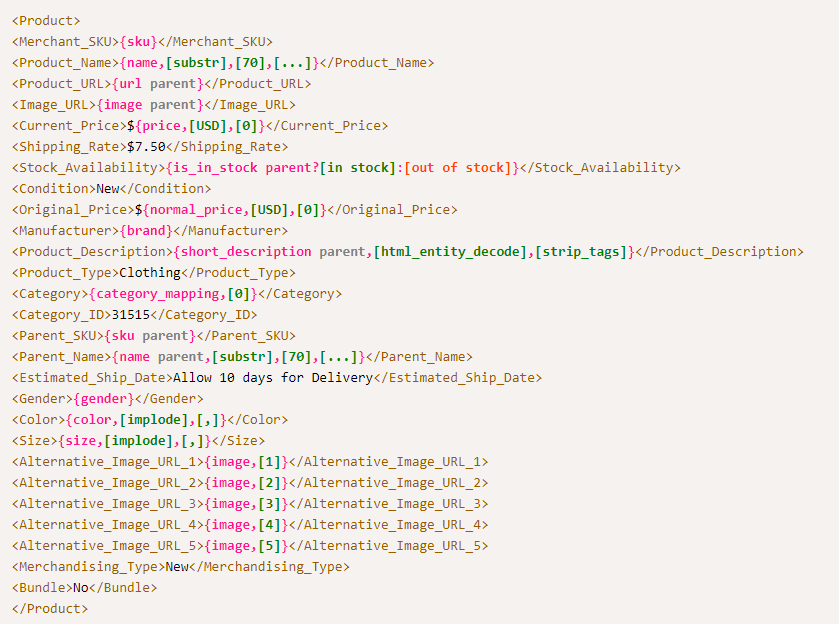
Example of template for Shopping.com with XML format
Here is an example of template for a website selling t-shirts:
Header:
<?xml version="1.0" encoding="ISO-8859-1"?>
<Products>
Pattern:
Footer:
</Products>How to configure my template with Bing Shopping?
Data Feed Manager allows you to create data feed in destination of Bing Shopping.
Here are some tips which will be useful to create your data feed.
First, we recommend you to look at these 2 links which will be helpful:
File format for Bing Shopping
Bing Shopping doesn't support XML file format. You should create TXT file format.
HEADER (the line with attribute's names) is required by Bing Shopping.
Data should be enclosed without any characters, and you should use tab as field separator.
The following characters are forbidden within any cell:
- Smart Quotes Character ("?")
- Carriage Returns Character
- New Line Characters
- Any character whose ascii value is less than 32, e.g. Carriage Returns (ascii 10), Newline (ascii 13)
- HTML, CSS, or any other formatting languages, e.g. "\n\r", <p>, <br>
- No $ sign in the price values and no lbs in shipping weights (only numbers, limited to 2 decimal places)
File name should remain consistent for all updates. Do not include the date in your file name.
File name cannot contain spaces or illegal symbols.
Bing Shopping recommends to use bingshopping.txt as a file name.
Required attributes for Bing Shopping
Bing Shopping requires these 6 attributes:
| Attribute | Description |
|---|---|
| MerchantProductID | You can either use internal Magento ID, either product'SKU as a unique identifier |
| Description | Detailed description of your offer (limited to 5000 characters). No HTML coding. Ensure no descriptions are wrapped in quotes. Please do not include promotional text. |
| ProductURL | URL of the product. Link to your website where a potential buyer can complete the purchase of your product. |
| ImageURL | Provide the URL to the item's largest primary image. Acceptable formats: BMP,JPG, PNG, GIF, TIFF and EXIF |
| Price | Provide your current selling price for the item before tax or shipping |
| Title | Product Names must be clear and concise (limited to 255 characters) |
Recommended attributes for Bing Shopping
Bing Shopping highly recommends to use these attributes in your template:
| Attribute | Description |
|---|---|
| Brand | The product manufacturer's name, brand name or publisher's name |
| MPN | The ISBN is a unique machine-readable identification number. Bing Shopping supports both the 10 and 13 digit versions of ISBN |
| UPC | Universal Product Code. Only 8 and 12 digit codes are supported |
| ISBN | International Standard Book Number |
| SKU | The SKU unique number of the product. Used to refer to different versions of the same product |
| Availability | The current availability for the offer. Choose only one of following values: In Stock; Out of Stock; Pre-Order; Back-Order |
| Shipping | This attribute will override any info set in the Shipping tab of your Bing Shopping account. Each shipping attribute group must be separated with a comma and the four sub-attributes by colons such as: Country:Region:Service:Price. Only Price value is required. Three colons are required even for blank values. Examples: No shipping world wide = :::0 No shipping US wide = US:::0 Multiple variables are allowed and are split with a comma = US:024*:Ground:7.95,US:MA:Ground:5.95 |
| MerchantCategory | Your internal category hierarchy for this product |
| ShippingWeight | The weight of the product in pounds. Don't use lbs sign and avoid the use of leading zeros |
| Condition | Acceptable condition values are: New; Used; Collectable; Open Box; Refurbished; Remanufactured WARNING: Currently Bing Shopping shows only new products. If not specified, Bing Shopping assumes the product is new |
| Tax | This attribute will override any info set in the Tax tab of your Bing Shopping account. Each tax attribute group must be separated with a comma and the four sub-attributes by colons such as: Country:Region:Rate:Tax_Ship. Only Rate value is required. Three colons are required even for blank values. Examples: No tax world wide = ::0: No tax US wide = US::0: Multiple variables are allowed = US:CA:8.25:y,US:926: *:8.75:y |
| B_Category | Bing Shopping Category. Bing's list of categories to match your product to Bing's standardized structure. Remember to use category mapping in Data Feed Manager to fill-in this attribute correctly |
Example of template for Bing Shopping with TXT format
Here is an example of template: 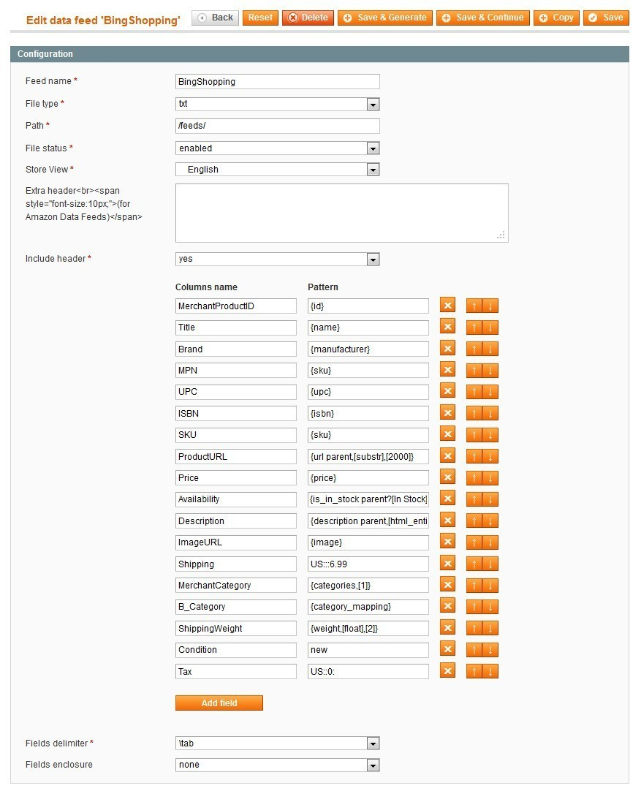
How to configure my template with Shopzilla?
File format for Shopzilla
Shopzilla doesn't support XML file format. You should create TXT file format.
HEADER (the line with attribute's names) is required by Shopzilla.
Data should be enclosed without any characters, and you should use tab as field separator.
The following characters are forbidden within any cell:
- Smart Quotes Character ("?")
- Carriage Returns Character
- New Line Characters
- Any character whose ascii value is less than 32, e.g. Carriage Returns (ascii 10), Newline (ascii 13)
- HTML, CSS, or any other formatting languages, e.g. "\n\r", <p>, <br>
File name should remain consistent for all updates. Do not include the date in your file name.
File name cannot contain spaces or illegal symbols.
Required attributes for Shopzilla
Shopzilla requires 15 attributes in the data feed, but only 5 must contain data. Others are highly recommended by Shopzilla.
WARNING: these 15 attributes must respect this order:
- Category ID
- Manufacturer
- Title
- Description
- Product URL
- Image URL
- SKU
- Availability
- Condition
- Ship Weight
- Ship Cost
- Bid
- Promotional Code
- UPC
- Price
Bold attributes above must contain data.
Here are the 5 required attributes:
| Attribute | Description |
|---|---|
| Category ID | Shopzilla Category. You have to map your own categories by using Shopzilla's taxonomy. Remember to use category mapping in Data Feed Manager to fill-in this attribute correctly |
| Title | Product Names must be clear and concise (limited to 100 characters) |
| Product URL | URL of the product. Link to your website where a potential buyer can complete the purchase of your product. |
| SKU | The SKU unique number of the product. Used to refer to different versions of the same product |
| Price | Provide your current selling price for the item before tax or shipping (don't use $ sign) |
Recommended attributes for Shopzilla
Shopzilla highly recommends to use these attributes in your template:
| Attribute | Description |
|---|---|
| Manufacturer | The product manufacturer's name, brand name or publisher's name. Leave empty if you don't know the manufacture's name. |
| Description | Detailed description of your offer (limited to 1000 characters). No HTML coding. Ensure no descriptions are wrapped in quotes. Please do not include promotional text. |
| Image URL | Provide the URL to the item's largest primary image. Acceptable formats: JPG or GIF. Image size should be at least 200x200 pixels and no greater than 1000x1000. Image URLs must begin with https:// (Shopzilla doesn't support secure locations (https://) |
| Availability | Lets your consumers know if the product is currently available on your website. Choose only one of following values: In Stock, Back-Order, Pre-Order, See Site, Out of Stock, Limited Qty, Special Order. If empty, Shopzilla will default to "See Site for Availability". |
| Condition | Designates the state of the product. Acceptable condition values are: New, Refurbished, Used, Open Box, OEM. If empty, Shopzilla will default to "New". |
| Ship Weight | Designates the weight of your product (in pounds). |
| Ship Cost | Designates a flat shipping cost for the product, if desired. This field is not necessary if you plan to use the Shopzilla Shipping Tool to specify ship costs. Note: To designate free shipping, please use 0.00 |
| Bid | This is an optional field and recommended only for those merchants programmatically setting their product bids. Please refer to Feed Specifications for further information about this attribute. |
| Promotional Code | This field is used to add promotional text next to your product. Please refer to Feed Specifications for further information about this attribute. |
| UPC | Universal Product Code. Only 8 and 12 digit codes are supported |
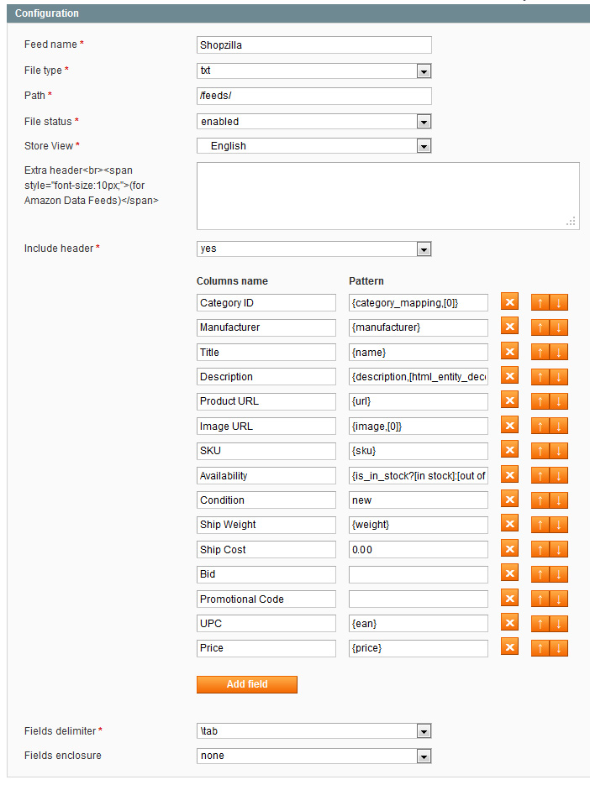
Example of template for Shopzilla with TXT format
Here is an example of template:
How to configure my template with Amazon?
Data Feed Manager allows you to create data feed in destination of Amazon.
Here are some tips which will be useful to create your data feed.
First, we recommend you to look at this link which will be helpful:
Amazon Browse Tree Guide (BTG) (Amazon'specifications)
For Amazon Product Ads, we recommend the following documentation:
https://sellercentral.amazon.com/gp/help/
File format with Amazon
Amazon doesn't support XML file format. You should create TXT file format.
HEADER (the line with attribute's names) is required by Amazon.
ATTENTION: Amazon requires an extra-header, which allows Amazon to identify what kind of products is in you data feed, and the actual used version. Here is an example concerning Home category products:
TemplateType=Home Version=2012.0228 This row for Amazon.com use only. Do not modify or delete.
In order to use these specific extra-header, Data Feed Manager has a specific field named Extra header:
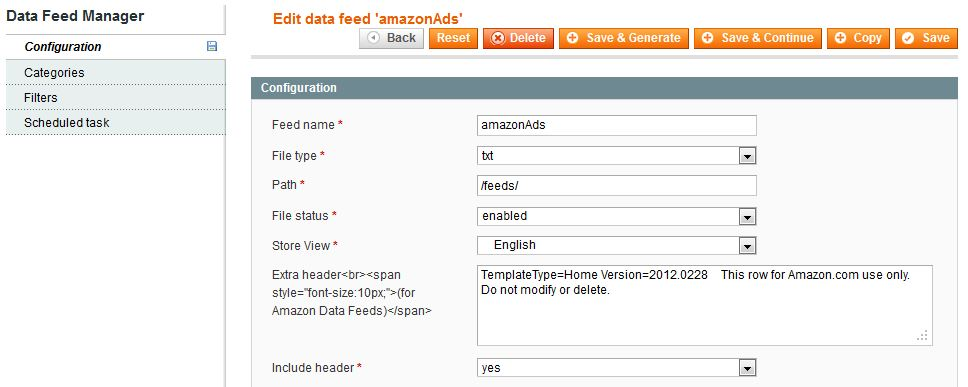
Data should be enclosed without any characters, and you should use tab as field separator.
The following characters are forbidden within any cell:
- Smart Quotes Character ("?")
- Carriage Returns Character
- New Line Characters
- Any character whose ascii value is less than 32, e.g. Carriage Returns (ascii 10), Newline (ascii 13)
- HTML, CSS, or any other formatting languages, e.g. "\n\r", <p>, <br>
File name should remain consistent for all updates. Do not include the date in your file name.
Information groups with Amazon
Amazon distinguish different information groups to describe the products you'll send them in your data feed.
Some groups are generic and suitable for all types of products:
- Basic Product information
- Offer Information
- Sales Price information
- Item discovery information
- Image Information
- FBA (Fulfillment By Amazon)
- Variation information (if your Product is available in different variations)
- Product Dimensions
- Infrequently used attributes
Beside these generic groups, there are specific groups depending on your products' categories.
Here are specific groups from Home category:
- Product specific attributes included in the "ArtAndCraft"
- Product specific attributes included in the "Kitchen"
- Product specific attributes included in the "Indoor Home"
- Product specific attributes included in the "Outdoor Home and Garden"
- Battery Information
The very first thing to do before creating your Amazon data feed is to identify which kind of products your Magento catalog contains.
Once this is done, you'll have to refer to the Amazon Browse Tree Guide (Amazon BTG) matching this product category to create your data feed in the best way.
For example, if you're selling furniture, you'll have to refer to Home Amazon BTG, which matches with following themes:
- Art and Craft
- Kitchen
- Indoor Home
- Outdoor Home and Garden
We'll use this particular example for following explanations.
Required attributes with Amazon
Usually, Amazon requires these 10 attributes in the data feed.
WARNING: These 10 attributes have to be in the data feed unless Amazon will reject it.
| Attribute | Description |
|---|---|
| SKU | The SKU unique number of the product. Used to refer to different versions of the same product |
| StandardProductID | A standard, alphanumeric string that uniquely identifies the product. This could be a Global Catalog ID (GCID), UPC, EAN or GTIN. |
| StandardIDType | The type of standard, unique identifier entered in the ProductID field. Select one of the following options: Global Catalog ID (GCID), UPC, EAN or GTIN. |
| ProductName | Product Names must be clear and concise (limited to 500 characters). Don't use special characters. |
| ProductType | Identify the product types. With our example : For all Indoor products, choose from: Kitchen, BedAndBath, ArtAndCraft, Furniture or the general category Product type of Home. Select one of the following options: Art, BedAndBath, FurnitureAndDecor, Home, Kitchen, OutdoorLiving, SeedsAndPlants. |
| Brand | The brand or manufacturer of the product. Populate this field so your brand name is displayed on the Amazon.com site. (Brand or Manufacturer is required, both are desired) |
| Manufacturer | Specify the manufacturer for your product. (Brand or Manufacturer is required, both are desired) |
| ItemType | Use this to specify what your item is. This field is primarily used for browse classification. Refer to the Browse Tree Guide (BTG) for allowed values. Remember to use category mapping in Data Feed Manager to fill-in this attribute correctly |
| ItemPrice | The price at which the merchant offers the product for sale, expressed in U.S. dollars. Don't use currency unit. |
| Link | The URL of the product. Must start with https:// |
Recommended attributes with Amazon
Amazon highly recommends to use these attributes in your template:
Detailed description of your offer (limited to 2000 characters).
Don't use special characters.
| Attribute | Description |
|---|---|
| Description | |
| Currency | The currency code indicating what currency the pricing data is in. (USD for US Dollars, EUR for Euro, GBP for Pounds). |
| ShippingWeight | The weight of the product when packaged to ship. A number with up to 10 digits to the left of the decimal point and 2 digits to the right of the decimal point. |
| ShippingWeightUnitOfMeasure | The unit of measure used to describe the weight of the product: OZ, LB, GR or KG. |
| MainImageURL | Provide the URL to the item's largest primary image. Preferred format: JPG. Image size must be at least 500 pixels in either height or width and should be 1000 pixels or larger. Image URLs must begin with https://. |
| OtherImageURL1-OtherImageURL8 | Additional images showing different sides of a product, the product in use, or details that aren't visible in the MAIN image. |
| Quantity | The quantity of the item you are making available for sale. Quantity is required for all "child" or stand-alone items. If left blank when first submitting the product information, the item will be displayed as "Out of stock". |
How to configure my template with Price Grabber?
Data Feed Manager allows you to create data feed in destination of Price Grabber.
Here are some tips which will be useful to create your data feed.
First, we recommend you to look at these 2 links which will be helpful:
File format with Price Grabber
Price Grabber doesn't support XML file format. You should create TXT file format.
HEADER (the line with attribute's names) is required by Price Grabber.
Data should be enclosed without any characters, and you should use tab as field separator.
The following characters are forbidden within any cell:
- Smart Quotes Character ("?")
- Carriage Returns Character
- New Line Characters
- Any character whose ascii value is less than 32, e.g. Carriage Returns (ascii 10), Newline (ascii 13)
- HTML, CSS, or any other formatting languages, e.g. "\n\r", <p>, <br>
File name should remain consistent for all updates. Do not include the date in your file name.
File name cannot contain spaces or illegal symbols.
Required attributes with Price Grabber
Price Grabber requires some attributes regarding to the kind of product you're selling in your store.
For example, Home & Personal Products requires 9 attributes, where Tech Products & Software only requires 7 attributes (not the same).
Please have a look at the Price Grabber Integration Guide to know exactly which attributes are required for your products.
However, here are the most current required attributes:
| Attribute | Description |
|---|---|
| Retsku | The SKU unique number of the product. Used to refer to different versions of the same product |
| Product Title | Product Names must be clear and concise (limited to 100 characters) |
| Detailed Description | Detailed description of your offer (limited to 1500 characters). No HTML coding. Ensure no descriptions are wrapped in quotes. Please do not include promotional text. |
| Categorization |
Price Grabber Category. |
| Product URL | URL of the product. Link to your website where a potential buyer can complete the purchase of your product. |
| Primary Image URL | Provide the URL to the item's largest primary image. Image URLs must begin with https:// (Price Grabber doesn't support secure locations (https://) |
| Selling Price | Current selling price of the item. Please omit currency symbols. Prices should be provided in the appropriate currency (US Dollars for PriceGrabber.com, Pound Sterling for PriceGrabber.co.uk, Canadian Dollars for PriceGrabber.ca). |
| Manufacturer Name | The product manufacturer's name, brand name or publisher's name. Leave empty if you don't know the manufacturer's name. |
Recommended attributes with Price Grabber
Price Grabber highly recommends to use these attributes in your template:
| Attribute | Description |
|---|---|
| Manufacturer Part Number | Manufacturer-issued part number (MPN) for the product. |
| UPC / EAN | UPC (US, Canada): Unique code of 12 numbers. EAN (Europe): Unique code of 13 numbers. |
| Availability | Lets your consumers know if the product is currently available on your website. Choose only one of following values: Yes, No ou Preorder |
| Weight | The product's shipping weight. Required if you select a shipping cost formula which depends on weight. The unit for weight is pounds in the US, and kilograms for UK. |
| Shipping Cost | Required if you select "Use the shipping costs provided in my product data feed" in the Shipping section of Price Grabber Login. |
How to configure my template with Nextag?
File format with Nextag
Nextag handles TXT file format.
HEADER (the line with attribute's names) is required by Nextag.
Data should be enclosed without any characters, and you should use pipe (|) as field separator.
The following characters are forbidden within any cell:
- Smart Quotes Character ("?")
- Carriage Returns Character
- New Line Characters
- Any character whose ascii value is less than 32, e.g. Carriage Returns (ascii 10), Newline (ascii 13)
- HTML, CSS, or any other formatting languages, e.g. "\n\r", <p>, <br>
File name should remain consistent for all updates.
Do not include the date in your file name.
File name cannot contain spaces or illegal symbols.
Required attributes with Nextag
Here are the required attributes for Nextag:
| Attribute | Description |
|---|---|
| Category: Nextag Numeric ID | The Nextag category of the products you are listing. You have to map your own categories by using Nextag's taxonomy. By example : laptops products needs to have: 300359 as matching category. Remember to use category mapping in Data Feed Manager to fill-in this attribute correctly Note : You must match one of the "Category" columns to a column in your feed. |
| Category: Other Format |
The category of the products you are listing. These should be the categories you use on your site. |
| Click-Out URL | URL of the product. |
| Condition | The condition of the products you are selling. Choose only one of following values: New, Open Box, Refurbished, Pre-Owned, Like New, Good, Very Good, Acceptable |
| Description | Detailed description of your offer. No HTML coding. Ensure no descriptions are wrapped in quotes. Please do not include promotional text. |
| Ground Shipping | The amount you charge for ground shipping. In dollars with or without the $ sign. If you use a carrier such as FedEx or UPS, you can define this on your Seller Dashboard to ensure you display accurate shipping. |
| Image URL | The URL or address of the images of your products. URL starting with https://, https:// or just www and ending with .jpg or.gif |
| ISBN | The ISBN of any book products you are selling. This field is only required if you are selling books. |
| MUZE ID | The MUZE IDs of any music, video or video game products you are selling. This field is only required if you are selling music, video or video game products. |
| Price | The price of the items you are selling. In dollars with or without the $ sign. |
| Product Name | The name of the products you are selling. |
| Seller Part # | The SKU unique number of the product. |
| Stock Status | The availability or stock status of your products. Choose only one of following values: In Stock, Yes, le nombre en stock, Out of Stock, <blank>. If you leave this blank, Nextag will assume the product is in stock. |
| Weight | The weight of your products. Number in pounds (lbs). |
Recommended attributes with Nextag
Nextag highly recommends to use these attributes in your template:
| Attribute | Description |
|---|---|
| Cost-per-Click | The Cost-per-Click or CPC that you want to pay Nextag when a buyer clicks from our site to yours. In dollars with or without the $ sign. This should only be used if you want to bid on individual products using your Product File. |
| Distributor ID | The distributor ID of your products. One of the following initials: Ingram (I, IM, IP, IA), TechData (T), eNighted (E), ISBN, UPC, LCC plus the number ID. |
| Ingram Part # | The Ingram ID of your products. |
| Manufacturer | The name of the manufacturer of your products. |
| Manufacturer Part # | The manufacturer's part number for the product. It is strongly recommended that you provide this information to improve the quality of your listings on Nextag. |
| Marketing Message | The text message you want to display on our site next to your display name. Example : Free Tax and Shipping |
| UPC | The Universal Product Code (UPC) of the products you are selling. |
| ListPrice | The item's price when it is not on sale. In dollars with or without the $ sign |
How to configure my template with Twenga?
Data Feed Manager allows you to create data feed in destination of Twenga.
Here are some tips which will be useful to create your data feed.
First, we recommend you to look at this link which will be helpful:
Twenga's feed specifications
File format with Twenga
Twenga handles CSV/TXT or XML file format.
About CSV/TXT files:
- data shouldn't be enclosed
- you can use either tab, semicolon, comma or pipe as field separator.
About XML files:
- the data feed must be UTF-8 encoded (<?xml version="1.0" encoding="UTF-8" ?>)
- catalog tags (<calalog>...</catalog>) must enclose the content.
- each product must be in product tags (<product>...</product>)
The following characters are forbidden within any cell:
- Smart Quotes Character ("?")
- Carriage Returns Character
- New Line Characters
- Any character whose ascii value is less than 32, e.g. Carriage Returns (ascii 10), Newline (ascii 13)
- HTML, CSS, or any other formatting languages, e.g. "\n\r", <p>, <br>.
File name should remain consistent for all updates. (e.g. MerchantnameSDC.csv).
Do not include the date in your file name.
File name cannot contain spaces or illegal symbols.
Required attributes with Twenga
These 7 attributes are required.
Products without these values will not display on Twenga:
| Attribute | Description |
|---|---|
| product_url | URL on your website containing the product |
| designation | Product Names must be clear and concise. (limited to 255 characters) |
| price | Final price of the product, with or without VAT, depending on local regulations. |
| category |
Navigation path of the product (Breadcumb). |
| image_url | Main picture of the product. Minimum size : 500x500 pixels. Maximum size : 2000x2000 pixels. |
| description | Product's description. Only the first 180 characters will be display in Twenga |
| regular_price | Product's sale price, before any sale. Leave empty if the product doesn't have any discount. |
Recommended attributes with Twenga
Here are recommended attributes by Twenga:
| Attribute | Description |
|---|---|
| merchant_id | Product's ID. The internal product ID used by the merchant. |
| manufacturer_id | The manufacturer ID. You may use SKU for this attribute. |
| shipping_cost | Shipping cost. If not specified, leave empty or specify "NC" For free shipping, specify "0". |
| in_stock | Denote Y to show you have the product in stock and N when the product is out of stock. |
| availability | Number of products available |
| condition | For new products, use "0". For used or refurbished products, use "1". |
| upc_ean | UPC or EAN of the product. |
| brand | Brand or manufacturer of the product. |
Example of template with XML, CSV and TXT format with Twenga
Here is an example of template with XML format: 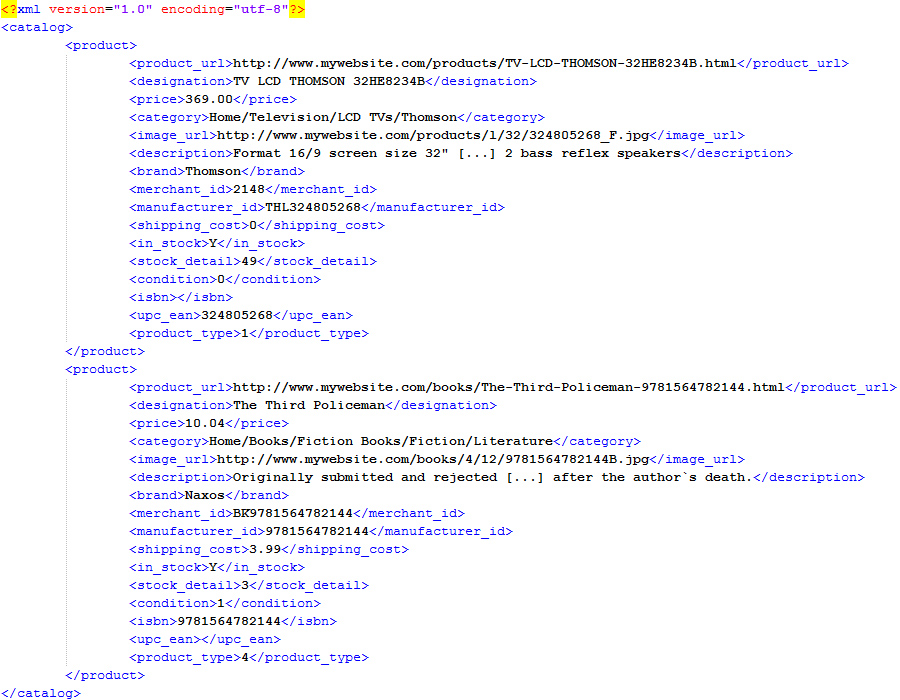
Here is an example of template with CSV format:

Here is an example of template with TXT format:

How to configure my template with Idealo?
Data Feed Manager allows you to create data feed in destination of Idealo.
Here are some tips which will be useful to create your data feed.
First, we recommend you to look at these 2 links which will be helpful:
Here are the admission requirements for Idealo:
- Your store contains at least 20 products already existing in Idealo's catalog.
- All prices are displayed in euro (including VAT)
- Your legal info is correct
- Your policies are accessible and understandable to any customer
- Customers can choose between at least 2 payment methods.
- Shipping won't exceed 15.00 for small appliances
- Shipping won't exceed 50.00 for big appliances
File format with Idealo
Idealo is used to work with CSV files.
Data shouldn't be enclosed.
You can use either tab, semicolon or pipe as field separator.
The CSV file must contain a header line describing each column's name.
Do not include the date in your file name.
File name cannot contain spaces or illegal symbols.
Required attributes with Idealo
These attributes are required by Idealo.
Products without these values will not display on Idealo:
| Attribute | Description |
|---|---|
| Catégorie | Internal category path. (By example: digital photography - digital camera - compact digital camera - Canon - Canon Digital Ixus 70) |
| Marque / Fabricant | The brand or manufacturer of the product |
| Produit | The name of the product |
| Référence fabricant (HAN) | The manufacturer reference |
| Prix en euro (TVA incluse) | Price in euro (including VAT) |
| Frais de port | Shipping cost. If free shipping, fill in with "0". |
| URL produit | URL on your website containing the product |
| Délai de Livraison | Delivery time / availability |
| EAN (European article number) | EAN code of the product |
| Code CIP | Only for pharmaceuticals |
| ISBN | Only for books |
| Ecotaxe | Eco-tax amount, only if not already included in the price |
Recommended attributes with Idealo
Here are attributes recommended by Idealo:
| Attribute | Description |
|---|---|
| Numéro d'article (interne) | Internal reference of the product (usually SKU) |
| information sur le produit | The description of the product (short version if available) |
| URL photo | The URL of the main picture of the product. |
| Prix Promo | Sale price of the product |
Example of template with CSV format with Idealo
Here is an example of template with CSV format:
Numéro d'article (interne);EAN (European article number);Référence fabricant (HAN);Marque / Fabricant;Produit;Catégorie;Prix en ¤ (TVA incluse);Délai de Livraison;Frais de port;URL produit;URL photo;Ecotaxe (si non incluse dans le prix);Prix Promo (facultatif)
40101966;3165140580113;GSB 14.4-2-LI;FBC BOSCH;PERCEUSE VISSEUSE 14,4V 1,3AH LI-ION;Outillages électroportatif à batterie;   518,87;Livrera sous 3 jours ouvrables après réception du paiement.;4;https://www.idealo.fr/exemple;https://www.idealo.fr/exemple-exemple.jpg;0,1;   418,87
40101915;0000401019151;BHP453RHEX;MAKITA;PACK PERCEUSE A PERCUSSION 18V 1,5AH LXT;Perceuses, visseuses et boulonneuses;   164,00;Livrera sous 3 jours ouvrables après réception du paiement.;4;https://www.idealo.fr/exemple;https://www.idealo.fr/exemple-exemple.jpg;0,1;   16,00
43302205;3148518627948;CPE.PB;FACOM;LOT DE 2 PINCES "PACK PREMIER";Pinces standards et coupantes;    68,90;Livrera sous 3 jours ouvrables après réception du paiement.;0 (si frais de port gratuits);https://www.idealo.fr/exemple;https://www.idealo.fr/exemple-exemple.jpg;0,1;    55,90
46600252;0000466002525;1-94-747;STANLEY TOOLS;SERVANTE DE CHANTIER LOCK & STOCK FATMAX;Boite à outils;   1122,95;Livrera sous 3 jours ouvrables après réception du paiement.;4;https://www.idealo.fr/exemple;https://www.idealo.fr/exemple-exemple.jpg;0,1;
45900043;3253561956294;1-95-629;STANLEY TOOLS;GILET PORTE-OUTILS FATMAX XTREM;Saccoches et porte-outils;    53,20;Livrera sous 3 jours ouvrables après réception du paiement.;4;https://www.idealo.fr/exemple;https://www.idealo.fr/exemple-exemple.jpg;0,1;    43,20
44800848;9999999999999;0-10-825;STANLEY TOOLS;COUTEAU CUTTER PLIABLE FATMAX;Cutteurs et ciseaux;    17,95;Livrera sous 3 jours ouvrables après réception du paiement.;4;https://www.idealo.fr/exemple;https://www.idealo.fr/exemple-exemple.jpg;0,1;
46600415;3253561974755;1-97-475;STANLEY TOOLS;JEU 2 TRETEAUX PLIABLES COMPACTS;Etais et trétaux de maçon;    84,45;Livrera sous 3 jours ouvrables après réception du paiement.;0 (si frais de port gratuits);https://www.idealo.fr/exemple;https://www.idealo.fr/exemple-exemple.jpg;0,1;    80,00
60800432;3253561951480;1-95-151;STANLEY TOOLS;LAMPE TORCHE LED PETIT MODÈLE;Torches, ampoules, et éclairage;    16,67;Livrera sous 3 jours ouvrables après réception du paiement.;4;https://www.idealo.fr/exemple;https://www.idealo.fr/exemple-exemple.jpg;0,1;
42606588;3253560975456;0-97-500;STANLEY TOOLS;CLE A MOLETTE A CLIQUET FATMAX;Clés de serrage à ouverture variable;    14,23;Livrera sous 3 jours ouvrables après réception du paiement.;4;https://www.idealo.fr/exemple;https://www.idealo.fr/exemple-exemple.jpg;0,1;
How to configure my template with eBay?
File format with eBay
eBay handles CSV/TXT or XML file format.
About CSV/TXT files:
- data must be enclosed with double quotation marks (")
- if you intend to use the double quote character ( " ) itself and not as a delimiter, it should be repeated. For example, '15" TV' should be entered as "15"" TV".
- you must use comma as separator in CSV files, and either tab, semicolon, comma or pipe in TXT files.
About XML files:
- the data feed must be UTF-8 encoded (<?xml version="1.0" encoding="UTF-8" ?>)
- each product must be in product tags (<product>...</product>)
The following characters are forbidden within any cell:
- Smart Quotes Character ("?")
- Carriage Returns Character
- New Line Characters
- Any character whose ascii value is less than 32, e.g. Carriage Returns (ascii 10), Newline (ascii 13)
- HTML, CSS, or any other formatting languages, e.g. "\n\r", <p>, <br>.
File name should remain consistent for all updates. (e.g. ebay.csv). Do not include the date in your file name.
File name cannot contain spaces or illegal symbols.
Required attributes with eBay
These 9 attributes are required by eBay. Products without these values will not display on eBay.
(between brackets, the name to use with XML files)
| Attribute (Merchant_SKU) |
Description (Merchant_SKU) |
|---|---|
| Unique Merchant SKU (Merchant_SKU) |
The unique SKU number you use internally to identify this item. |
| Product Name (Product_Name) |
Product Names must be clear and concise. They should also be descriptive of the product being sold. Use the following template to build your product names: [MAIN BRAND] [PRODUCT NAME] [GENERIC PRODUCT TYPE] Example : Leica M7 Rangefinder 35mm Camera |
| Product URL (Product_URL) |
URL on your website containing the product detail and buy button for the applicable product. |
| Image URL (Image_URL) |
URL to the item's largest primary image. Minimum size accepted: 150x150 pixels. |
| Current Price (Current_Price) |
The current selling price for the item before tax or shipping. |
| Stock Availability (Stock_Availability) |
Denote In Stock to show you have the product in stock and Out of Stock when the product is out of stock. |
| Condition (Condition) |
Please use this field to indicate if the item is "New", "Used" or "Refurbished". IMPORTANT: eBay Commerce Network currently displays "New" products only. "Used" and "Refurbished" products are rejected automatically. |
| MPN/ISBN (media only) (MPN ou ISBN) |
The ISBN is a unique machine-readable identification number. eBay Commerce Network supports both the 10 and 13 digit versions of ISBN. |
| UPC/EAN (media only) (UPC ou EAN) |
eBay Commerce Network supports both the 12-digit Universal Product Codes (UPC) and the 13-digit EAN codes. UPC or EAN are strongly recommended in all categories. Items with UPC or EAN will be better classified in eBay Commerce Network. |
Recommended attributes with eBay
Here are attributes recommended by eBay:
(between brackets, the name to use with XML files)
| Attribute (Merchant_SKU) |
Description (Merchant_SKU) |
|---|---|
| Shipping Rate (Shipping_Rate) |
Shipping cost for this item. Use 0 to denote free shipping. |
| Original Price (Original_Price) |
The item's original price. |
| Brand / Manufacturer (Manufacturer) |
Brand, manufacturer, or publisher of the product. |
| Product Description (Product_Description) |
Product Descriptions should elaborate on Product Names and provide all relevant product details. Limited to 4000 characters. |
| Product Type (Product_Type) |
Provide an ordered list of nouns describing the type of product. Example: "Sneaker, Cross Trainer"). |
| Category (Category) |
Please provide a breadcrumb describing your classification of the respective product (use > to delimiter sub-categories) |
| Category ID (Category_ID) |
Please use the updated Category worksheet to provide the right eBay Commerce Network's Category ID for this item. (cf. "Categories" tab in eBay'specifications). Remember to use category mapping in Data Feed Manager to fill in this attribute properly. |
| Parent SKU (Parent_SKU) |
If the product is one variant in a family of similar products, provide here the SKU of the parent product. |
| Parent Name (Parent_Name) |
If the product is one variant in a family of similar products, provide here the name of the parent product. |
| Estimated Ship Date (Estimated_Ship_Date) |
Provide your estimated time frame for the shipping of the product. Example: Allow 2 - 3 weeks for delivery. |
| Gender (Gender) |
Indicate the gender(s) for whom the product is intended. Use a comma to separate them. Admited values: Men, Women, Boys, Girls, Infants and Toddlers, Unisex |
| Color (Color) |
The primary colors for the product. In the event that the product is multi-colored, please separate the colors with a slash (/). Please provide an individual record for each color. |
| Material (Material) |
Indicate the materials from which the product is intended. Values should be comma separated. |
| Size (Size) |
The size of the product. |
| Age Range (Age_Range) |
eBay strongly recommends that age ranges are included for data feeds that include toys, apparel, jewelry and sporting goods. Examples: 3 - 6 months, 5 years and up, Adult,... |
Example of template with XML format with eBay
Here is an example of template with XML format:
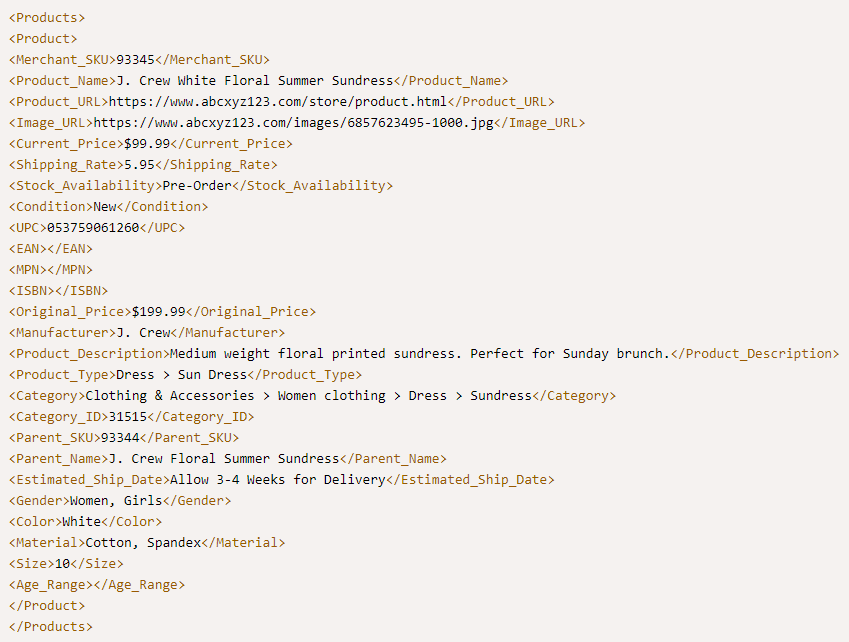
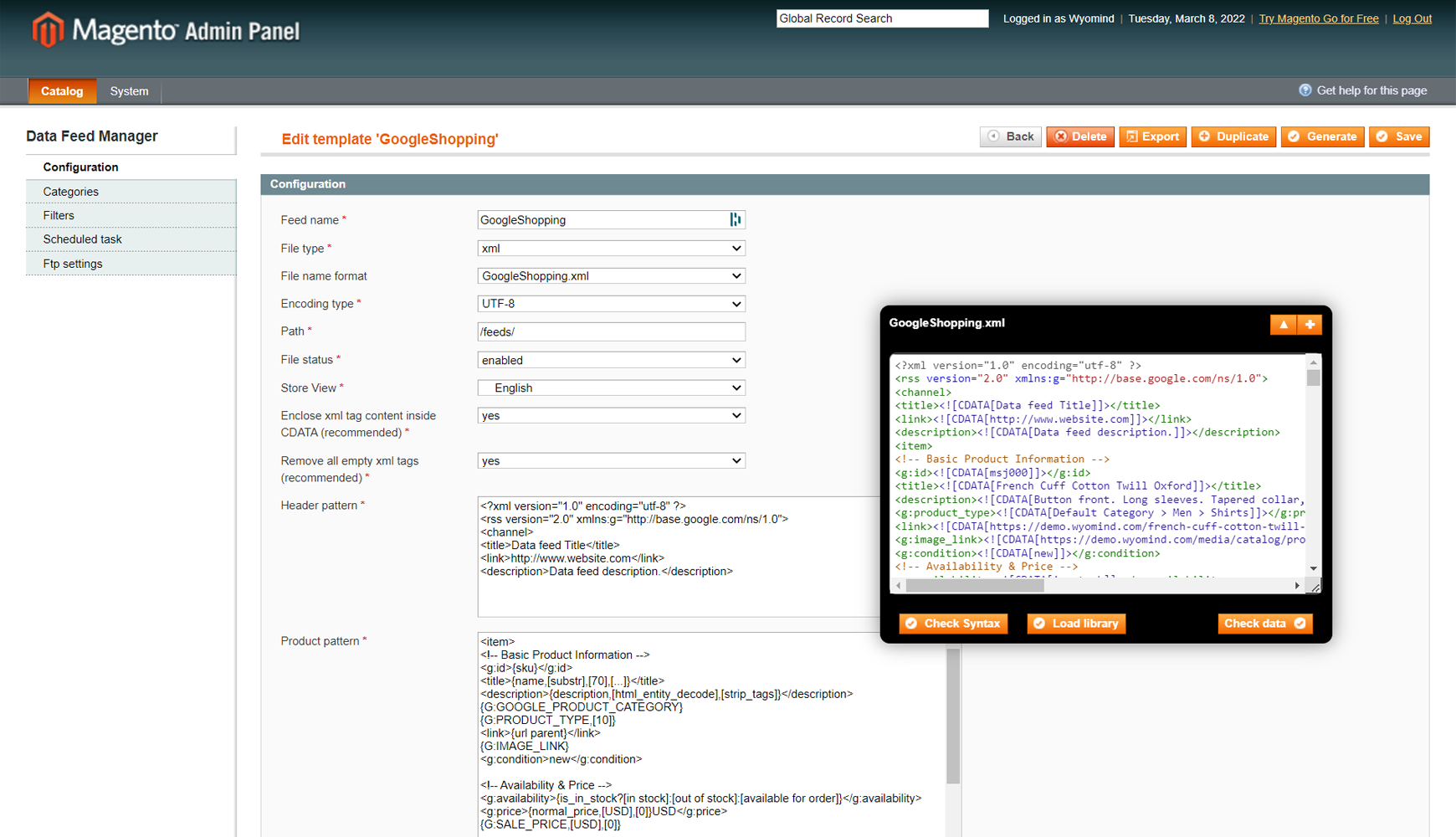
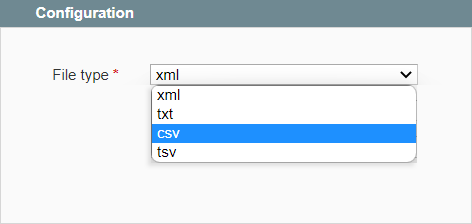
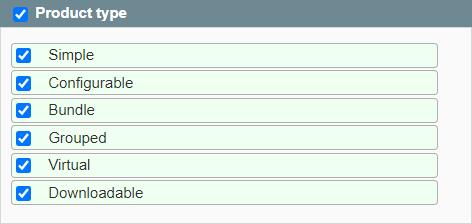
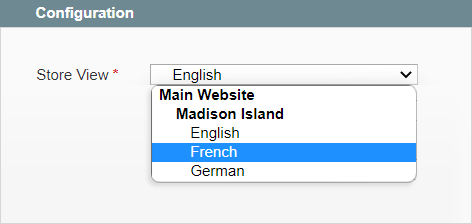
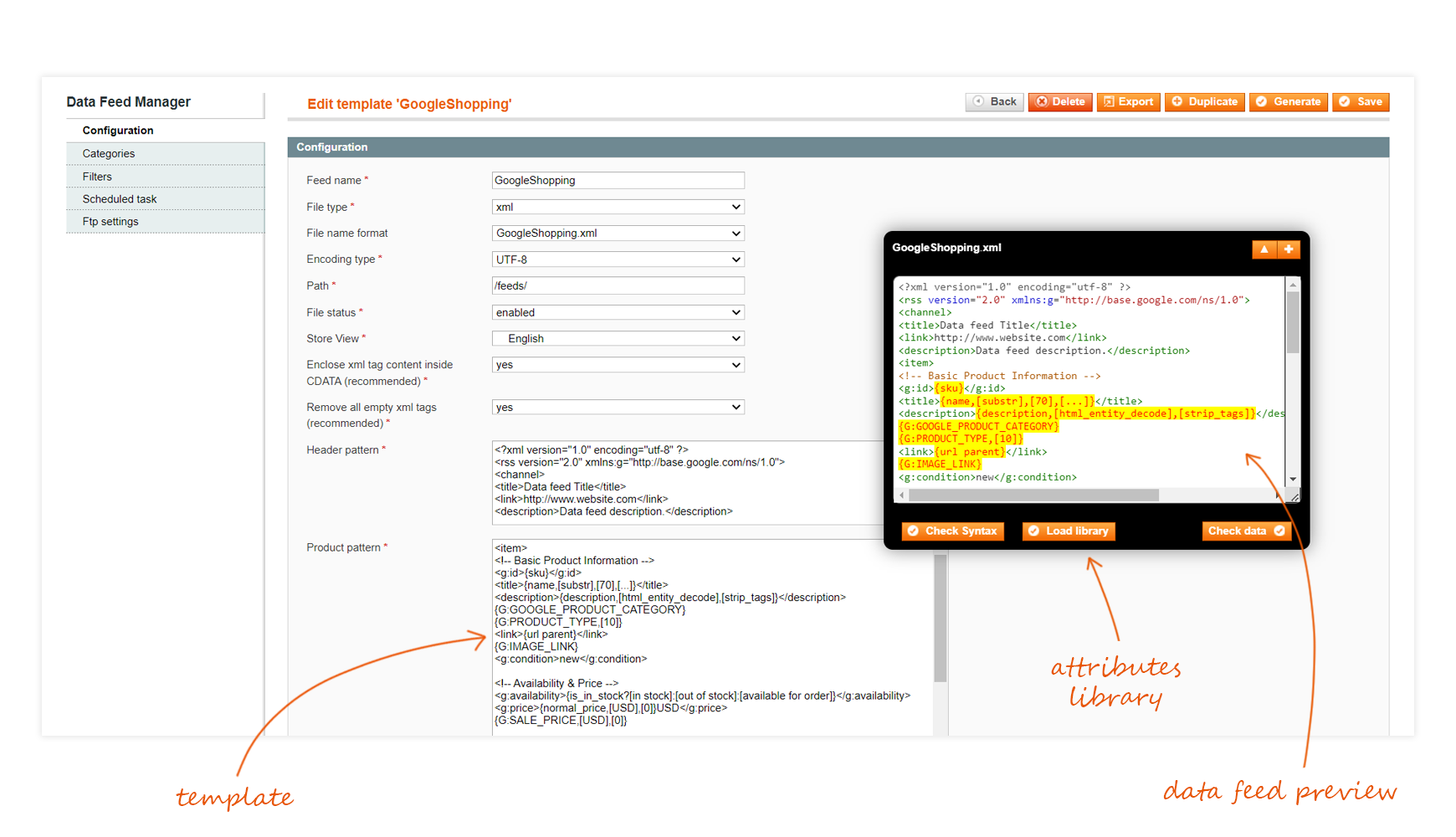
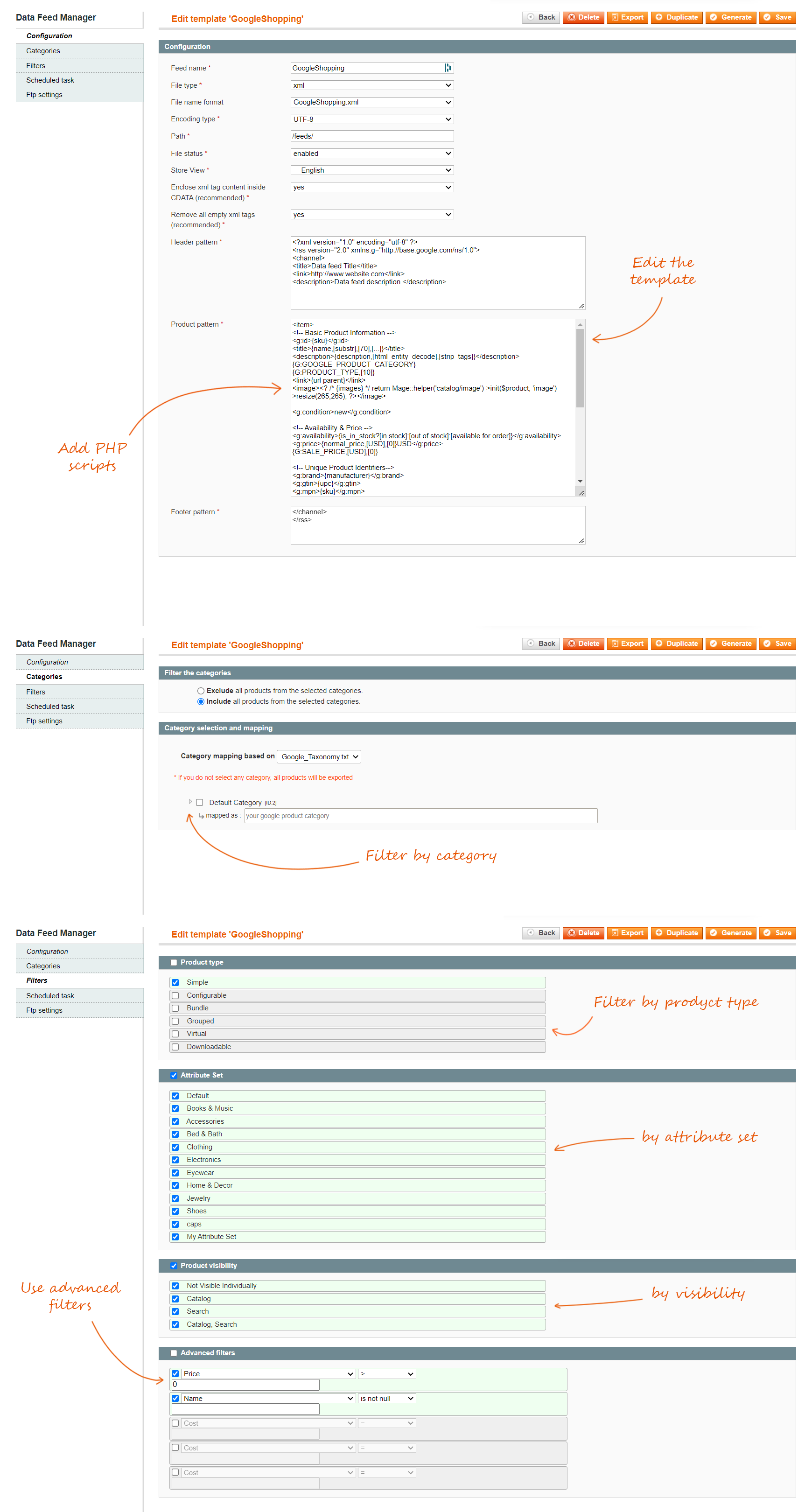
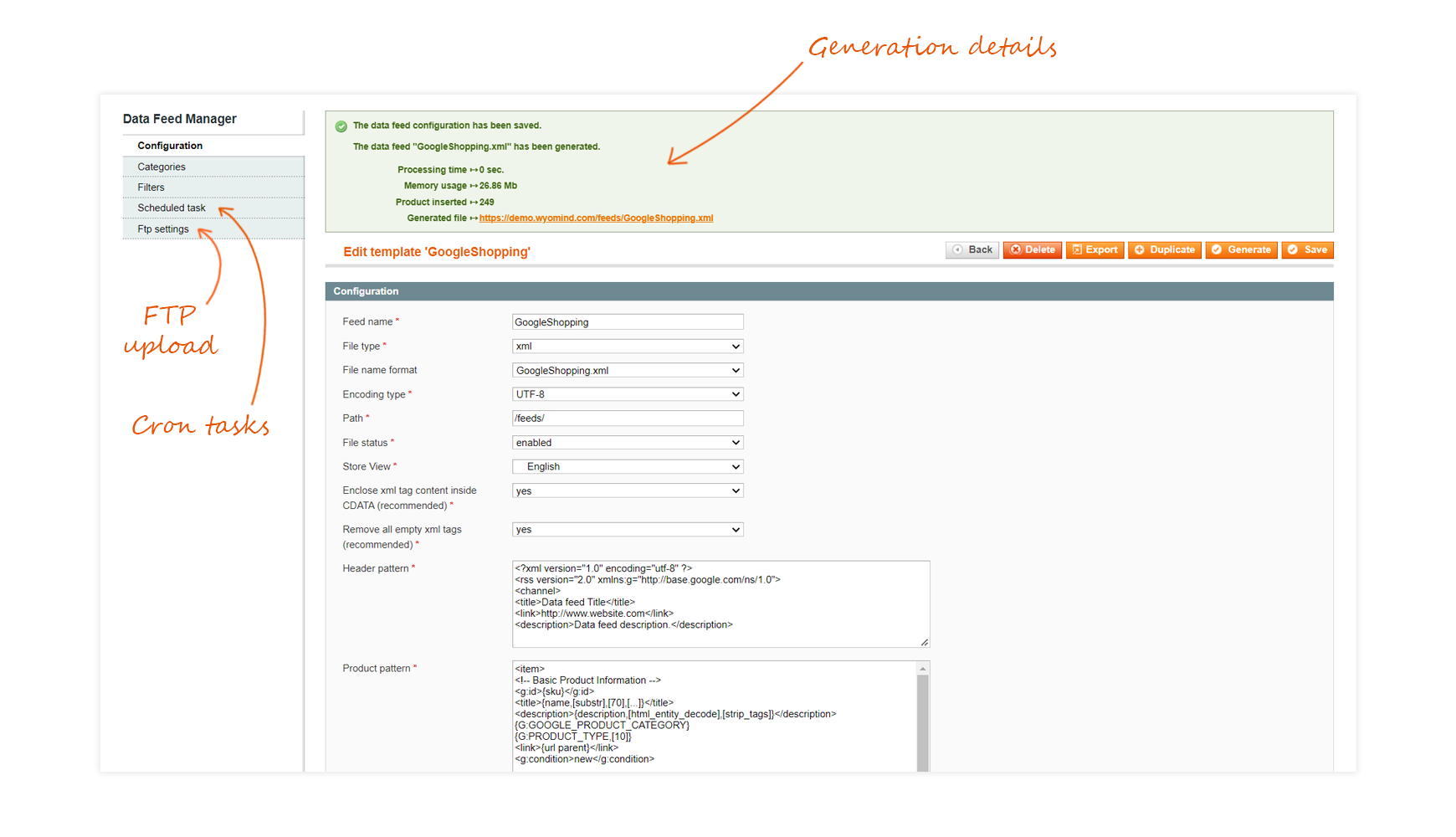
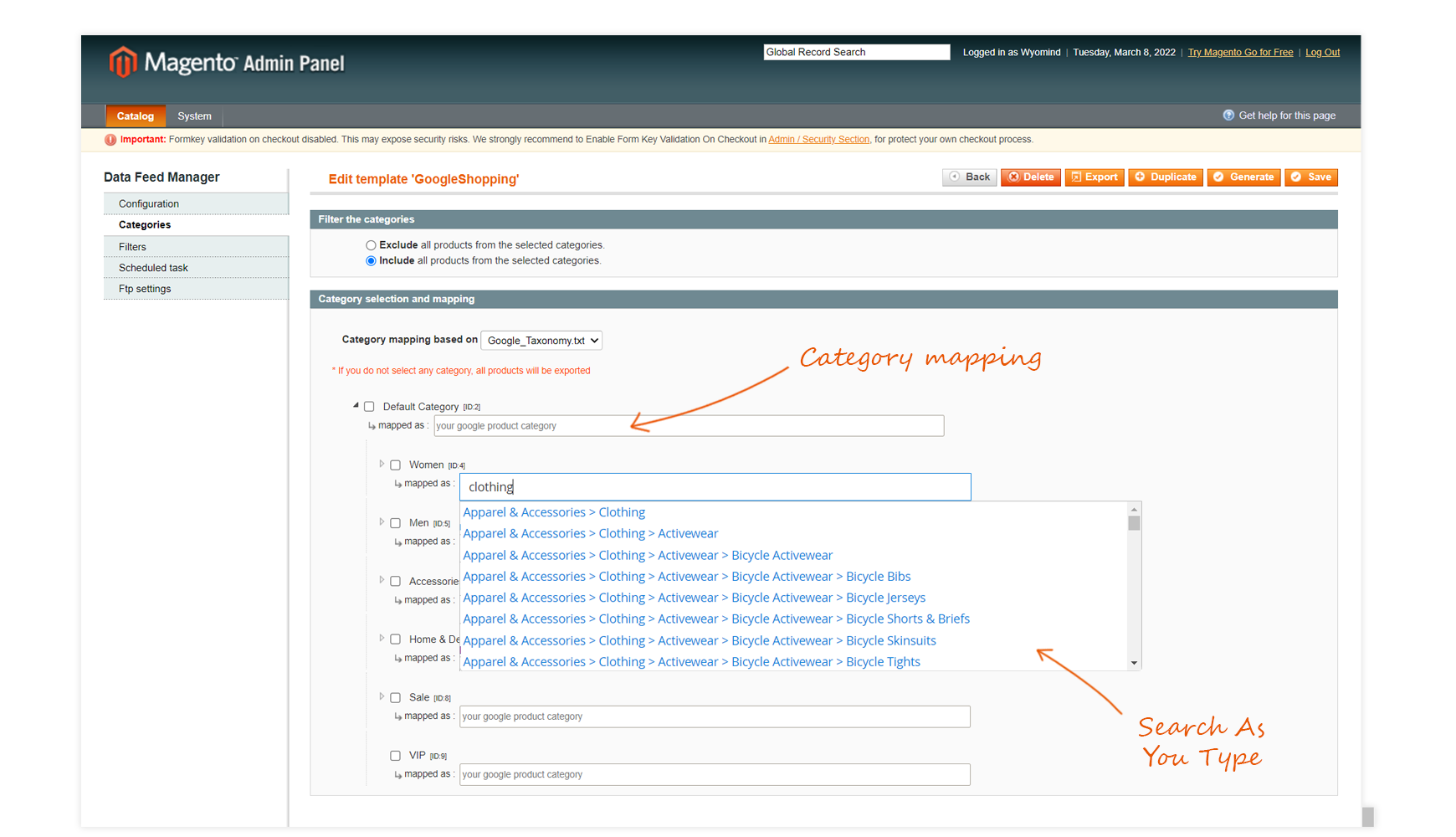









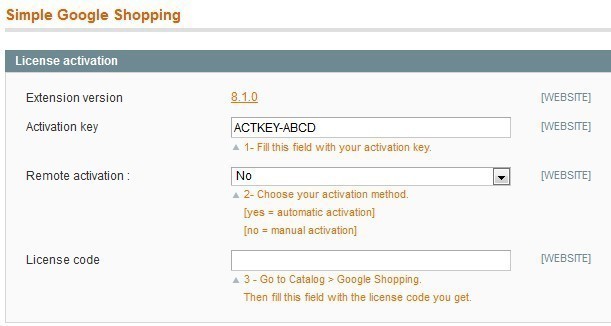
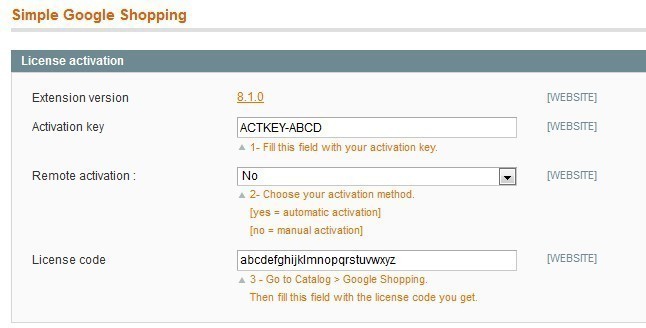

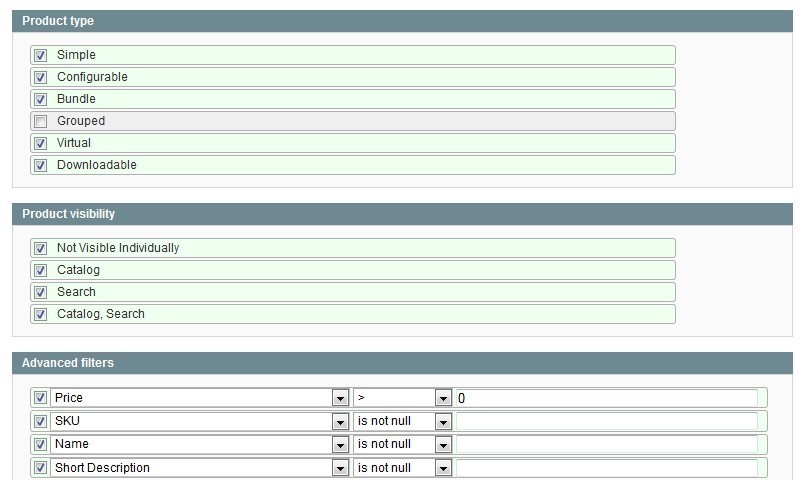

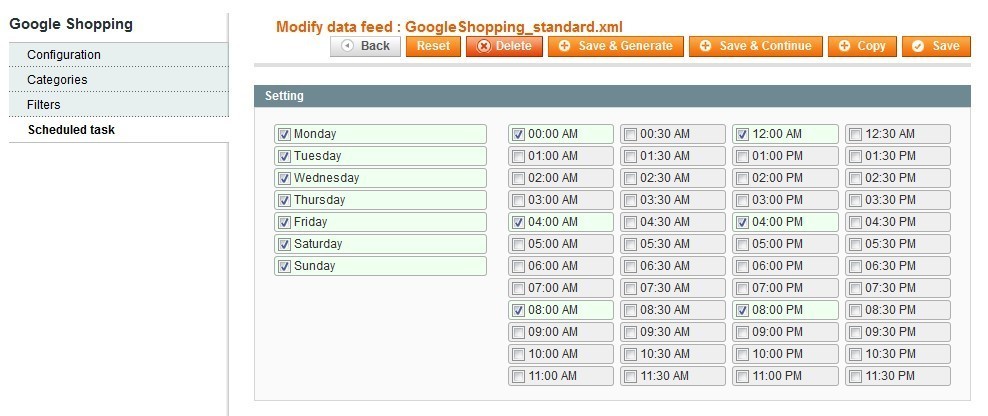

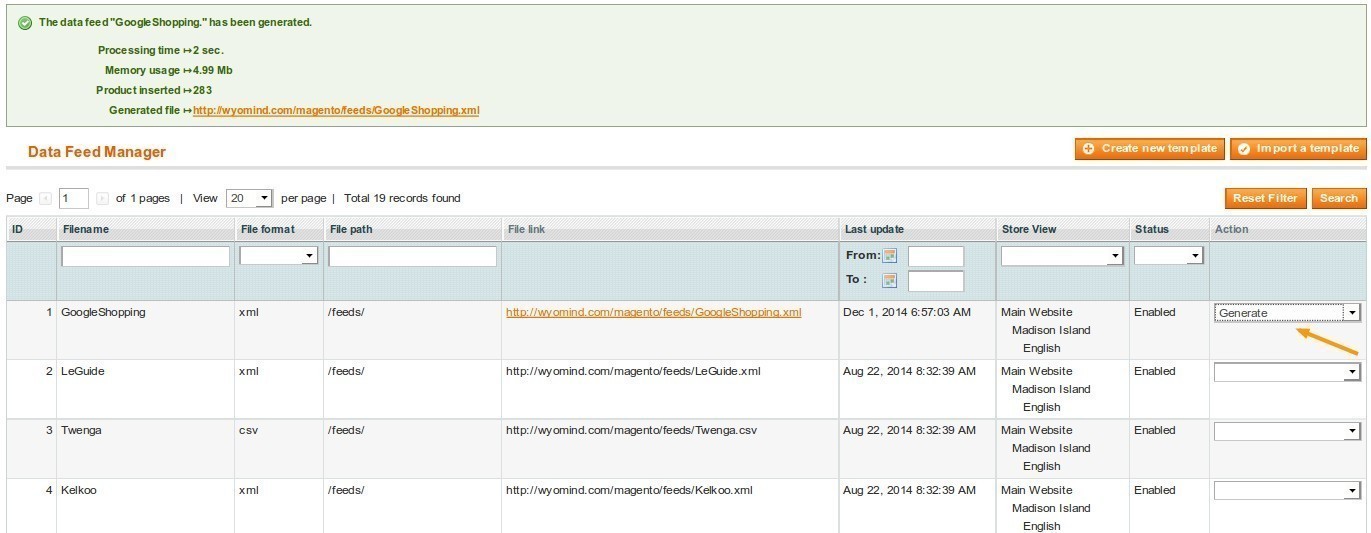
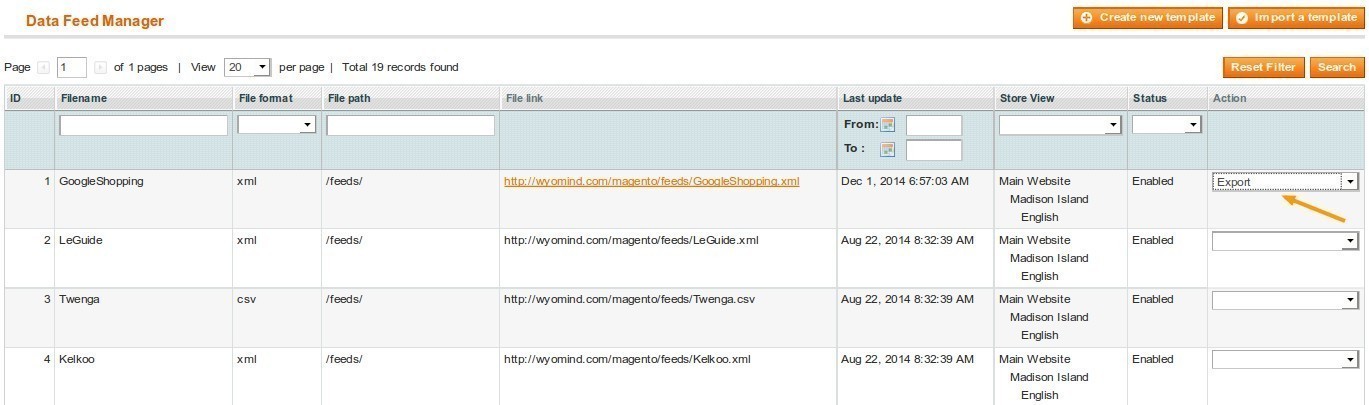

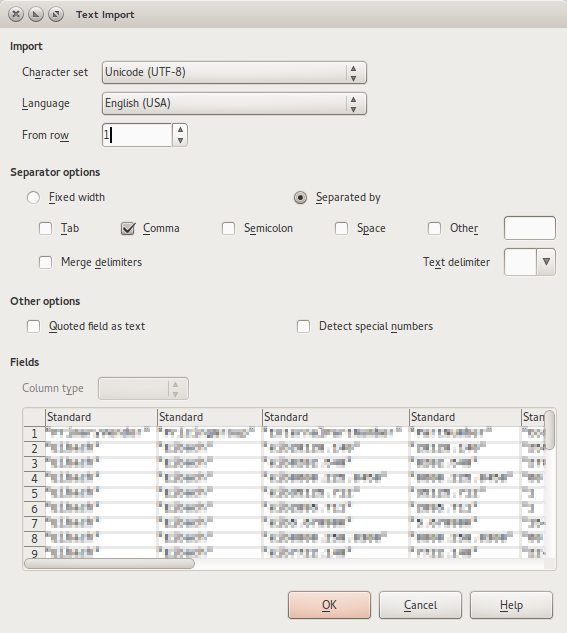
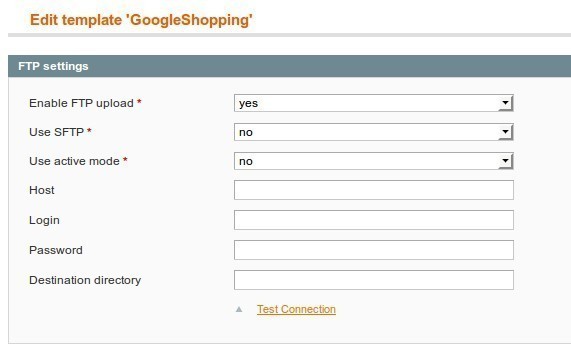

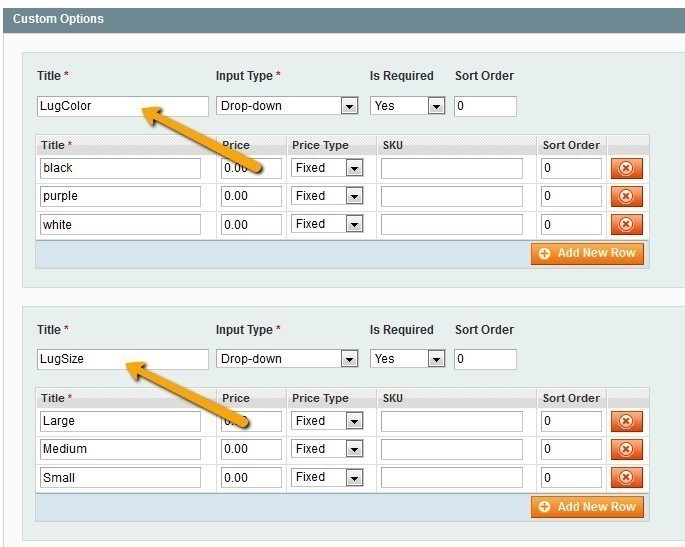
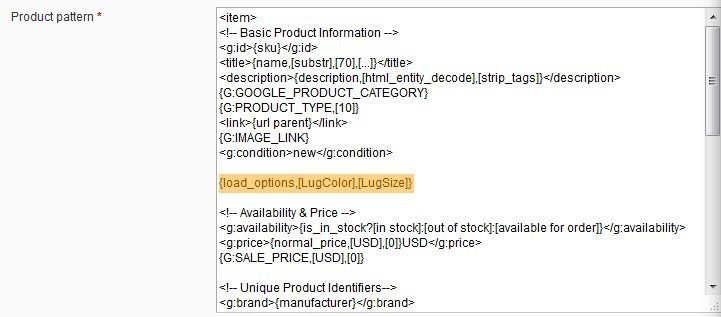
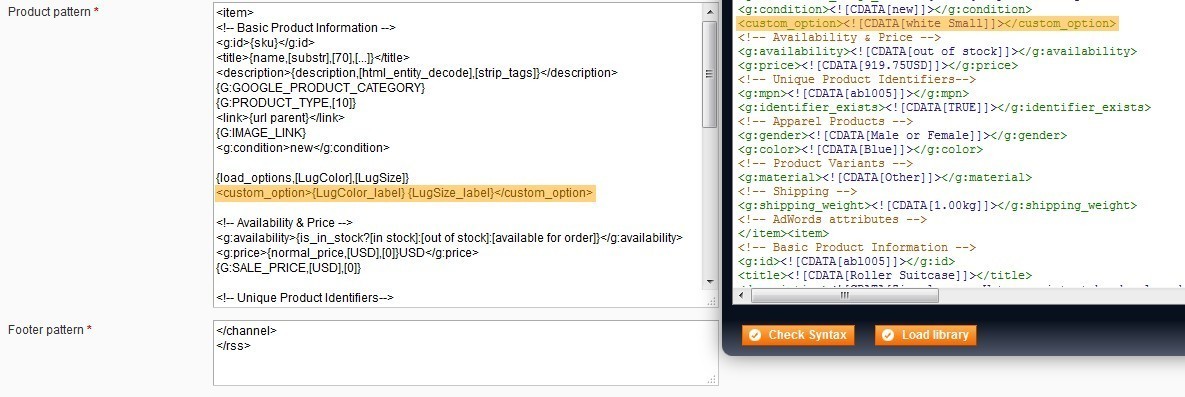
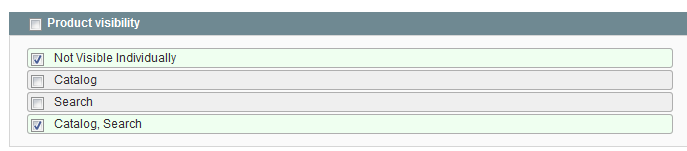





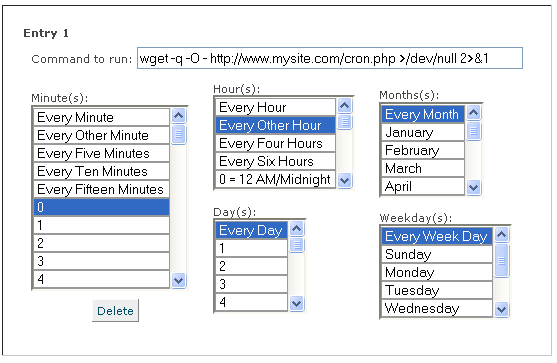
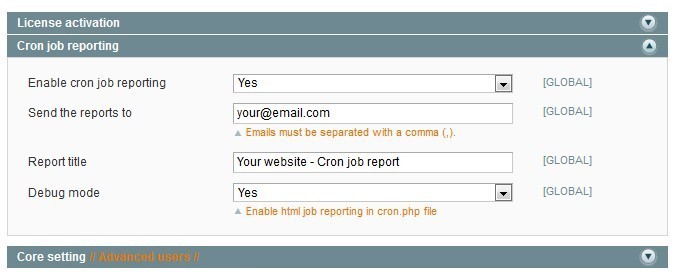
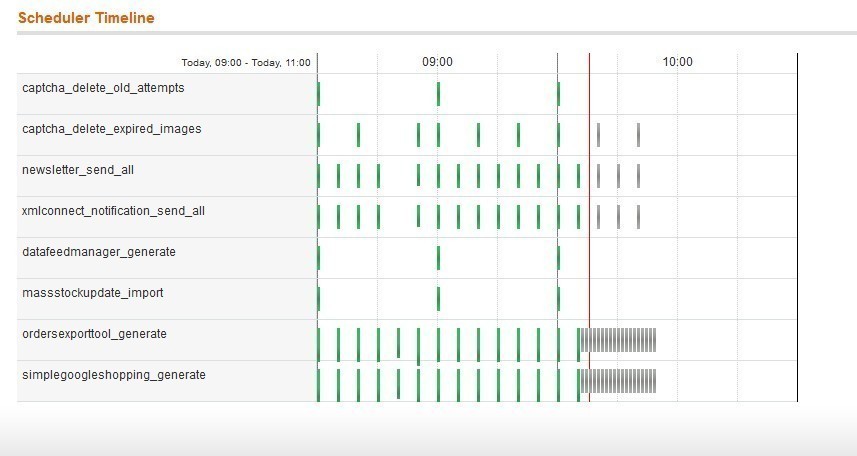
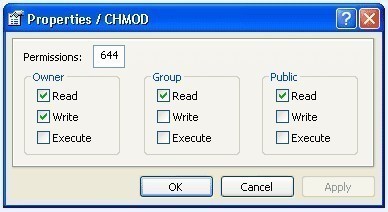
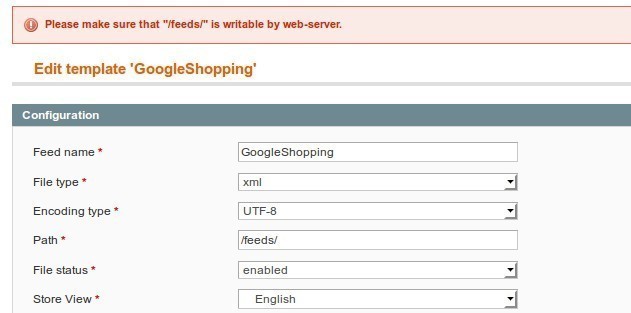
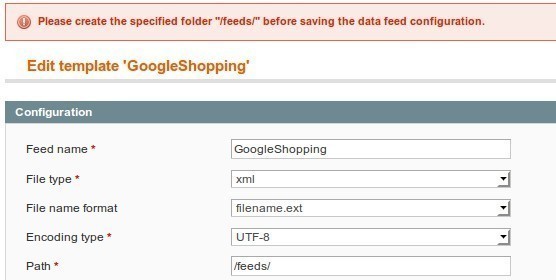

 We have used a few different feed generators from competitors, however Wyomind's data feed manager was the most robust and easy to use we have found
 Really simple to configure and works perfectly.
I can manage without any problem Google, Facebook, and various product feeds, adding all data and filtering products.
We tested many, this one is the best.
Really simple to configure and works perfectly.
I can manage without any problem Google, Facebook, and various product feeds, adding all data and filtering products.
We tested many, this one is the best. We have used the data feed manager extension on our Magento 2 website for the last couple of years. The user guide is informative and easy to use, allowing complete control within our feed. On the one occasion we needed to contact their support, they replied speedily and were able to resolve our query straightway.
 We've first used this on Magento 1 websites, and later migrated over to Magento 2. The addon is feature rich, and allows us full granular control over the data feeds we send to google, and other platforms. It's an invaluable part of our marketing toolkit and empowers our clients to succeed with their off-site order generation - such as marketplaces, affiliate sites and more.
 I've been using Wyomind extensions for mine and client's stores for around ten years and they've always been very reliable with little or no issues. The support team have always been quick to respond to any issues and help when within the support period.
 As a merchant and not a programmer, I find this extension very easy to install, upgrade and use. We've been using Data Feed Manager for over 5 years now and don't know what we'd do without it!!
 We don't know what we would do without it! We used this for Magento 1 and 2, it is very easy to use and helpful support! It is simple to implement, and the documentation is always clear, concise and very well documented. It helps more traffic to our site and increase our conversion and click-through rates. We love the rating and reviews that entice customers to buy and add social proof of our products longevity.
 Good module with many options to for configuration. Module works without any problems. Should satisfy even the most demanding customers.
 This extension is a must-have for any merchant! It is very feature rich and lets you build feeds for whatever your needs are. Wyomind has been around for a long time so we trust their level of expertise with whatever issue arises.
 The Data feed manager is a neccesary plugin for any serious Magento 2 webshop. It helps you out in the most easy way to connect to the commercial environments outside Magento, ie Google Merchants, price comparison websites. Prefilled profiles give you at hand solution or at least a good insight in how to connect to other systems automatically. I am not a programmer and was able to set it up myself!
 The data feed manager works like promised and delivers great feeds to upload to various marketplaces.
 J'utilise ce module depuis des années et je trouve que c'est de loin le meilleur module de flux pour Magento. J'en ai testé plein d'autres... mais ils sont tous très limité. Ce module permet d'ajouter du code manuel, ce qui permet de faire presque tout ce que l'on souhaite avec les données.
 The extensions is very professional and works as expected. The Data Feed manager is easy to use with a lot of features by default. It is also possible to extend the basic features with custom code to satisfy our special needs. This extension is very important for our webshop.
 We have been using this modules for years and its very easy to generate the google feed using predefined variables to build he xml, we highly recommend this extension to everyone, thisis perfect extesion for our business need.
 Great module, with lots of options to fit every need. And perfect if your selling computergames
 This is very helpful extension in marketing.. Thanks for making this type of extension.
 Great module, with the possibility to create any feeds do you want. Support very fast in replying. We are successfully using this module on our website since 5 years. On our Magento 1 webshop and recently switched to the Magento 2 version.
 great extension
 good extension
 Clean code, great support team. Product was very helpful it achieve our target and the support team is professional I shall highly recommend this product
 excellent extension to manage datafeeds for google, facebook, price comparisons and affiliate platforms. The possibility of applying filters to the products to be exported according to the generated datafeed is also very convenient. Installed on magento 2 cloud commerce version. Note some cache issues when downloading feeds from the backend.
 I've been using the Wyomind plugin for years now and it is an essential plugin to manage my datafeeds. Each marketing channel needs specific requirements (Google, Share A Sale, AdRoll, Facebook etc) and Wyomind makes it super easy to configure the feed per each ones requirements. Also cron updates to create a fresh feed daily, very simple and barely need to maintain. Support is excellent too, very responsive and helpful. Super bonus that Im in the USA and they seem to answer the same day during my timezone which is stellar!
 Great module, totally customized and with the possibility to create any feeds do you want. Support very fast in replying and kindly.
 I've been using their google related extensions on various websites and must say that we never faced any issues which could not be fixed within 10 minutes of submitting a support ticket. They are all easy to use and the support is top-notch!
 We have for 3 years Data Feed Manager in use.The best programme on the market .Easy to use .But the best thing is the support, very fast reaction ,always competent answers.A clear recommendation.
 This plugin does exactly what it's supposed to do. It is easy to set up and install. It will save you a lot of time. It's easy to link your products directly to different marketplaces. This is also a good solution for Dutch marketplaces.
 Looks very interesting to use this tool instead of the tool we currently use!
 Using this extension with CRON allowed me saving much much time. I have at least 10 PHP apps working with the flows generated with it. More generally, i recommend Wyoming for their professionalism
 Very powerful extension because of the possibility to use php scripting. There is not much which can't be done. We use it to create our own high quality datafeeds. No need to use third parties. Great! Also support is fast and helpful.
 The Data Feed extension is very flexible. So we can configure it and create feeds for different platforms such as Amazon, Google Shopping, Facebook catalog etc. Relly must-have!
 Great company with really good plugins, have been using a few of their plugins for a few years with no issues . Datafeed manager we have used on 1.9 and 2.3 magento. Both have worked well. We have had issues with a recent change we made with our site and datafeed manager on magento 2 with grouped products but hoping to get that fixed soon. Overall would recommend.
 I have been using extensions from Wyomind since 2018 and the Data Feed manager is an excellent tool that we have used on 3 different websites. It is easily configurable and generates feeds in different file formats for different sales channels. A hidden benefit is that this can also be used for managing multi-store export-import much better than the native Magento CSV export. Their support also has been top-notch with the after sales support. All an all, happy to recommend them for some good solutions that work.
 It's an outstanding product, we are fully satisfied with it. Simple, powerful, reliable, no errors and no fuss. We strongly adviced it to set-up feeds quckly and with the flexibility needed for different feed processors.
 We love everything we can automate. If we could automate our cups of coffee we would. We use the Data Feed Manager to provide our customers the number 1 solution for their marketing. Very easy to integrate and the customer support response is very rapid.
 Very happy with the performance of the Data Feed Manager module, it's been reliable and has worked well for us. We've only had some smaller issues with having to revalidate the module after deploying to our production server, but this has been a minor issue for us. Also been some confusion with getting the feed manager ext validated on our stage and dev environments but that's likely user error on our end.
 We have used Wyomind for many years with the Magento 1 stores we have built and configured for our clients. The support team at Wyomind are amazing, super friendly, and extremely knowledgable. We have also experienced their extensions for Magento 2. Wyomind are part of our essential modules when it comes to pitching Magento developments to our customers here in the UK. If its from the awesome Order Eraser, to the legendary Data Feed Manager, they are must have for any Magento Store owner - we will be back, again and again!
 Great extension
 We use Data Feed Manager to manage ALL of our feeds whether that's Adroll, Google Merchant Centre, Doofinder or Bing. We have feeds going to many different places and it would be very difficult to manage the feeds without this extension. The feeds are incredibly easy to setup and very customisable with the use of PHP. The schedules help us to manage the server load and the quick visual check means we don't need to refresh the feed each time we make a change.
 Good module, super necessary, frequent updates however as frequent bugs but a quick response from their support always fixes the issue.
 wyomind thinks with you. They help if necessary and deliver a product that you can't ignore as a serious magento shop.
 I have used this extension for over 7 years on both Magento 1 and now Magento 2. I have used it for Google Shopping, Bing and CSV or XML exports to other applications. It is very easy to use with many features. It is must have extension for any significant ecommerce work.
 We alwasy use these guys products they are A grade, We have been offered from another marketing ferm a free product but know with data feed manger the website will be a lot more safer and not hvae so many issues meaning we get a good product and a website that keep up unlick with other products that say are good the code is clean and also works thank you again for suporting us and our website https://www.weheat.co.uk/
 I´ve been using this product during the last few years, and it is really usefull to promote my products on google shopping or market places. The suport is ok and there are some upgrades available, which are important as well. I´ve never used another tool because this one is good enough for my business.