

 Magento 1

What are Google Merchant and Google Shopping?
What is Google Shopping and Google Merchant?
Google Shopping is a free Google service allowing customers to find and compare products they want to buy online. If you are an online merchant, you can submit all your products to Google Shopping and attract potential customers by allowing them to view your products more easily.
Google Merchant Center is a tool that helps you upload your store and product data to Google and make it available for Shopping ads and other Google services. Learn more about getting starting with Merchant Center
How to create my Google Merchant Account?
In order to submit your products to Google Shopping, you need to create a Google Merchant Account. Click on the following link for further information on creating an account: https://www.google.com/support/merchants/bin/answer.py?hl=en&answer=188924
This account gives access to the Google Merchant interface. There you can manage all your product data feeds and plan any daily, weekly or monthly updating tasks.
What is a products data feed?
A data feed is a file made up of a unique group of attributes that define each one of your products. This allows customers to search and find your items more easily. This file is similar to an RSS data feed but includes some specific XML tags used by Google Merchant Center or any other shopping engine.
To know more about the product data feeds, have a look to the Google Merchant Center support site: https://support.google.com/merchants/answer/188478?hl=en
How to create a products data feed?
Simple Google Shopping and Data Feed Manager are two Magento extensions that allow you to quickly configure, generate and automate several product data feeds.
How to use Simple Google Shopping?
STEP 1: Configure Simple Google Shopping in a general way
Before being able to configure your data feeds, you should configure the extension in a general way. To do so, go to
System Configuration Wyomind Simple Google Shopping
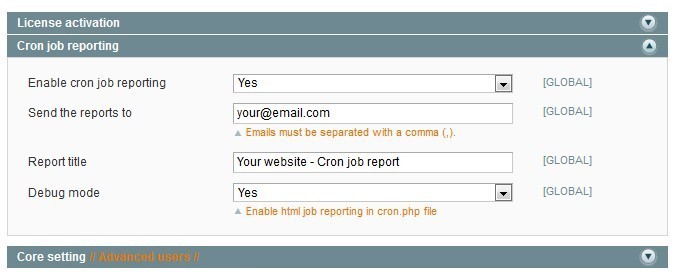
Cron job reporting

Core Settings
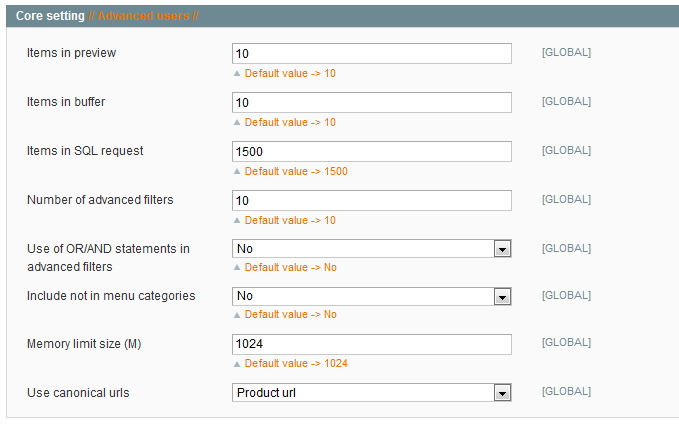
In the Core Settings tab, you'll need to configure a certain number of fields.
- Items in preview
By default there are 10 items in preview, if you want you can reduce or increase that number. - Items in buffer
By default, products are inserted into the file on the server every 10 items but you can reduce or increase that number. - Items in SQL request
By default, there are 1500 items in each MySql query. - Number of advanced filters
By default, you have 10 advanced filters. If you need more, you can at any time increase that value. - Use of OR/AND statements in advanced filters
And/or statements can be used in the advanced filters simply by enabling that option. - Include not in menu categories
You can also include the categories of products that are not in the menu. - Memory limit size (M)
The default memory limit is 1024. - Use canonical urls
You'll be able to choose which type of URL to use in your data feed. You can choose between 3 options:
Product url, Shortest category url or Longest category url.
Product Url = http://mywebsite.com/t-shirt.html
Shortest category url = http://www.mywebsite.com/men/shirts/t-shirt.html
Longest category url = http://mywebsite.com/men/new-arrivals/t-shirt.html
STEP 2: Configure your data feeds with Simple Google Shopping
To create/configure your own data feed, you need to go to:
Catalog Simple Google Shopping
There, click on Create a new data feed.
You now have to configure your data feed as you want.
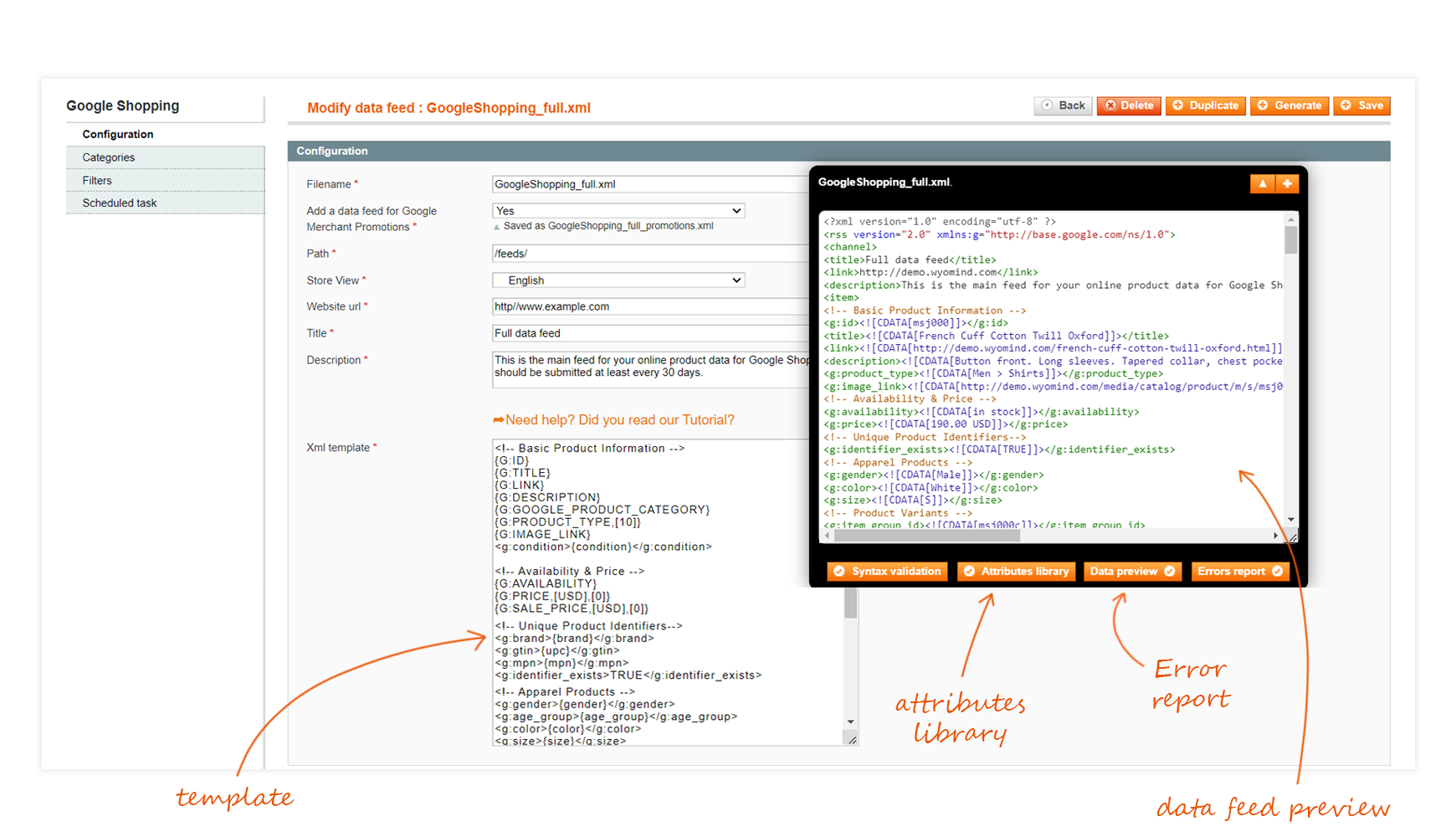
The Tool Box or so-called "Black Box"
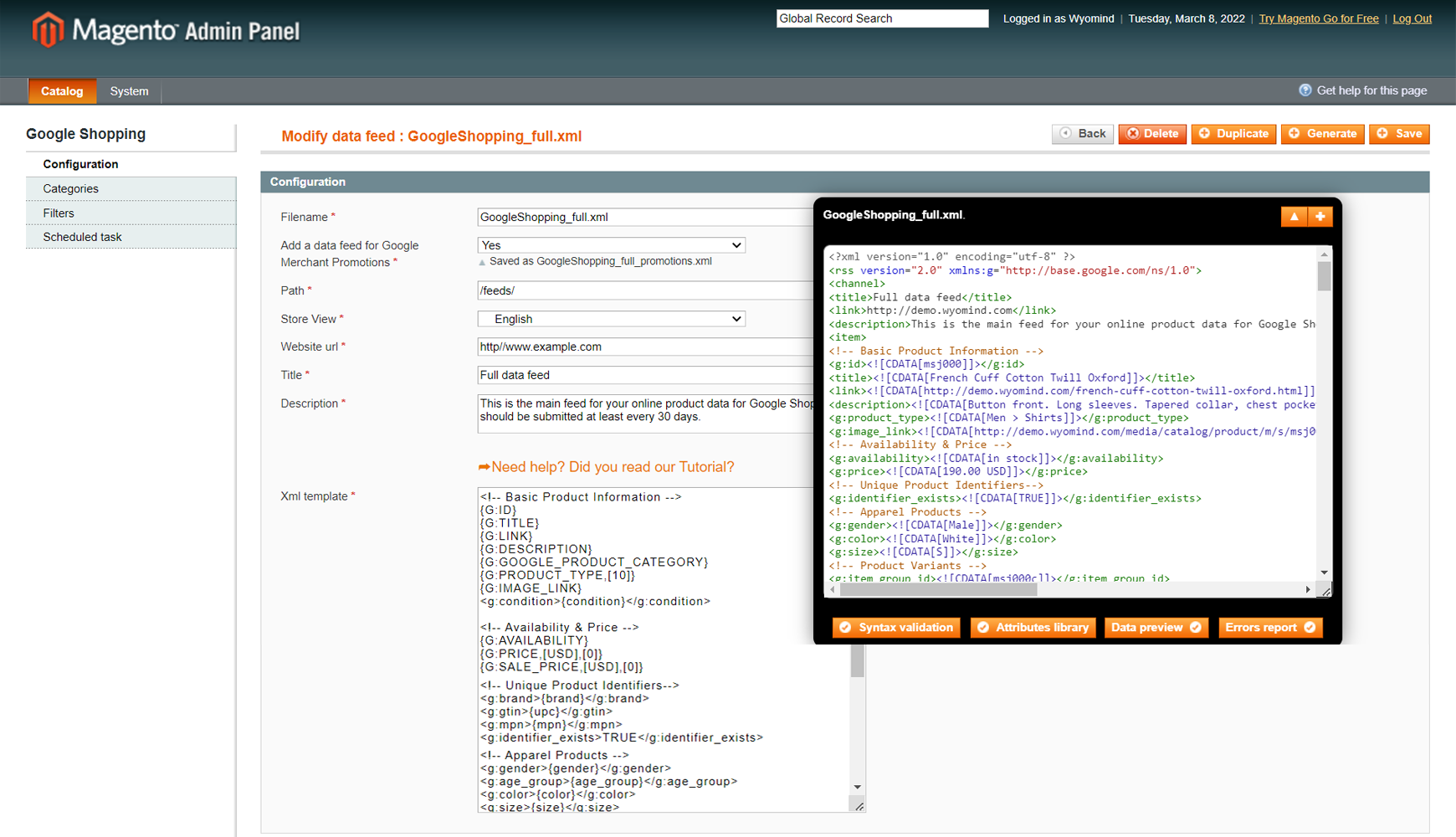
When creating a data feed, you should see a blackbox on the right of your screen. The Simple Google Shopping extension includes that tool to help you create your feed and see what is wrong.
The blackbox is inevitably a very useful tool. This will help you to configure your data feed more quickly.
Below are the different options of the blackbox.
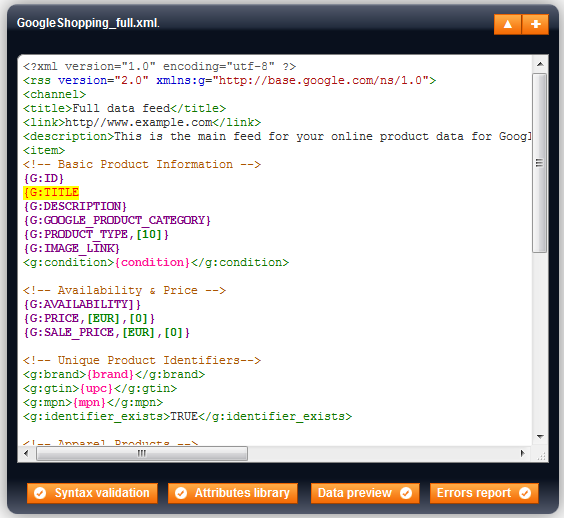
Syntax validation
This button allows you to check if your syntax is correct. It helps you to see if you have forgotten a bracket or a comma by underlining in yellow the part of text that contains a mistake.
Attributes library
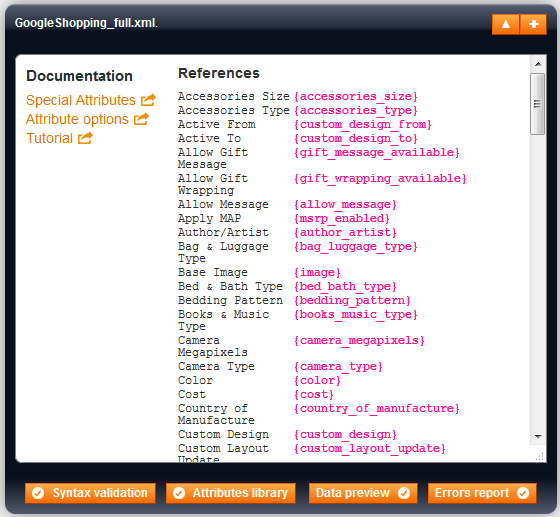
If you click on that button, a library of your store attributes will be displayed. This makes it easier to find very quickly which attribute you need to add into your template.
Data preview
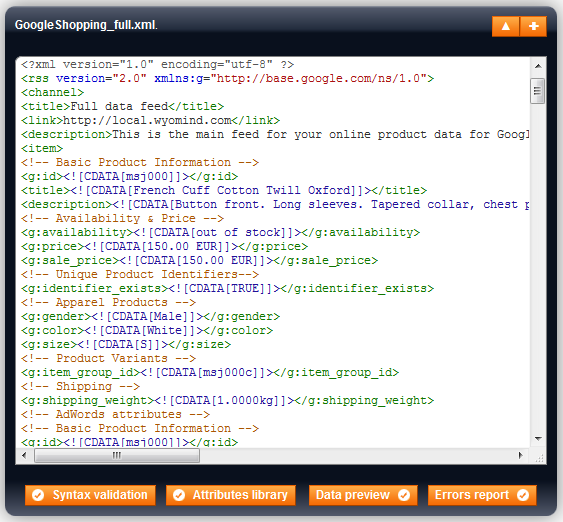
When clicking on Data preview, you'll see a preview of your data feed. It's very useful to see if the values of your attributes are correctly retrieved or if your filters are working.
Error report
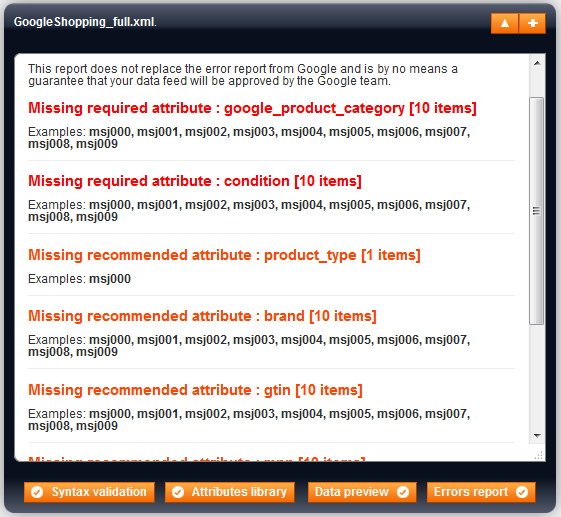
When clicking on that button, it will display a report on the errors and warnings of your data feed.
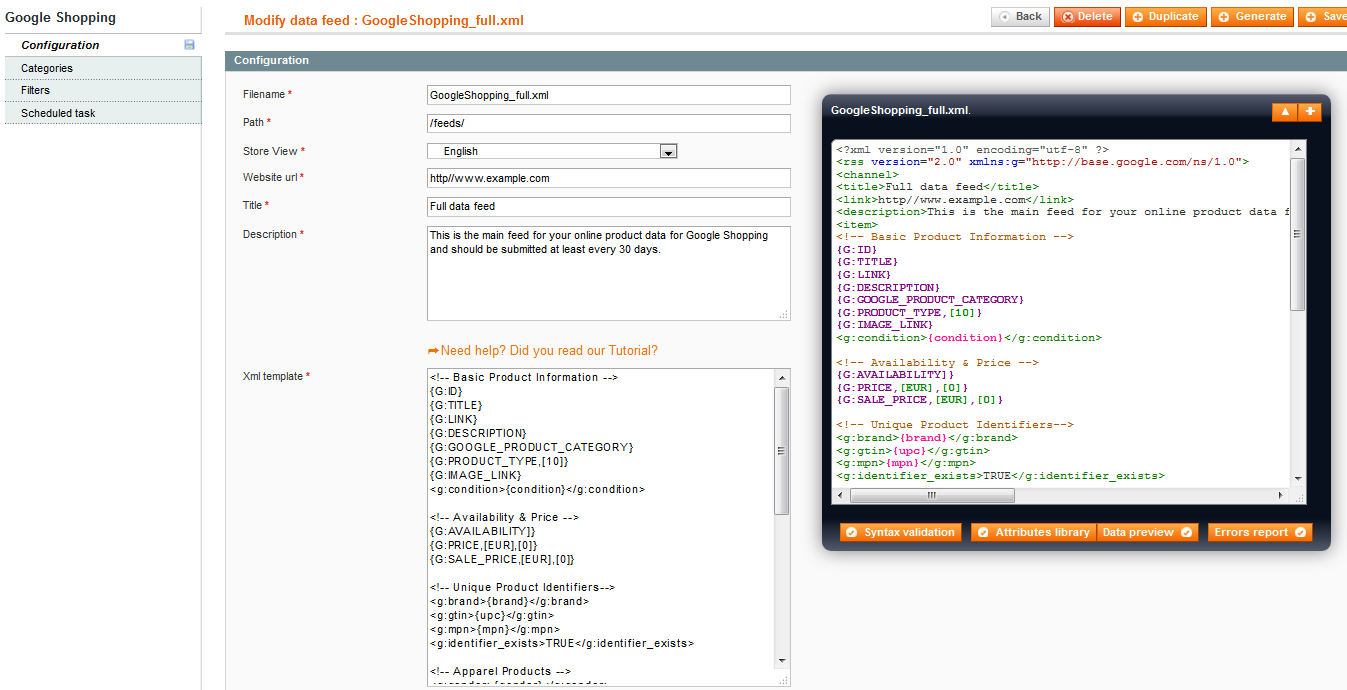
Configuration
In that first tab is the main configuration of the data feed. You'll find several fields to fill in that will allow you to customize your feed.
- File name
Enter a name for the file. - Path
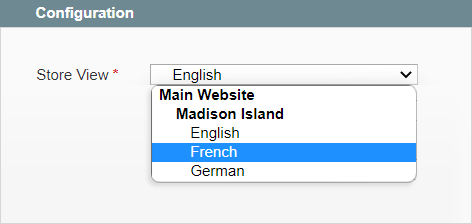
Define the path where you want the data feed to be generated. For example /feeds/. - Store View
Define which store view must be used. - Website url
Add your website url. - Title
Add a title to your feed. - Description
Add a description to your data feed. - XML template
This is probably the most important field as this is where you will configure your template
For a good understanding check how to manage your data feed templates
Categories filters
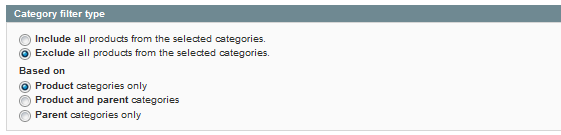
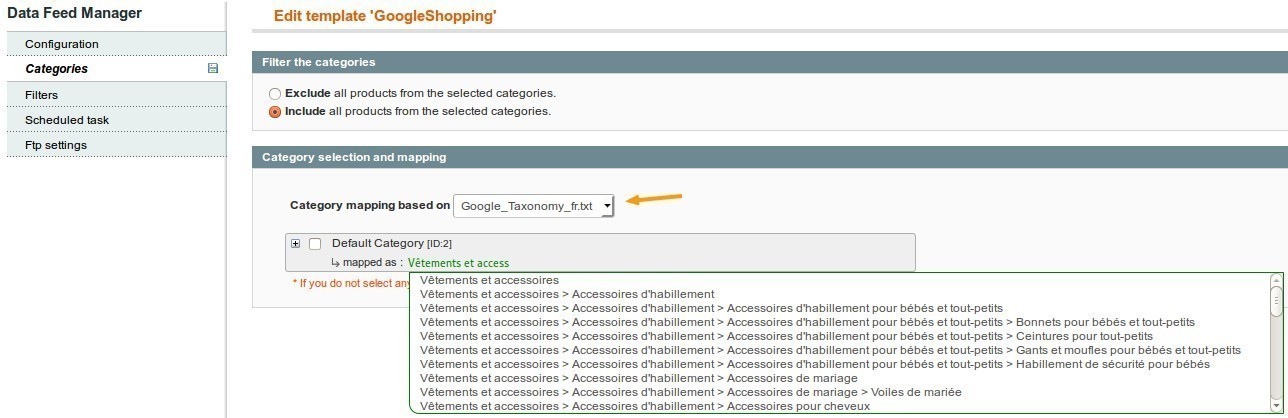
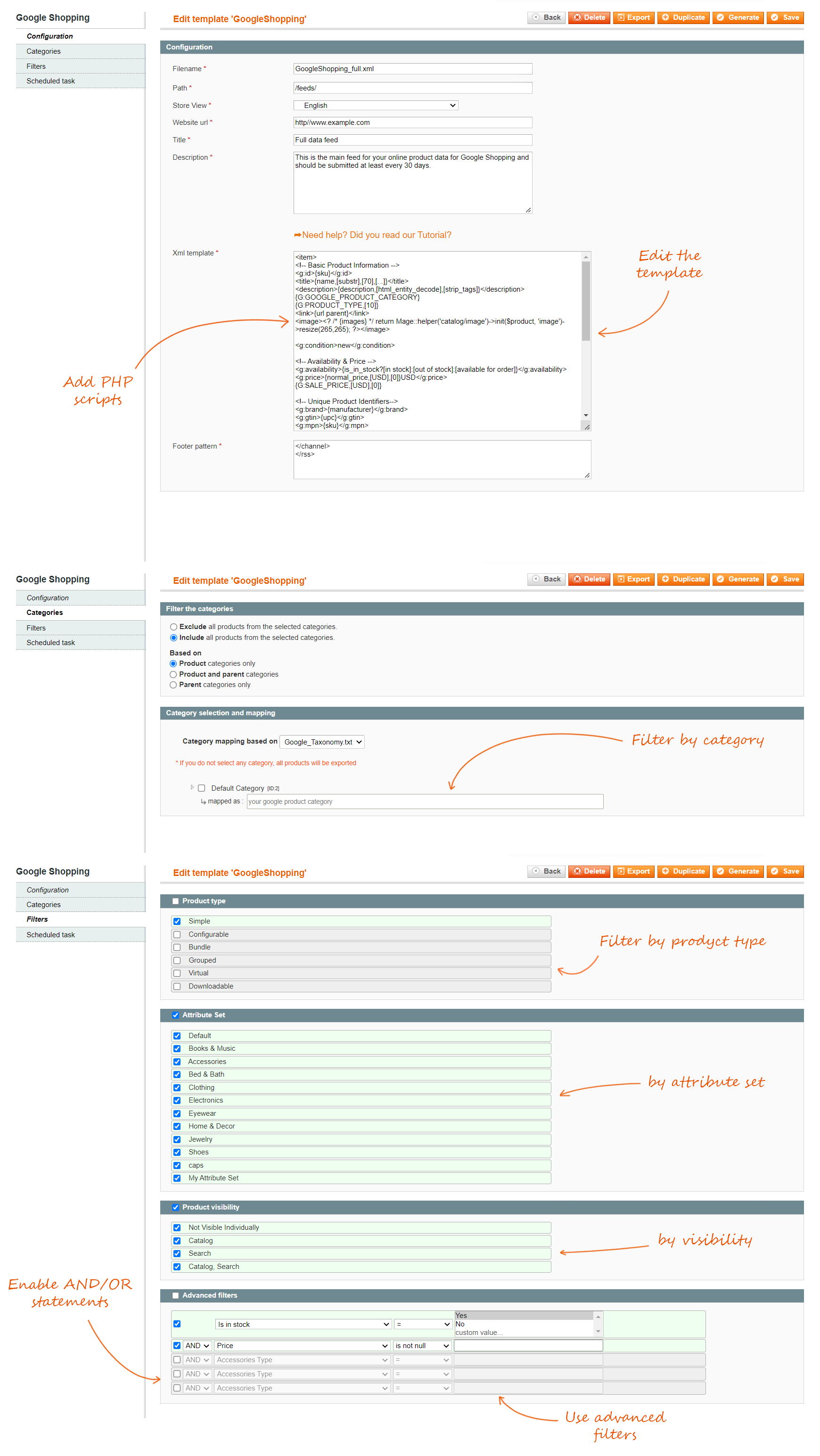
In the Categories tab, you will find 2 sections that will allow you to manage your categories. The first section allows filtering products by categories.
You can filter products depending on the categories according to two different ways:
- Exclude all products from the selected categories.
- Include all products from the selected categories.
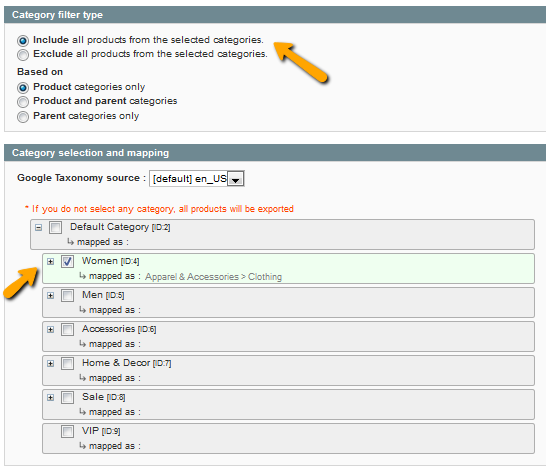
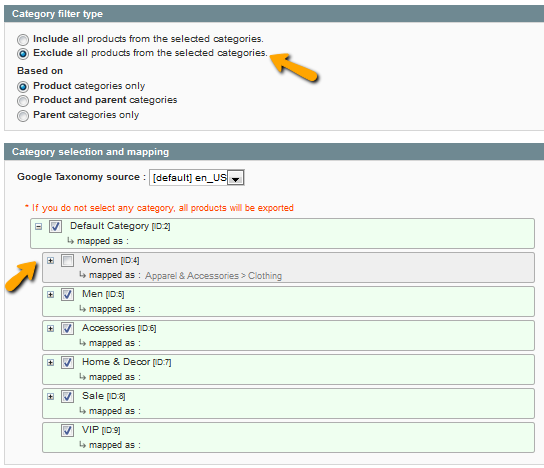
For example, if you wish to include only products of the Apparel category, you can configure your filter in two different ways.
First of all by ticking the Include option that will allow you to include all categories that you have selected.
Or via the Exclude option that will exclude all categories you have selected.
You'll be able to include or exclude your categories depending on:
- Product categories only
- Product and parent categories
- Parent categories only
Imagine you have a configurable product with simple variants associated. The configurable has a category assigned but not the variants. In that case, you'll need to select Parent categories only.
On the contrary, if you have categories assigned to simple variants but not to the configurable product, you'll need to select Product categories only.
In the case where you have both situations, you can select Product and parent categories.
Category mapping
In that section, you can map your categories to Google ones. This step is very important so that Google can make a link between their product categories and yours.
What is a category mapping?
This means you have to find out which Google Merchant categories have the best matching with yours, according to the Google product taxonomy.
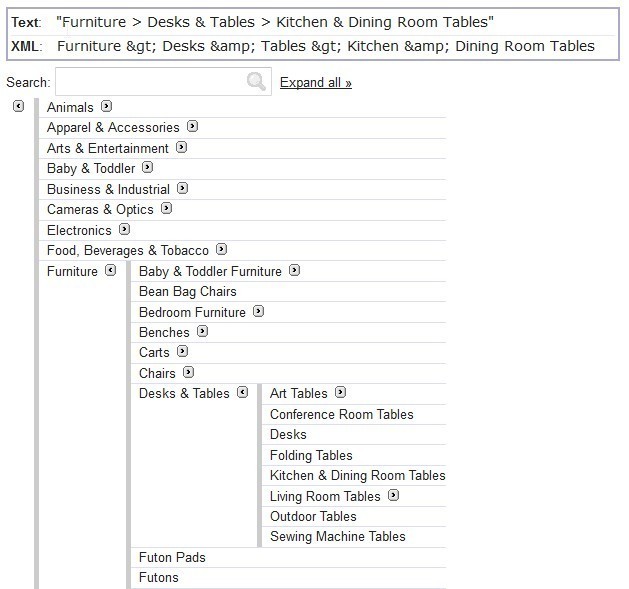
For example, if you're selling furniture like coffee tables, you'll have a Coffee table category in your Magento admin. But Google Merchant doesn't handle this kind of category. The closest Google product category could be Kitchen & Dining Room Table.
How to map your categories with Simple Google Shopping?
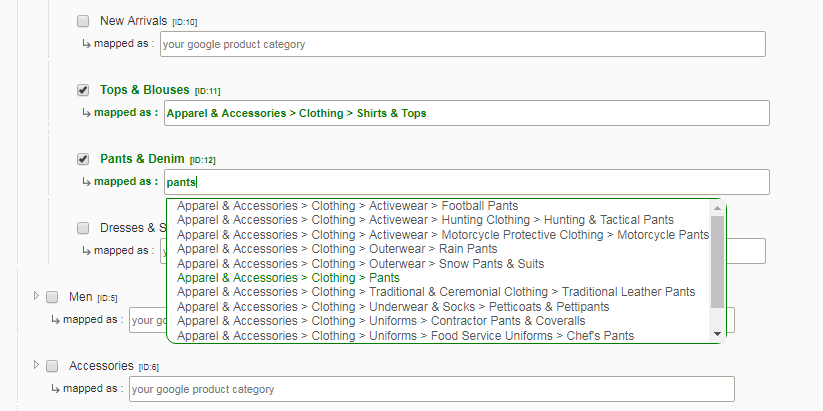
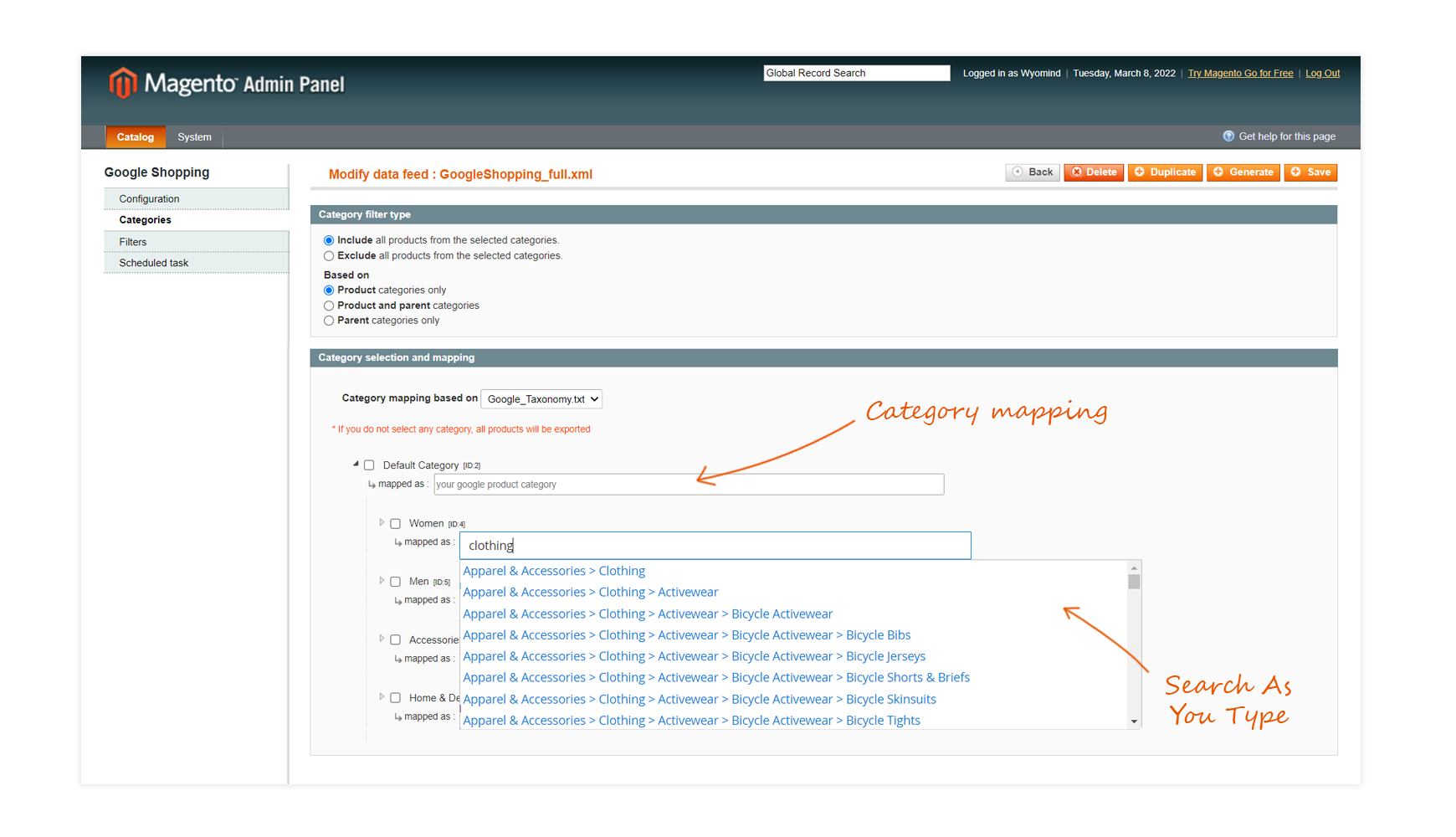
In your data feed configuration, go in the Categories tab. Then, in Category selection and mapping section, you'll find a treeview of all your categories.
First select the Google Taxonomy source on which the category mapping is based.
Taxonomy files for the main countries are directly included to allow you to map your categories more easily. You can also have a look to our faq to know how to add a new taxonomy file.
For each category, you have a little arrow followed by mapped as . There, you'll be able to start typing a keyword in order to display a list of all categories including that keyword. You simply need to select the one you need.
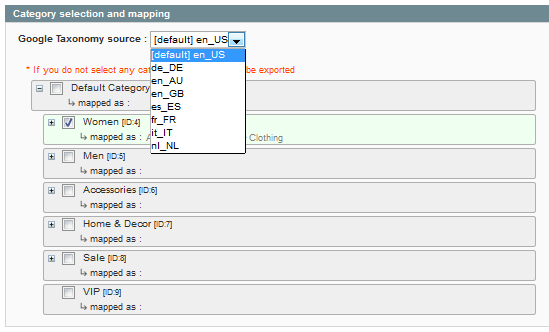
Once all your categories are mapped, you can click on Save.
Here are a few guide lines for choosing the most appropriate category:
- Use the category that best describes your item. To do this, first determine the primary function of the products you are submitting. For specific items like MP3 Players, select the MP3 Players category. While some MP3 players can also serve different functions, like those that contain a clock, they are primarily MP3 Players.
- Use only one category. For some products, more than one category might be relevant. For example, an adapter to allow an MP3 player to be used in a car could be in both categories Motor Vehicles > Audio & Video and Electronics > Audio > Audio Accessories > MP3 Player Accessories. In such cases, choose the category that seems the most appropriate to you, but don't include more than one.
- Use the most specific category possible. Being specific will help to improve your data quality and so ensure that offers are presented in the right category. When viewing the taxonomy, try to navigate to the most specific category that still covers all the products that are being submitted. For instance, if you are submitting MP3 player chargers use the MP3 Player Chargers category. Conversely, if you are submitting multiple types of chargers use the Chargers category.
How to include the Google category to the XML template?
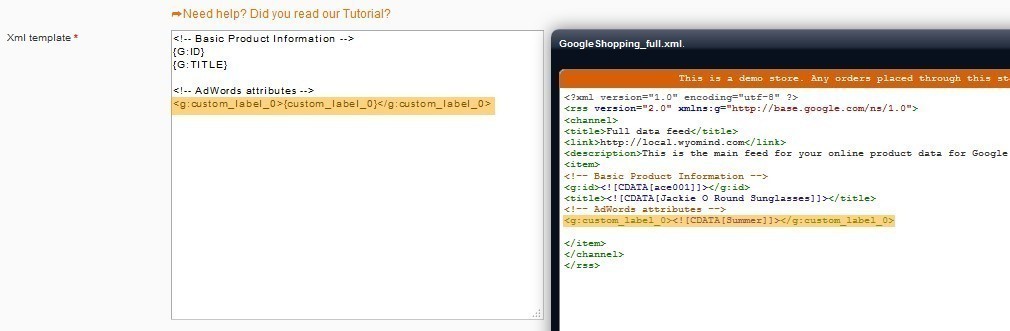
Finally, so that the Google category is retrieved in your data feed, you must add the following attribute to the XML template:
{G:GOOGLE_PRODUCT_CATEGORY}or
<g:google_product_category>{category_mapping,[0]}</g:google_product_category><g:product_type> is for the categories that you have defined independently in your Magento back-office.You can easily fill this XML section using {G:PRODUCT_TYPE} . This will then retrieve for each one of your products, the category you have assigned to it.
Read also: https://support.google.com/merchants/answer/6324406?hl=en
How to add a new taxonomy file?
The Google product taxonomy is a tree of categories that will help you generate values for the 'Google product category' attribute. It lists all possible values for the 'Google product category' attribute.
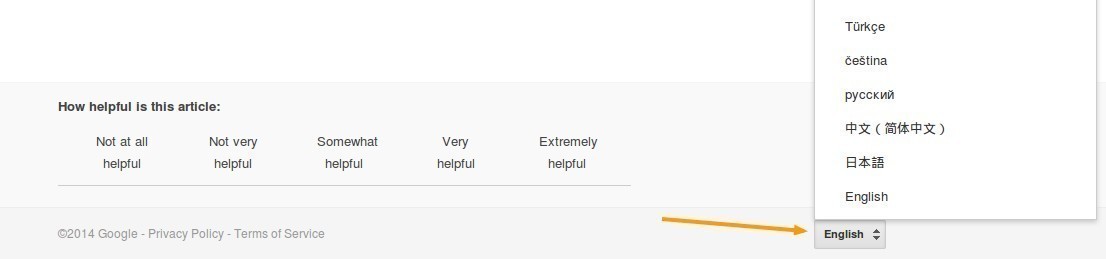
In that page, choose the language you want to use for your taxonomy at the bottom right. Then, in the Downloadable taxonomy, open the Plain Text link that contains full category names.
Save that file and paste it in:
Magento Root Directory Lib Wyomind google
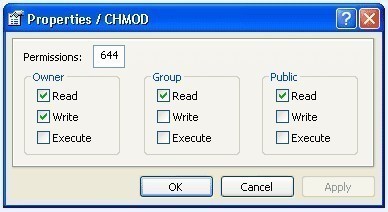
Don't forget to apply the permissions 755 to the file.
You'll then be able to choose that specific taxonomy from your data feed configuration.
Filters
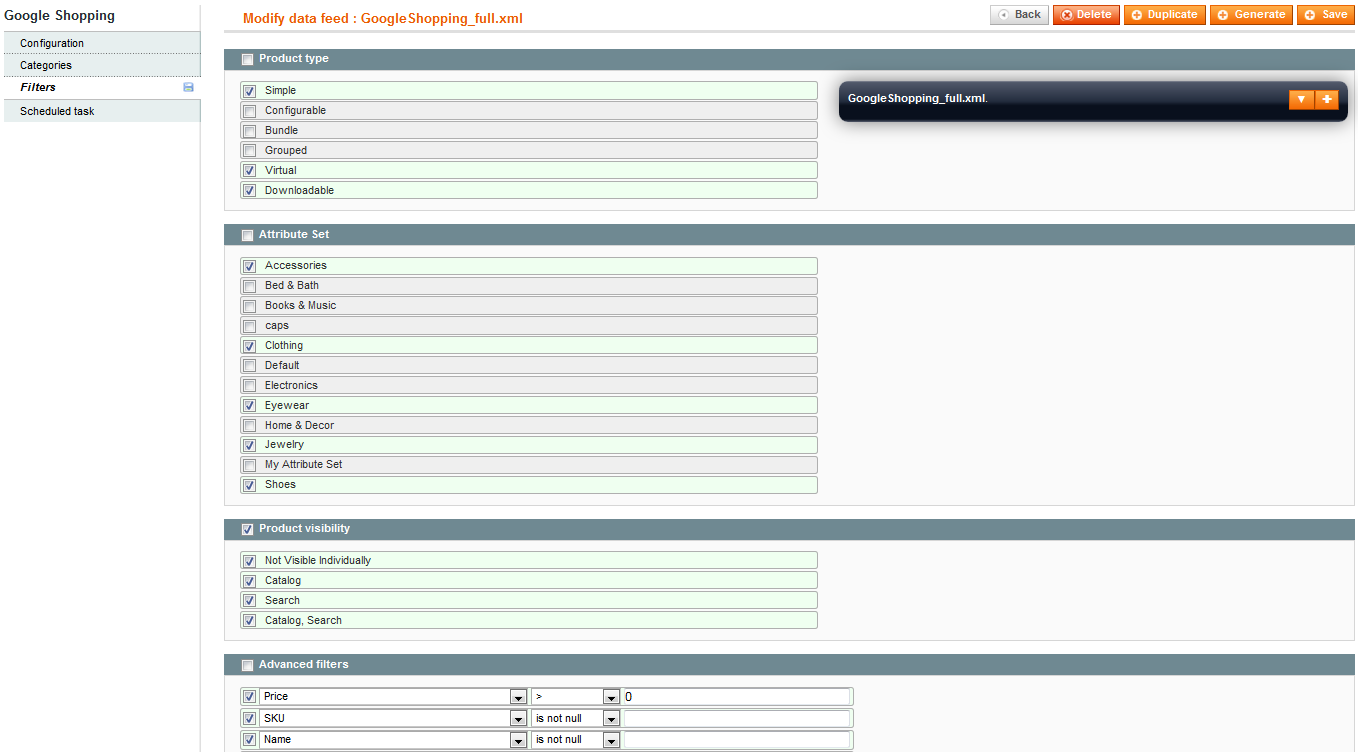
Simple Google Shopping also allows you to filter your products on several levels according to their attribute sets or their visibility for example.
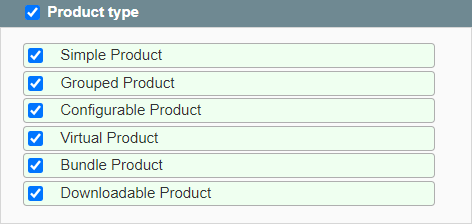
Product Type
Attribute Set
Product Visibility
Advanced Filters
In the Advanced filters, you can go further by setting more personalized filters.
For example, we wanted to include only products which price is higher than 0, and which SKU and name are not null.
Here again, you have the possibility to configure your advanced filters according to several options.
- LIKE / NOT LIKE
name like %shirt: will include all products which name ends with 'shirt
name like Apple%: will include all products which name starts with 'Apple'
name like %women%: will include all products which name contains the 'women' character string
name not like %shirt: won't include any product which name ends with 'shirt'
name not like Apple%: won't include any product which name starts with 'Apple'
name not like %women%: won't include any product which name contains the 'women' character string.
- IS NULL / IS NOT NULL
Special price is null: will include all products that don't have special prices
SKU is not null: will include all products which SKU is not null
- IN / NOT IN
Brand in Acer, Apple, Sony: will include only products from these 3 brands
Brand not in Dell, Toshiba: will include all products which brand is not Dell or Toshiba.
- EQUAL TO / NOT EQUAL TO / LOWER THAN ( OR EQUAL TO ) / HIGHER THAN (OR EQUAL TO)
Brand is equal to Acer: will include only products which brand is Acer
SKU is not ABC123: will include all products which sku is not equal to ABC123
Price is higher than or equal to 1.00: will include all products which price is higher than or equal to 1.00
Advanced filters can be grouped into sub-division by using AND/OR clauses.
(SKU LIKE ABC% AND Brand = Acer) OR (Brand IN Dell, Toshiba AND Price >= 99.99)
The option must be enabled in
System ConfigURATION Wyomind Simple Google Shopping


Scheduled tasks
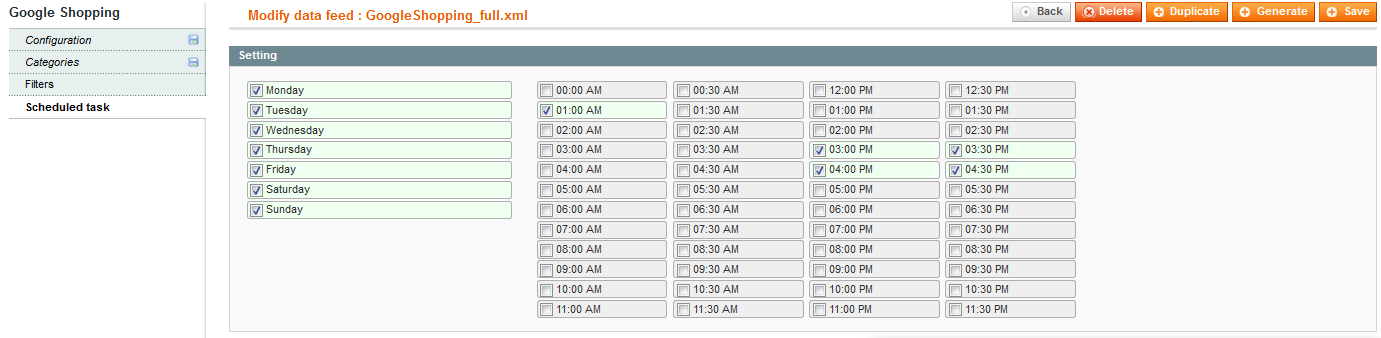
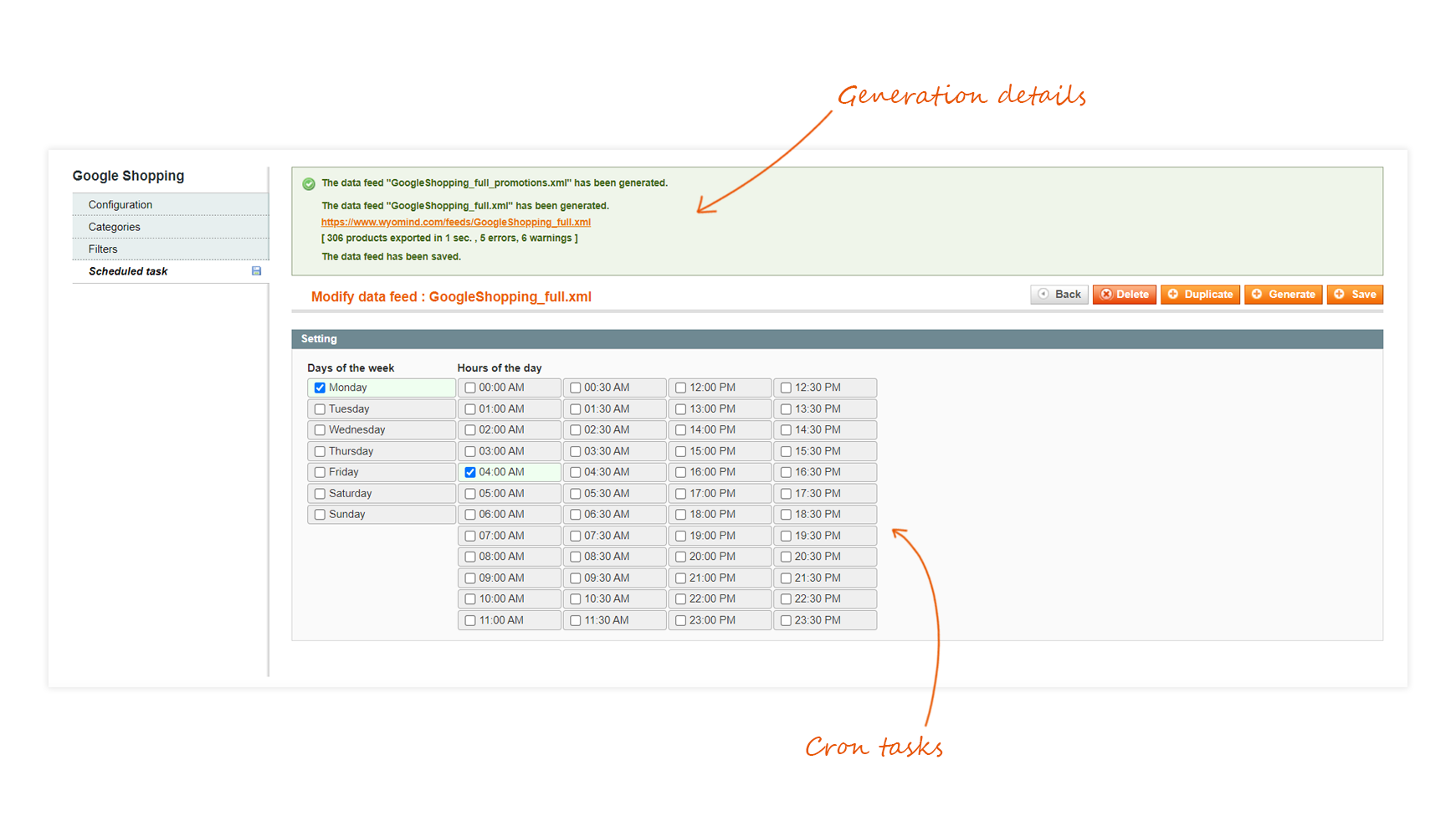
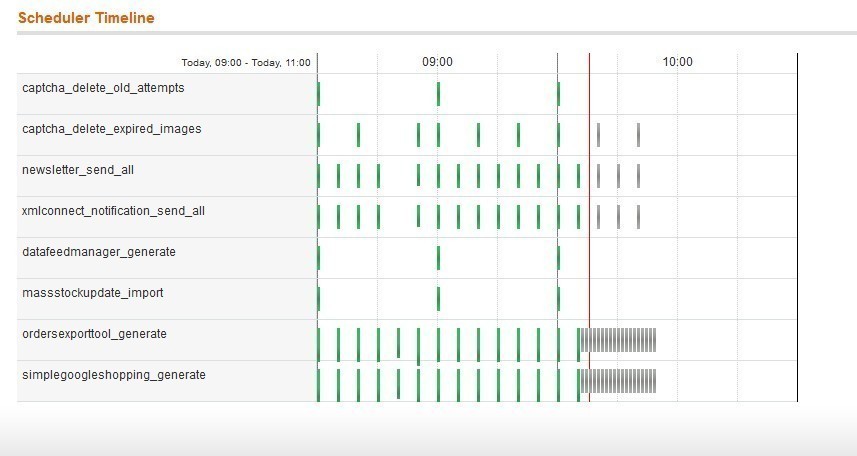
Simple Google Shopping provides you a fully configurable schedule in the Scheduled task tab of your template configuration for each data feed. You just have to tick the days and hours when you want your feed to be generated.
See also Generate the data feeds automatically through the cron tasks
STEP 3: Generate/Download the data feeds
Generate the data feeds manually
There are two different ways you can use to generate your data feeds:
- You can generate your data feeds manually in the grid from the action dropdown.

- Or you can do it from the configuration panel by clicking on "generate"

Generate the data feeds automatically through the cron tasks
You can generate your data feeds automatically using the cron tasks.
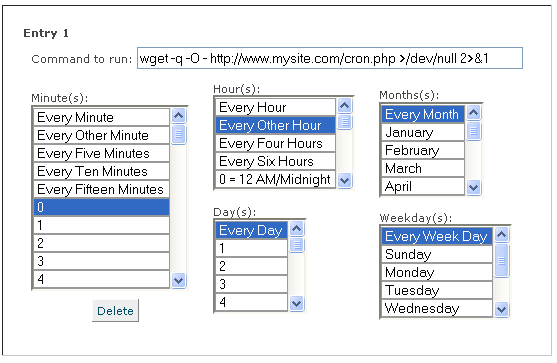
First, check that the main cron task is enabled on your server.
 If it is disabled, a warning message will appear in Simple Google Shopping.

You have to select the days and time frames for the data feeds you want to update, in the Scheduled Tasks tab.

Simple Google Shopping also provides you a cron job reporting, so you can get email reports on each data feed you will generate.
Generate the data feeds from the command lines
Simple Google Shopping allows generating data feed via the command lines:
php -f shell/wyomind_simplegoogleshopping.php -- [options]The following options are available:
- --generate
Generate all data feeds - --generate id1,id2,...,idN
Generate data feeds from the given list - --list
List all data feeds
Download the generated data feed
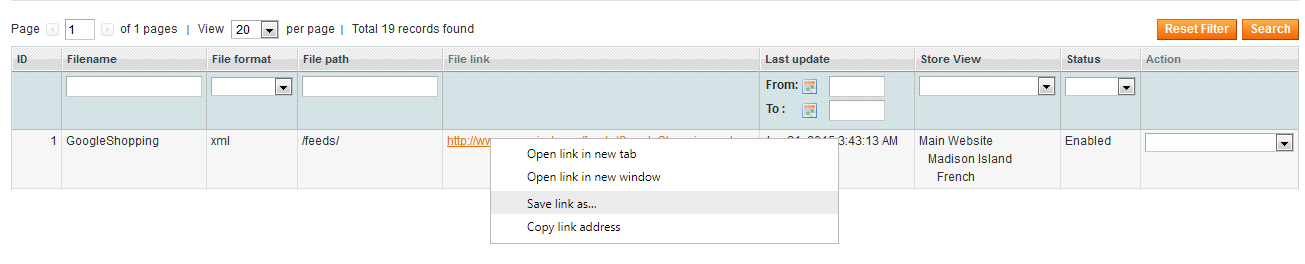
When a data feed is ready to be downloaded, the link is displayed in both, the data feed grid and the data feed page at the top of the page. You can download the data feed directly by right-clicking + save as or from your ftp client if the directory where the data feed is stored is not publicly accessible.
Step 4: Check the data feed status and report
Data feed status
Go to:
Catalog Simple Google Shopping
Your data feed will be listed according to IDs.You will find the name of the file, its path as well as the link to the data feed file. You should also get a message that sums up the number of products exported, the time it took and the number of errors and warnings in your data feed.
The status of your data feed will vary according to the situation:
- Pending
The data feed has never been generated or the scheduled hour is passed (waiting for the execution of the cron task) - Success
Successful generation of the data feed, manually or automatically (the generation corresponds with a schedule) - Processing
The data feed is processing - Error
The generation is stopped
You should find the date and the hour of the last generation of the data feed as well as the Store view taken into account for the data feed.

Errors and warnings reports
Those reports do not replace the error reports from Google and are by no means a guarantee that your data feed will be approved by the Google team. This will help you to save time by quickly identifying the main problems of your data feed and by making the necessary changes.
The reports are available:
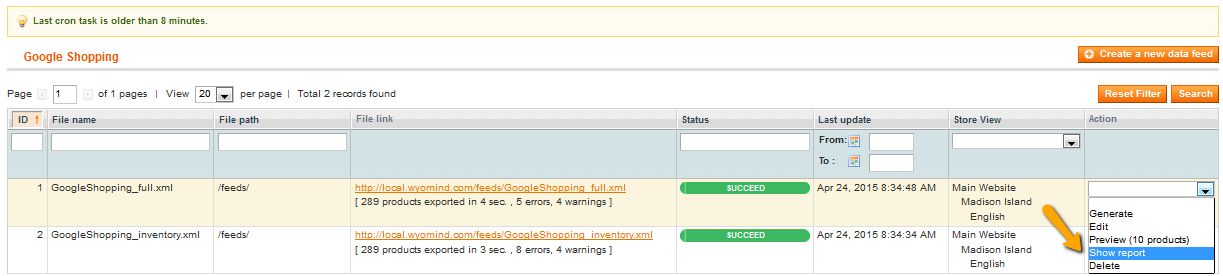
- from the action dropdown in:
Catalog Simple Google Shopping
- from the blackbox when editing a data feed
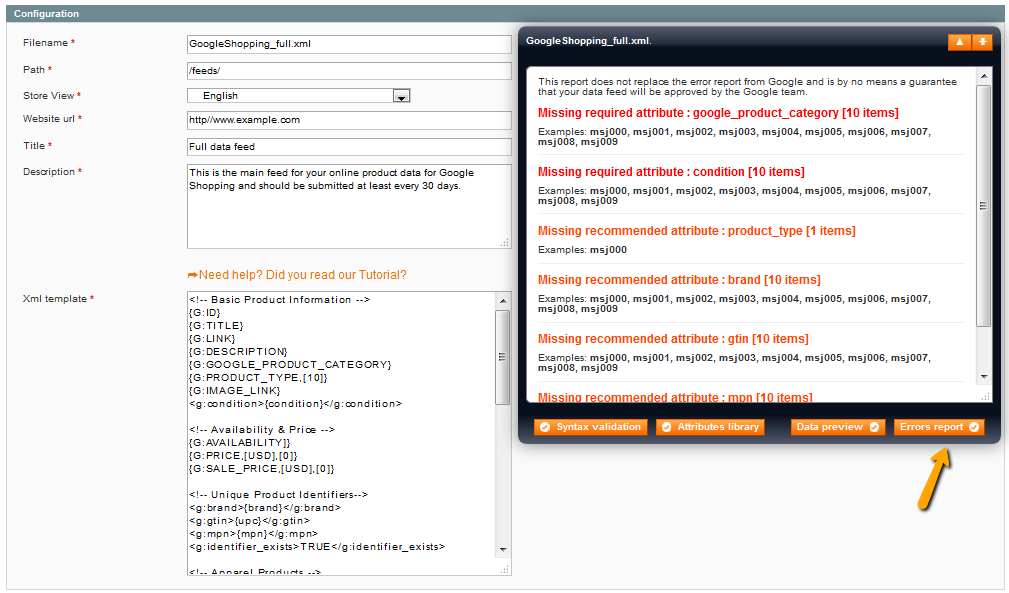
- In orange will be displayed the warnings
- In red will be displayed the error that you must correct to be able to submit your data feed
Next to these errors or warnings, you should see the number of items that are concerned.
By default, the reports will give the 10 first examples ( sku ) that are concerned with each error and warning. You can change that by editing the Items in preview in:
System ConfigURATION Wyomind Simple Google Shopping Core Settings
Manage your data feed templates
10 Things to know when creating an XML data feed
- An XML data feed is made of XML tags using an opening and closing tag that includes a value.
<g:id>123456</g:id> <price>45.99 USD</price> - A data feed template is made of several tags including a dynamic or a fixed values
<g:id>{sku}</g:id> <price>{price}</price> <g:brand>Fixed Brand</g:brand> - Dynamic values are called variables and use the attribute codes of your Magento website. Attribute codes must be surrounded by brackets
<g:id>{sku}</g:id>
<title>{name}</title>
<g:color>{color}</g:color>
- Between every opening and closing tags, you can also include some fixed values. Fixed values are simply text.
<g:brand>YOUR BRAND</g:brand> - You have also the possibility to add several variables and fixed values in a same tag.
<title>{name},available in {color}-{size} for only ${price}</title> - You're allowed to use PHP code if you want to customize the pattern. You just have to write your PHP code in one single line, and it will work perfectly (check how to add PHP scripts into your templates).
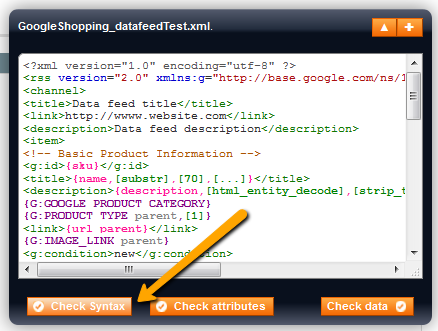
<g:gender><? if (stristr($product->getName(),"dress")) return "Female"; else "Male"; ?></g:gender> - The syntactic coloration in Simple Google Shopping will help you to avoid any error in your template. First, the errors will be underlined in yellow. You need to correct each error before checking syntax once again. Finally, you'll be able to check data.
- Some Magic variables will act as shortcuts to create complete portions of XML in your data feed including the appropriate variables.
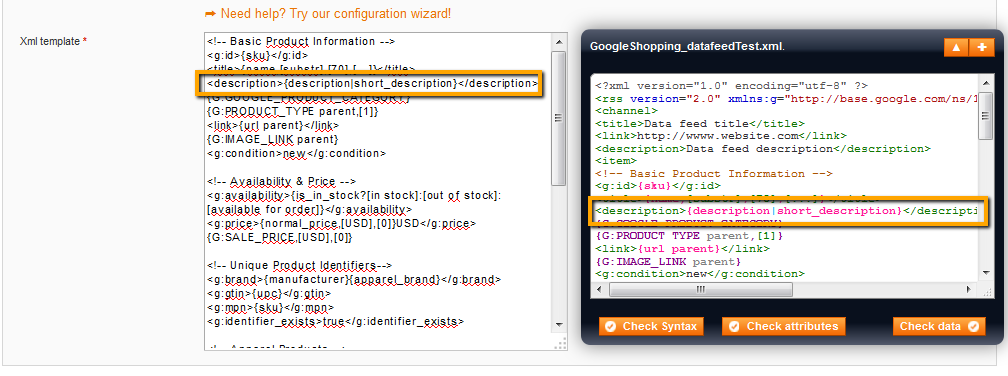
{G:PRODUCT_TYPE} - You can use one or more fallback variables in case of the previous is empty or null.
{color | colour | custom_color}If attributeA exists then the value will be attributeA, otherwise, the value will be attributeB, etc...
- CDATA are recommended. CDATA stands for Character Data. It means that the data in between these tags include data that could be interpreted as XML markup, but should not be. (Wikipedia article)
<description><![CDATA[<p>Fantastic <b>Watch</b>, that not only tells you what time it is, but also gives the weather trends</p>]]></description>
Attribute specifications
PARENT ATTRIBUTES
Most of the time simple products are related to parent products like configurable, grouped and bundle products. That is why you might need to retrieve Parent attribute values instead of simple product attribute values such as url, image, description...
{attribute_code parent}
Retrieves the first parent attribute value.
The parent value is retrieved only if the simple (item) product is associated with a parent product, if not, its own attribute value is retrieved.
The parent product may be a configurable, a grouped or a bundle product. The first parent product that matches the simple product is used to get the attribute value.
Eg:
{G:PRODUCT_TYPE parent}
<g:product_type>{categories parent,[last]}</g:product_type>
{attribute_code configurable}
Retrieves the first configurable parent attribute value.
The configurable product value is retrieved only if the simple product is associated to a configurable product, if not, its own attribute value is retrieved.
Eg:
{G:IMAGE_LINK configurable}
<g:image_link>{image configurable}</g:image_link>
{attribute_code grouped}
Retrieves the first grouped parent attribute value.
The grouped product value is retrieved only if the simple product is associated to a grouped product, if not, its own attribute value is retrieved.
Eg :
{G:GOOGLE_PRODUCT_CATEGORY grouped}
<link>{url grouped}</link>
{attribute_code bundle}
Retrieves the first bundle parent attribute value.
The bundle product value is retrieved only if the simple product is associated to a bundle product, if not, its own attribute value is retrieved.
Eg:
{G:SALE_PRICE bundle}
<g:price>{price bundle}</g:price>
PRODUCT IDENTIFIERS
{id}
Retrieves the product id.
For example:
<g:id>{id}</g:id>{G:ID}
Is the shortcut for:
<g:id>{sku}</g:id>You can retrieve the id instead of the sku by adding an option:
{G:ID,[id]}{G:ITEM_GROUP_ID}
Is the shortcut for:
<g:item_group_id>{sku configurable}</g:item_group_id>{sku}
Retrieves the product SKU
For example:
<g:mpn>{sku}</g:mpn>{brand}
Retrieves the brand of the product.
For example:
<g:brand>{brand}</g:brand>{manufacturer}
Retrieves the brand of the product.
For example:
<g:manufacturer>{manufacturer}</g:manufacturer>BASIC INFORMATION
{name}
Retrieve the product name
For example:
<g:title>{name}</g:title>{G:TITLE}
Is the shortcut for:
<title>{name}</title>{description}
Retrieves the description of the product.
For example:
<g:description>{description}</g:description>{G:DESCRIPTION}
Is the shortcut for:
<description>{description}</description>You can retrieve the short description instead by adding a parameter:
{G:DESCRIPTION,[short]}{short_description}
Retrieves the short description of the product.
For example:
<g:description>{short_description}</g:description>{condition}
Retrieves the condition of the product.
For example:
<g:condition>{condition}</g:condition>{weight}
Retrieves the weight of the product.
For example:
<g:weight>{weight}</g:weight>PRICES AND PROMOTIONS
{price}
Retrieves the normal price or the special price if it exists.
For example:
<g:price>{price}</g:price>
You also have the possibility to use 2 parameters with this attribute:
- currency must be an ISO3 code. This option automatically converts the original product price to a specified currency.By default, your local currency is used.
- vat_rate can be a float number that represents the VAT percentage or a ISO2 country code, then the VAT rate will be automatically applied depending on the country and the tax class. VAT can also be substracted by using the minus (-) prefix.
<g:price>{price,[currency],[vat_rate]}</g:price>Here are a few examples:
To convert the prices to EUR and apply a 20% VAT rate:
<g:price>{price,[EUR],[20.0]}</g:price>To convert the prices to EUR excluding tax:
<g:price>{price,[EUR],[0]}</g:price>To convert the prices to EUR and apply the VAT rate that applies for France:
<g:price>{price,[EUR],[FR]}</g:price>To convert the prices to USD and apply the VAT rate that applies in United States / New York:
<g:price>{price,[USD],[US/NY]}</g:price>To convert the prices to USD and remove the VAT that applies in United States / New York::
<g:price>{price,[USD],[-US/NY]}</g:price><g:price>{price,[currency]}</g:price>
Here are some examples:
To convert the prices to EUR
<g:price>{price,[EUR]}</g:price>To convert the prices to USD
<g:price>{price,[USD]}</g:price>{G:PRICE}
{normal_price}
Retrieves the price and ignores any existing special price value.
<g:price>{normal_price}</g:price>{special_price}
Retrieves the promotional price (special price) if exists.
If this price doesn't exist the value is null.
<g:price>{special_price}</g:price>{price_rules}
Retrieves either the price or the special price or the price including the catalog price rules if indicated.
For example:
<g:price>{price_rules}</g:price>You also have the possibility to use some parameters with this attribute:
- currency is for currency conversion. This option automatically converts the original product price to a specified currency. It uses an exchange rate already stored by you in your admin panel. By default, your local currency is used.
- vat_rate is a floating value between 0.00 and 100.00 that represents an arbitrary VAT rate to apply. This option rewrites the VAT rule for the product except if the product doesn't have any tax class.
- customer_group_id allows you to determine which price rules must apply for a given custom group id (by default the "NOT LOGGED IN" customer group applies)
<g:price>{price_rules,[currency],[vat_rate],[customer_group_id]}</g:price>{G:SALE_PRICE}
<g:sale_price>{special_price}</g:sale_price>
<g:sale_price_effective_date>{special_from_date}/{special_to_date}</g:sale_price_effective_date><g:price>{normal_price}</g:price>
{G:SALE_PRICE}{is_special_price}
{is_special_price?[value_if_yes]:[value_if_no]}
- value_if_yes value to retrieve if a special price exists. By default 1.
- value_if_no value to retrieve if no special price exists. By default 0.
For example:
<g:is_special_price>{is_special_price?[yes]:[no]}<g:is_special_price>{min_price}
Retrieves the minimum price.
<g:price>{min_price,[EUR],[20.0]}</g:price>{max_price}
Retrieves the maximum price.
<g:price>{max_price,[EUR],[20.0]}</g:price>The same parameters as {price} may apply.
{G:PROMOTION_ID}
Retrieves the product promotion id if exists.
To know more about the use of this attribute, check out our doc on Google Merchant Promotions extension.LINKS
{url}
<link>{url}</link>
The url attribute can receive the currency code as an url parameter to display the landing page with a specific currency, for example:
<link>{url}?currency=USD</link>
With children of configurable products {url} can be used with 2 additional parameters as follows:
{url,[variant],[force]}
- variant (optional) generates the url of the configurable product including additional parameters that may help to display the price of the variant and to pre-select the configurable attribute
- force (optional when using variant) forces to reload the product model (useful if the configurable attributes are not included in the template)
<link>{url,[variant]}</link>
// return for example: https://www.website.com/product-page.html?c=583&391=768#391=768{G:LINK}
Is the shortcut for:
<link>{url}</link>{image}
- index is the index of any additional images to retrieve. By default 0 (the main image).
For example:
<g:image_link>{image,[0]}</g:image_link>{G:IMAGE_LINK}
<g:image_link>{image}</g:image_link>
<g:additional_image_link>{image,[1]}</g:additional_image_link>
<g:additional_image_link>{image,[2]}</g:additional_image_link>
...
{host}
Retrieves the host url, for example https://www.website.com.
An example with attribute {small_image}:
<g:image_link>{host}/media/catalog/{small_image}</g:image_link>{url_key}
<g:url>https://www.mywebsite.com/mystore_code/{url_key}</g:url>CATEGORIES
{categories}
Retrieves a list of category paths separated by "," in which the product may be found
{categories,[number_of_category_path],[from_category_level],[number_of_categories_in_each_path]}
- number_of _category_path, by default infinity
- from_category_level, by default 1 (root catalog)
- number_of_categories_in_each_path, by default infinity
Example:
<g:categories>{categories,[INF],[1],[INF]}<g:categories>2 arguments can be used to specify the path separator and the category separator:
{categories,[path_separator],[category_separator]}
- path_separator, by default "comma" (,).
- category_separator, by default "higher than" (>)
Example:
<g:categories>{categories,[,],[>]}<g:categories>Only one argument can be used to get the first or the last (deepest) category path:
Example:
<g:categories>{categories,[last]}<g:categories>
<g:categories>{categories,[first]}<g:categories>
A complete list of all categories per product can be retrieved with the following method:
<? $product->getCategoriesArray(); ?>{G:PRODUCT_TYPE}
<g:product_type>category A > sub-category B </g:product_type>
<g:product_type>category A > sub-category B > sub-category C</g:product_type>{category_mapping}
Retrieves any new category that you have assigned (in the Categories filter) to the item's own product category. If no mapping is assigned to the first category found, the second category will be used etc.
{category_mapping,[index]}
- index: index of the category mapping
For example:
<category>{category_mapping,[0]}</category>
<category>{category_mapping,[1]}</category>
<category>{category_mapping,[2]}</category>
<category>{category_mapping,[3]}</category>
<category>{category_mapping,[4]}</category>
Will retrieve a maximum of 5 category mappings in 5 separate tags.
{G:GOOGLE_PRODUCT_CATEGORY}
Is the shortcut for:
<g:google_product_category>{category_mapping,[0]}</g:google_product_category>This magic attribute retrieves the Google category that you assigned (in filter section/category filter) of the first category found to which the product is linked. If no Google category is assigned to the first category found, the second category will be used, if no Google category is assigned to the second, the third will be used etc.
To find the Google categories that match with your categories:https://www.google.com/support/merchants/bin/answer.py?answer=160081
AVAILABILITY
{stock_status}
Retrieves the stock status "in stock" or "out of stock".
For example:
<g:availability>{stock_status,[instock],[outofstock]}</g:availability>{G:AVAILABILITY}
is the shortcut for:
<g:availability>{is_in_stock?[in stock]:[out of stock]:[available for order]}</g:availability>Options: see {is_in_stock}
{is_in_stock}
- value_if_in_stock value to retrieve if the product is in stock
- value_if_out_of_stock value to retrieve if the product is out of stock
- value_if_preorder value to retrieve if the product is backorderable
For example:
<g:availability>{is_in_stock?[in stock]:[out of stock]:[preorder]}</g:availability>{qty}
Retrieves the available quantity.
The quantity retrieved for the configurable products is based on the sum of simple products.
For example:
<g:availability>{qty}</g:availability>PRODUCT VARIANTS
{gender}
Retrieves the gender of the product.
For example:
<g:gender>{gender}</g:gender>{age_group}
Retrieves the age group of the product.
For example:
<g:age_group>{age_group}</g:age_group>{color}
Retrieves the color of the product.
For example:
<g:color>{color}</g:color>{size}
Retrieves the size of the product.
For example:
<g:size>{size}</g:size>{material}
Retrieves the material of the product.
For example:
<g:material>{material}</g:material>{pattern}
Retrieves the pattern of the product.
For example:
<g:pattern>{pattern}</g:pattern>FUNCTIONS
You can apply one or more functions to all attributes by using the following syntax:
{attribute_code,[option1],[option2],[option3],[...]}All options are executed in the written order eg:
<title>{name}</title>
<title>{name,[htmlentities],[strtolower]}</title>
<title>{name,[htmlentities],[strtolower],[ucwords]}</title>
will produce:
<title>NOKIA© 2610 Phone</title>
<title>nokia© 2610 phone</title>
<title>Nokia© 2610 Phone</title>{attribute_code,[strip_tags]}
Removes all html tags.
For example:
<description>{description,[strip_tags]}</description>{attribute_code,[cleaner]}
Removes all characters that don't belong to the utf8 charset.
For example:
<title>{name,[cleaner]}</title>{attribute_code,[substr],[max_length],[end_string]}
- max_length: maximum length of the value
- end_string: string that will be added at the end of the string. By default: [...]
For example:
<description>{description,[substr],[50],[...]}</description>{attribute_code,[strtoupper]}
Transforms the value to upper case.
For example:
<title>{name,[strtoupper]}</title>{attribute_code,[strtolower]}
Transforms the value to lower case.
For example:
<title>{name,[strtolower]}</title>{attribute_code,[inline]}
Removes all EOL characters from the value.
For example:
<description>{description,[inline]}</description>{attribute_code,[html_entity_decode]}
Converts all HTML entities to their applicable characters.
For example:
<description>{description,[html_entity_decode]}</description>{attribute_code,[htmlentities]}
Converts all applicable characters to HTML entities.
For example:
<description>{description,[htmlentities]}</description>{attribute_code,[implode],[separating_string]}
Joins all array elements in a string.
- separating_string: string used between each value. By default it is a comma (,).
May be useful for multi-select attributes like color.
For example:
<g:color>{color,[implode],[,]}</g:color>will give: black, blue, red, green.
{attribute_code,[float],[decimals]}
Converts a numeric value to a floating number.
- decimals: number of floating number. By default [0].
<g:shipping_weight>{weight,[float],[2]}kg</g:shipping_weight>STOCK IN THE CHANNEL USERS
The Stocks in The Channel users can use the following attributes in order to build their data feeds :
{SC:URL} or {sc:url}
Retrieves the canonical url of the product :
<link>https://www.example.com/product.html</link>{SC:EAN} or {sc:ean}
Retrieves an unique ean value of the product:
<g:ean>1234567891234</g:ean>{SC:IMAGES} or {sc:images}
Retrieves the associated image of each product :
<g:image_link>https://www.example.com/media/catalog/image.jpg</g:image_link>{SC:DESCRIPTION} or {sc:description}
Retrieves the description for the product:
<g:description>...product description ...</g:description>A default value is retrieved when the description is empty.
PHP API for Simple Google Shopping
With Simple Google Shopping you can use PHP scripts in different ways to fully customize and control the data feed output.
Inline PHP scripts directly in the data feed template surrounded by PHP short tags (<? ... ?>).
For example, to resize your images:
<? /* {images} */ return Mage::helper('catalog/image')->init($product, 'image')->resize(265,265); ?>API coding standards
The Simple Google Shopping PHP API uses the exact same syntax and standards than any PHP coding.
Attribute calls
For performance reasons, Simple Google Shopping only loads in the collection of products the attributes that are explicitly required in the data feed template.
This means that only the attributes that are called using the template placeholders, {attribute_code}, will be added to the collection of products.
As a consequence, when you try to access the value of an attribute from the $product object, you must be sure that the attribute has been added to the collection.
Most of the time when the returned value is null for a given attribute, it means the attribute is not loaded in the collection of products.
The best way to be sure that all the attributes you need are well loaded in the collection, is to add at the beginning of your template a simple script that lists all the attributes required.
<?
/* list of required attributes
* {attribute_1} {attribute_2} {attribute_3} {attribute_4}...
*/
?>
Then you should be able to get the values of these attributes in your PHP script:
<? return $product->getAttribute1();?>
<? return $product->getAttribute2();?>
<? return $product->getAttribute3();?>
....
PHP functions in attribute calls
You can use any PHP function to apply in the attribute calls even if the function requires one or more additional arguments, for instance:
{name,[str_replace("Apple","Banana",$self)]}You can use several consecutive functions:
{ean,[str_pad($self,10,"0",STR_PAD_LEFT)],[str_replace("X","0",$self)]}Conditional values
To output values based on different conditions, use PHP conditional statements:
- if/else
<? /* attribute {sku} required */ if ($product->getSku()=="abc"){ return "Alphabetic"; } elseif($product->getSku()=="123"){ return "Numeric"; } else{ return "Mixed"; } ?> - switch/case
<?
/* attribute {sku} required */
($product->getSku()){
case "abc":
return "Alphabetic";
break;
case "123":
return "Numeric";
break;
default:
return "Mixed";
}
?>
Opening and closing tags
When using the PHP API inline directly in your data feed template, you must use the opening and closing short PHP tags (<? ... ?>)
<?
if($product->getData('size')=="X-Large") {
return "XL";
}
?>
Outputting a value
- Return
Any value that you want to output in your data feed, must be returned with the return instruction.
<? return "Don't miss! ".$product->getTitle(); ?>
/* This script adds for each product in data feed  a new ouput line
*  Don't miss! Iphone 5
*  Don't miss! Galaxy note 7
*  ...
*/- echo, var_dump, print_r
Any value printed in the data feed through these functions will be rendered at the top of the data feed and will not be added to the final file.
Such functions must be used for debugging purposes.
<? var_dump($product->getTitle()); ?>
/* This script adds for each product in data feed  a new debugging trace
*  String(8) "Iphone 5"
*  String(13) "Galaxy note 7"
*  ...
*/
Variables scope
All variables available in PHP scripts have a local scope, this means they can't be shared between several scripts.
If you wish to share a variable with different scripts all along the data feed generation process, then the variable must be set as a global variable.
<?
global $increment;
$increment++;
return $increment;
/* This script will output a incremental $variable
* 1
* 2
* 3
* ...
*/
?>
API Objects, Variables and Methods
Object $product
$product is an instance of Mage_Catalog_Model_Product. It contains all methods available by default and some other specific to Simple Google Shopping.
The list below is not exhaustive but lists the most useful methods.
- $product->getCategoriesArray()
Retrieves an array of arrays that describes the categories to which belongs the products - $product->getCategoryIds()
Lists all category ids in which the product may be found - $product->getVisibility()
Returns the visibility of the product (1 = not visible individually, 2 = catalog, 3 = search, 4 = catalog and search) - $product->getStatus()
Returns the status of the product (1 = enabled, 2 = disabled) - $product->getData($attributeCode)
Returns the value of the given attribute code - $product->getAttributeText($attributeCode)
Returns the textual value of the given attribute code
Object $this
$this is an instance of Wyomind_simplegoogleshopping_Model_Feed. It provides a few useful methods.
- $this->hasParent($product, $type="parent")
Returns a Boolean value whether a product has a parent from the given type (parent, configurable, grouped, bundle) or not
- $this->getParent($product, $type="parent", $strict=false)
Returns a product object of the given parent type (parent, configurable, grouped, bundle) if available or the product object passed as 1st parameter when $strict parameter is set on false. - $this->skip()
Skips the current product, useful to filter out some products based on specific condition
Manage your Google Shopping data feeds in your Google Merchant Account
Each store is different, this is why you must pay particular attention to how is configured your data feed to be sure that it matches your own needs. We highly encourage you to check how to use Simple Google Shopping before starting using our extension and before submitting your data to Google Merchant.
Create a data feed in Google Merchant
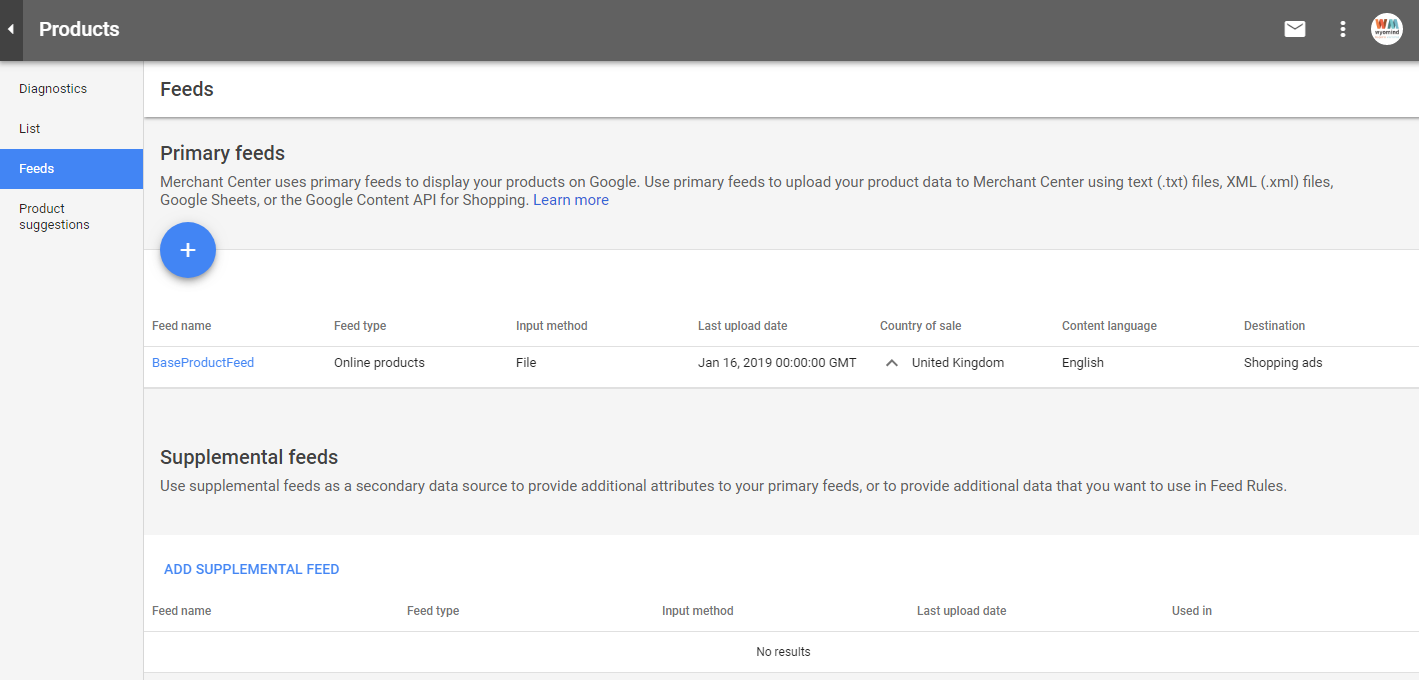
To create a data feed, click on the PLUS icon from your Google Merchant Center account in:
Products Feeds
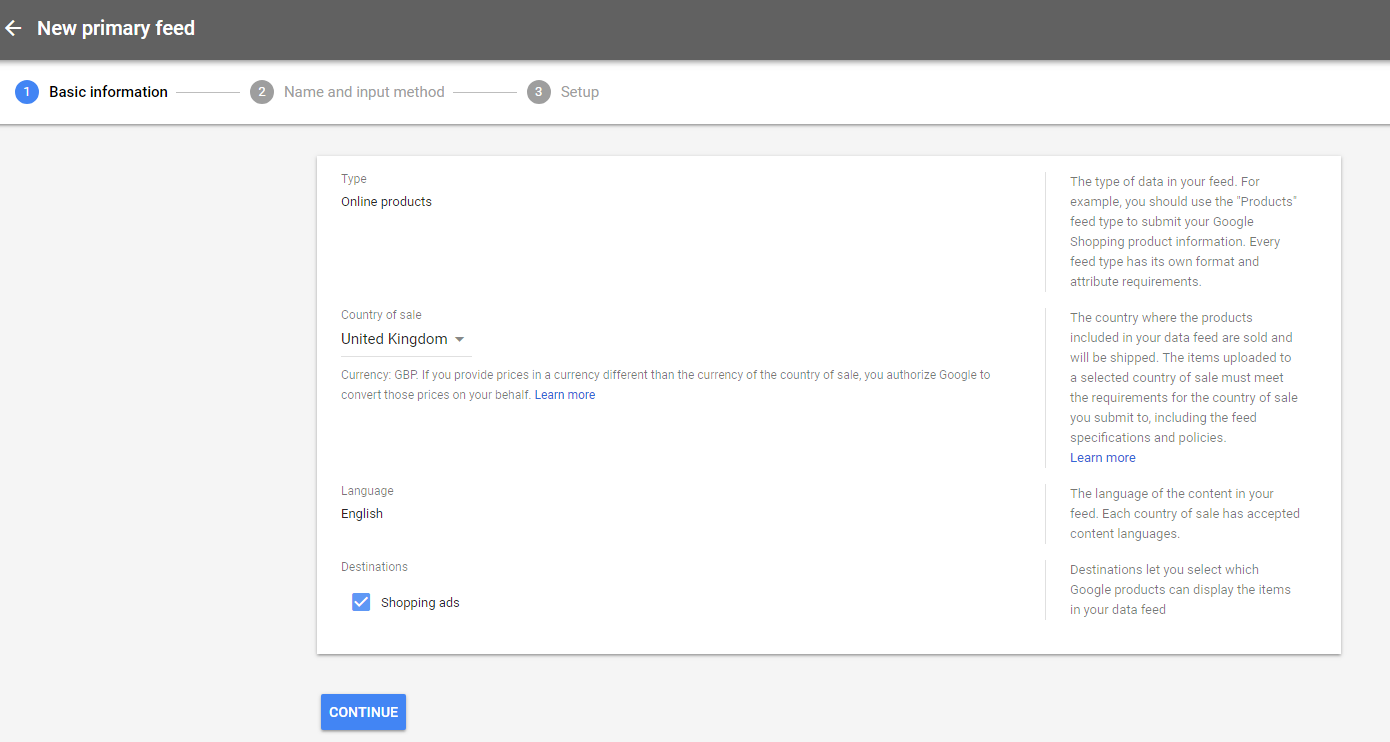
Basic information
Start with filling in the basic information:
- Type
The "Products" feed type is to submit your Google Shopping product information. - Country of Sale
Choose the country where the products included in your data feed are sold and will be shipped. Note that these items must meet the requirements for the country of sale you submit to, including the feed specifications and policies. - Language
It is the language of the content in your feed. Each country of sale has accepted content languages. - Destinations
Select which Google products can display the items in your data feed.
Shopping ads
Once it's filled in, click on Continue.
Name and input method
You can continue with the name and the input method of your data feed.
- Primary feed name
This is the name of the data feed as it will appear in your merchant account and help you understand the content of the feed.
Note that the feed name does not need to match the name of the actual file you’re submitting.
Now choose how to connect your data to Merchant Center. You have several options:
- Google sheets
If you're updating your product data via a Google Sheet.
Note that the changes will automatically be applied to your account.
- Scheduled Fetch
If you're hosting a file on your website that contains data and scheduling a regular time for Google to fetch updates.
Note that updates are only applied to your account when the fetch occurs.
- Upload
If you prefer keeping a file on your computer that contains data and regularly uploading it to your account through SFTP, FTP, Google Cloud Storage, or manually. - Content API
If you're using the Content API for Shopping to automatically upload product listings.
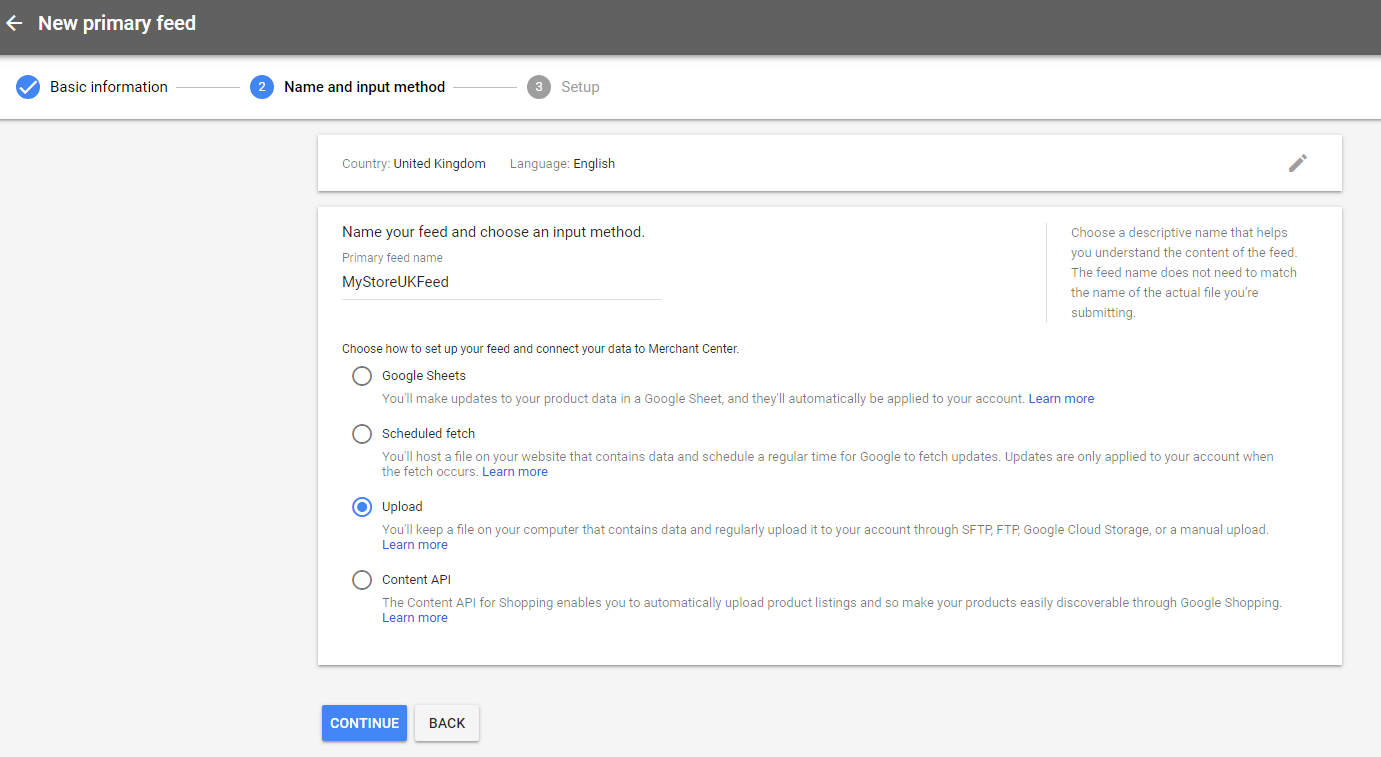
Click on Continue.
Setup for Scheduled Fetch
If you have selected the Scheduled Fetch to connect your data to Merchant Center, fill in the below info:
- File name
This is the exact file name that you can find in the File name column from:
Catalog Simple Google Shopping
Googleshopping_full.xml - Fetch Frequency
Choose to update your data daily, weekly or monthly.
Note that Fetch frequency must be synchronized with your catalog updates. A daily fetch frequency requires to monitor your data feeds daily.
- Fetch Weekday/Date
Choose the day of the week/month when to update your data feed. - Fetch Time
Choose the time when Google must fetch the data feed. - Time zone
Select your locale time zone - File URL
Add the URL that appears in the File link column when the data feed is generated from:
Catalog Simple Google Shopping - Login and Password
Add your login and password in the case where the data feed is protected with http authentication.

Click on Continue.
Be careful to synchronize the fetching time with the data feed generation time. For example, when the data feed is generated at 01:00 AM, Google should fetch the data feed at 02:00 AM.
Setup for Upload
If you've selected the Upload method, fill in:
- File name
This is the exact file name that you can find in the File name column from:
Catalog Simple Google Shopping
Googleshopping_full.xml - Upload a file now
You can now directly upload or drop your file.
 Click on Continue.
Fetch data
The data feed should then be displayed in the data feed list from:
ProductsFeeds
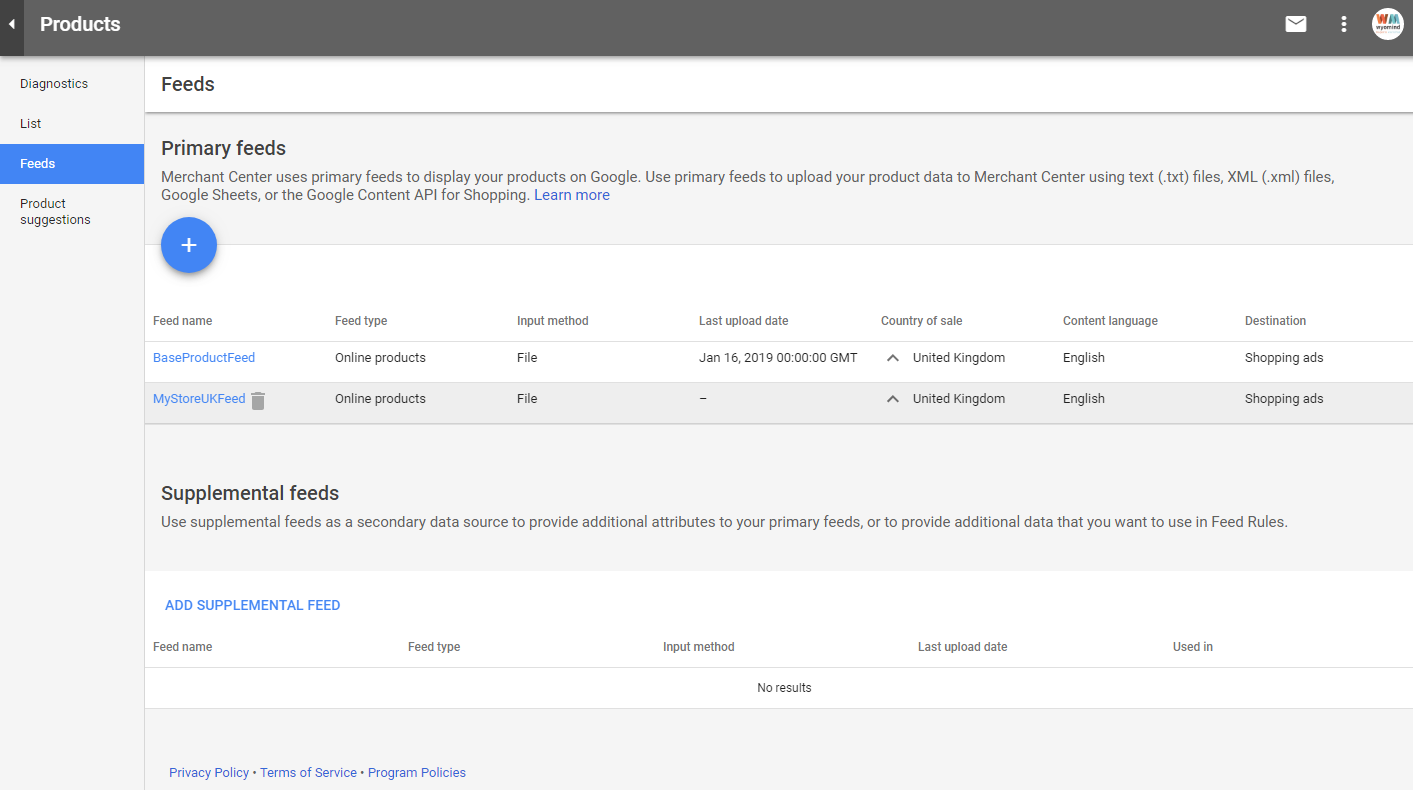 Open the new data feed and click on Fetch Now.

Fix the errors and warnings of the data feed
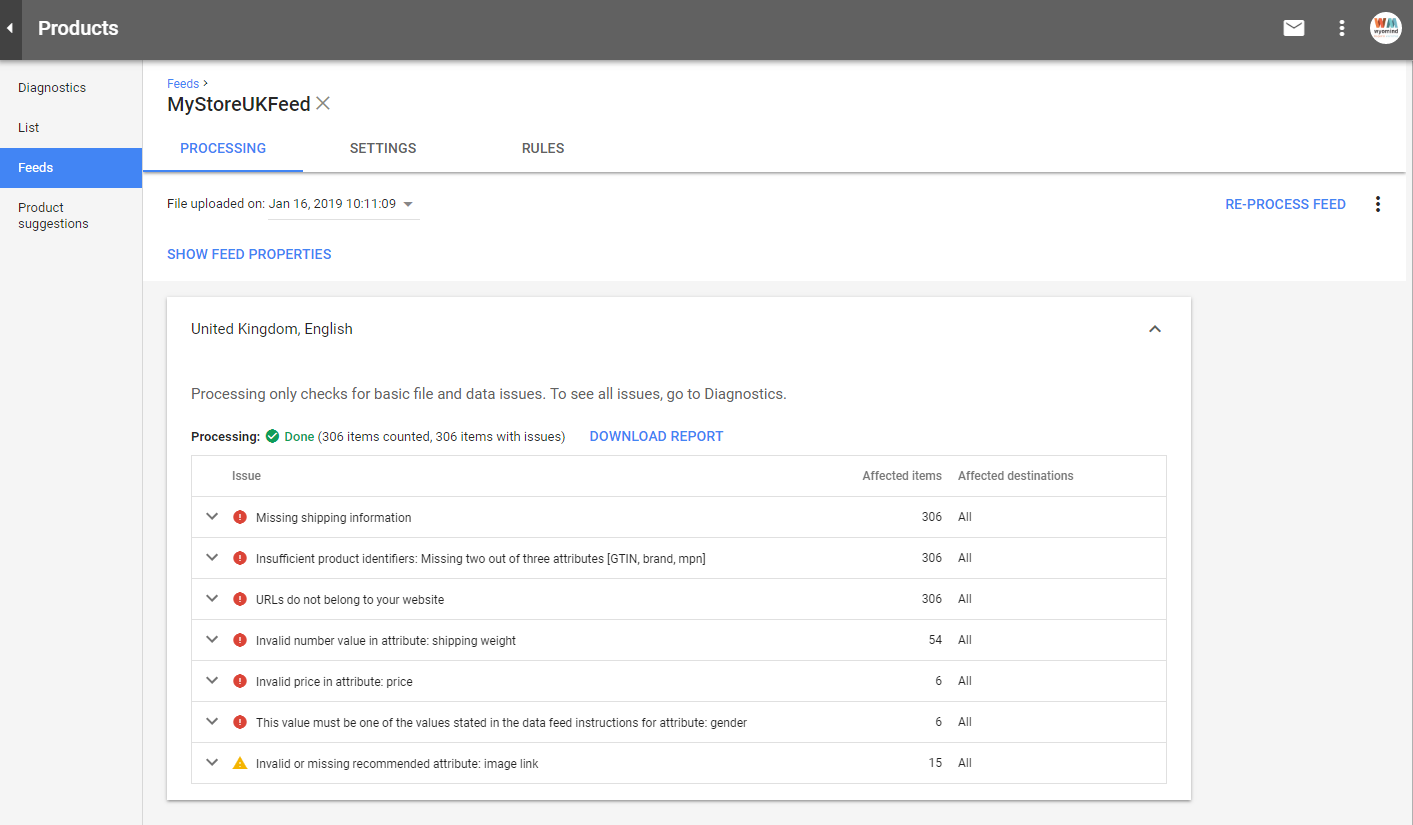
Once the data has been fetched a report is generated including errors and warnings that must be fixed.
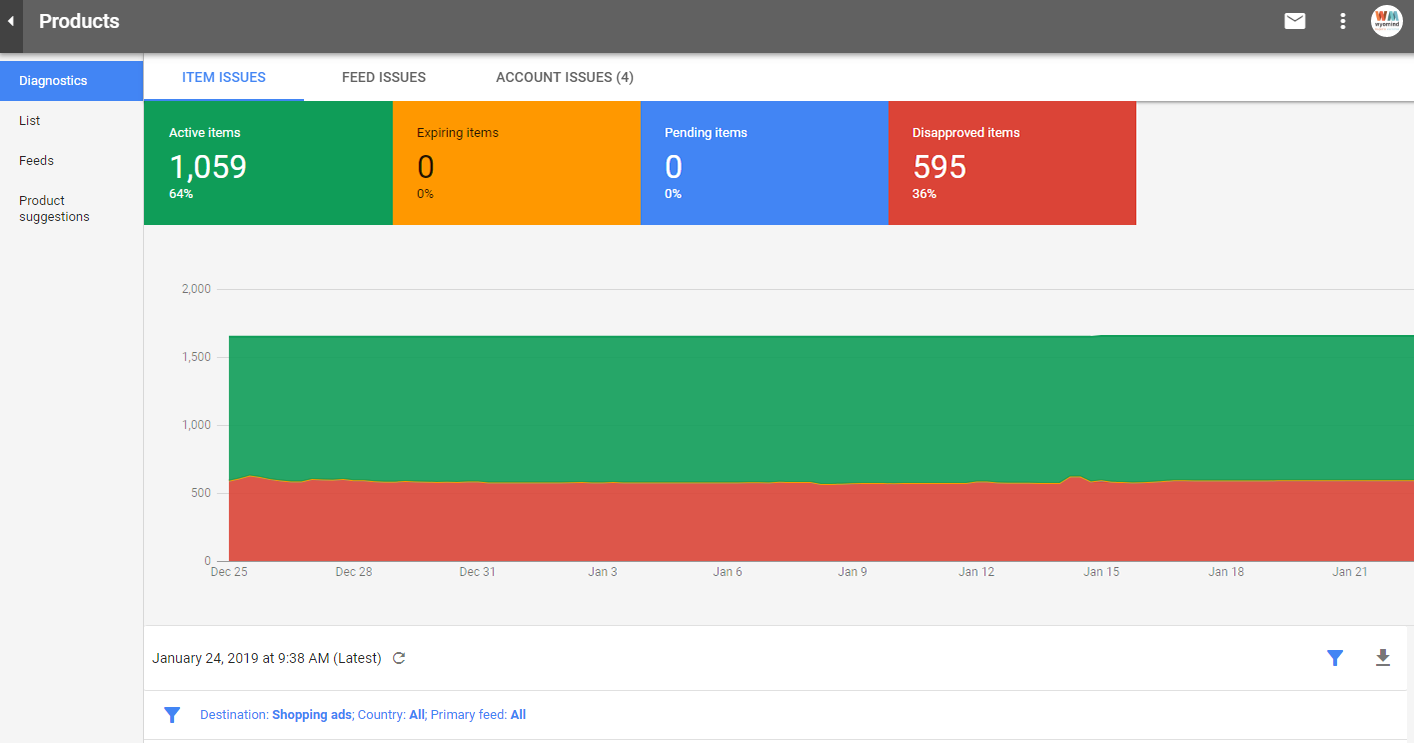
You can have a clear overview of your products status from the Diagnostics tab. Check how many products are:
- Active
- Expiring
- Pending
- Disapproved
Errors
Here is a few examples of the common errors in Google Merchant Center.
Note that the errors will appear with a red exclamation mark.
Invalid URL
All the errors linked to the URL are due to the fact that you didn't specify the URL of your website in your Google Merchant Center account or it is not claimed, so go to:
Google Merchant Center Business Information About Your Business Website

Missing shipping information
If you get this error, it is because you didn't configure a shipping rule in your Google Merchant Center account or if you did, you didn't do it for the target country.
For that, go to:
Shipping Services
Here you can add a new rule just by clicking on the + button.
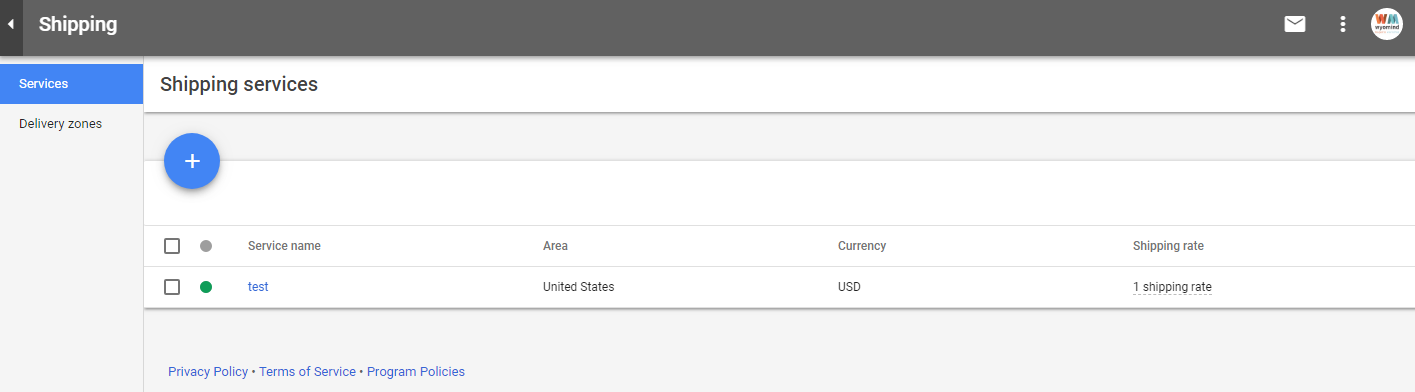 Then, fill in the different settings and click on Save.
Insufficient product identifiers: Missing brand attribute
That error occurs when products don't have a brand. For example, clothing items need a "brand" value.
You can first check that you're using the right attribute in your data feed template. For example, you may be using:
<g:brand>{manufacturer}</g:brand>instead of:
<g:brand>{brand}</g:brand>
Otherwise, you can add an attribute from your Magento back-office and define a brand for each one of those products from your admin:
Magento Manage products
In the case where all your products have the same brand, you can also define in your data feed configuration that all products will get the brand XXX by writing:
<g:brand>XXX</g:brand>
In the case where your products don't have enough identifiers, you can define that there is no identifier existing by replacing:
<g:identifier_exists>true</g:identifier_exists>by:
<g:identifier_exists>false</g:identifier_exists>Missing required attribute: age group
That error is due to the age group. In the case where you sell items for only one age group (adult), you could edit the data feed template with:
<g:age_group>adult</g:age_group>
In the case where you're selling products for adults and for children, you will need to add an attribute from your Magento back-office (for example age_group) and specify the age group for each one of your products in your Magento admin:
MagentoManage products
and keep in your data feed template:
<g:age_group>{age_group}</g:age_group>Missing required attribute: color
Concerning that error, it means that there is no "color" value found for some products.
You can first check that you're using the right attribute in your data feed template. For example:
<g:color>{colour}</g:color>instead of:
<g:color>{color}</g:color>
Also, you may not have defined a color value for a particular product in your Magento admin:
MagentoManage products
Currency is not supported in the given country in attribute: price
When currency is not supported in the given country, it means the currency defined in the data feed template in not the same as the currency of your products.
For example, the currency defined in the template is in EUR whereas your products prices are in USD. In that case, every EUR must be changed into USD in your data feed template.

Missing required attribute: size
When size attribute is missing, you can first check that your products have an attribute for size.
For example, for the shoes category, the attribute for size may differ. You can have a look in the black box, in your data feed template configuration, to see if there is already an existing size attribute for shoes by clicking on Attributes Library.
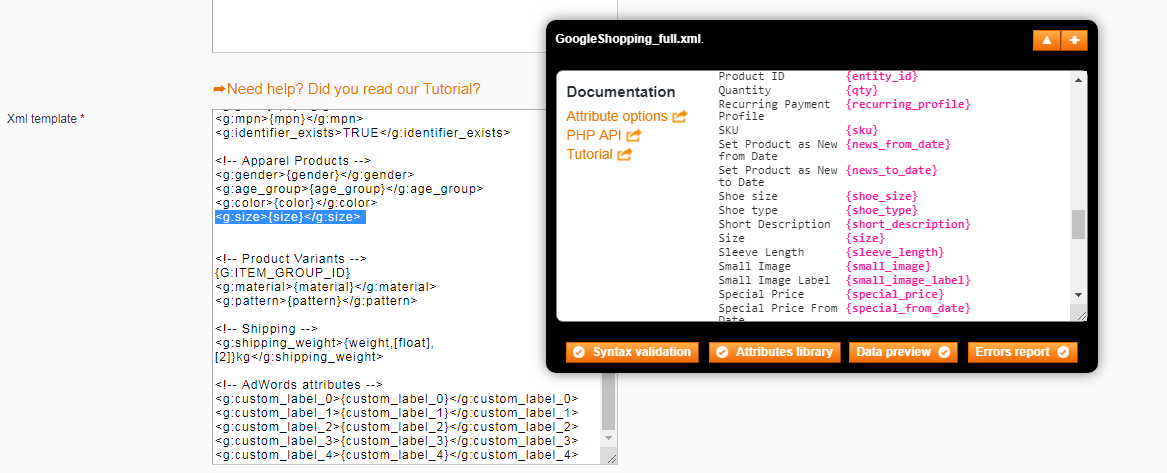 As you can see, the size attribute for shoes exists under the name of {shoe_size}. Then you can add it to your data feed template as below:
<g:size>{size}{shoe_size}</g:size>Warnings
With Google Merchant Center, you can also have an overview of the warnings. Warnings are not penalizing because your products are inserted to Google Shopping however it is better no to have some.
Note that the warnings will appear with an orange warning sign.
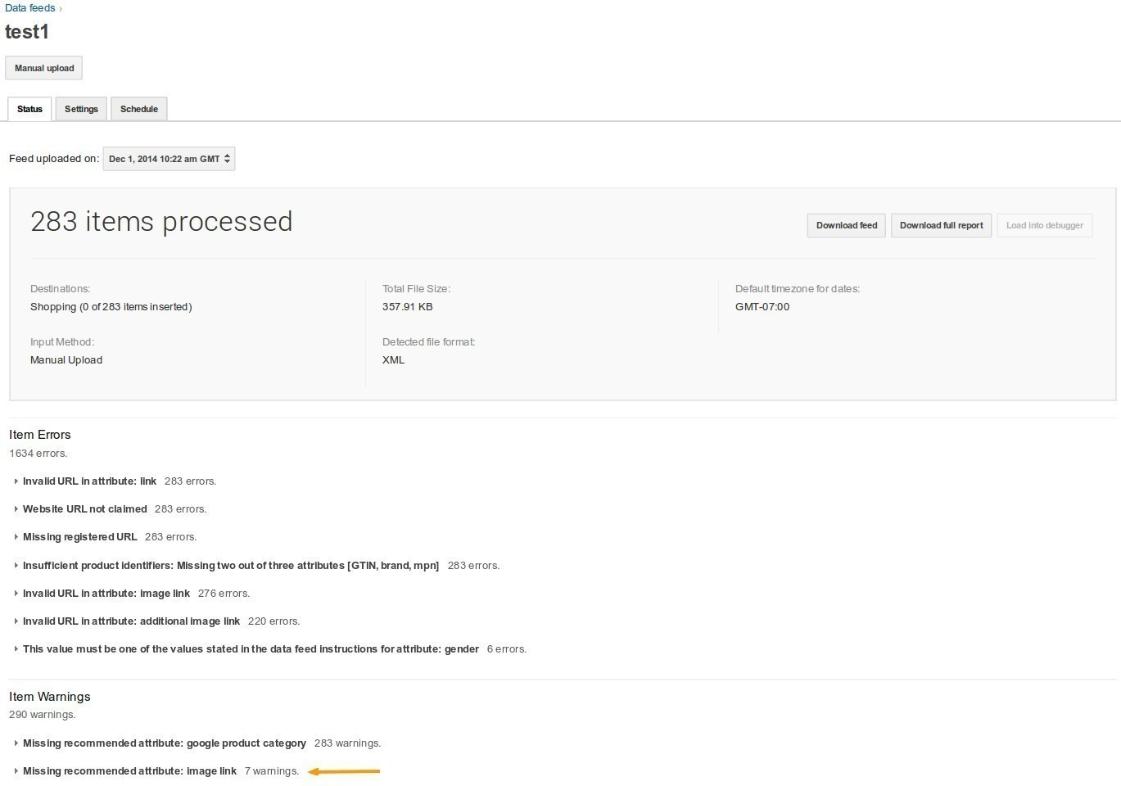
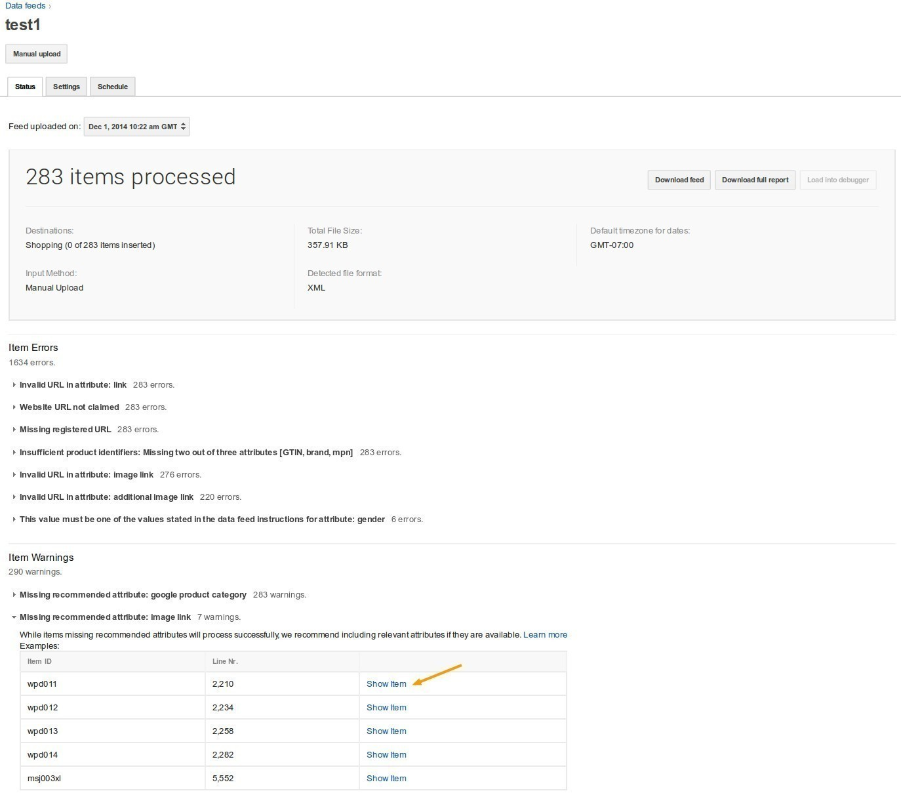
Missing recommended attribute: image link
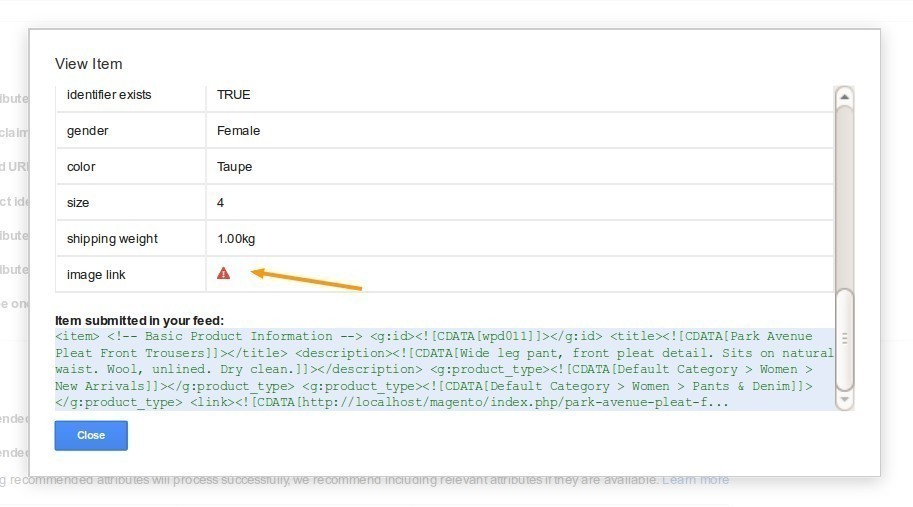
That warning means that some of the products don't have image link.
You can have a look at some products involved. The problem may be that the products are variants of configurable ones.
The solution would be to modify the template in order to get the image links of the parent products and to replace:
{G:IMAGE_LINK}by:
{G:IMAGE_LINK parent}Missing recommended attribute: description
When a description is missing, you can simply edit the product directly from your Magento back-office:
MagentoManage products
Missing recommended attribute: google product category
When Google product category is missing, it means that you didn't map your categories with Google ones.
For that, go in the Categories tab of your data feed template, from:
Catalog Simple Google Shopping

















 We have used this module for at least 10 years now. Yes, we had to pay for extended support a few times to update the compatibility with Magento and PHP versions, but the flexibility of the XML variables and codes itself always worked.
We have never had to change the XML file, the file created by cron, and submitted the updated version of our inventory to Google every evening and never failed.
We have used this module for at least 10 years now. Yes, we had to pay for extended support a few times to update the compatibility with Magento and PHP versions, but the flexibility of the XML variables and codes itself always worked.
We have never had to change the XML file, the file created by cron, and submitted the updated version of our inventory to Google every evening and never failed.  It is a very easy to use extension with a little knowledge and even if you do not have the documentation is very well explained and ready to work with it.
Also the support is very good
It is a very easy to use extension with a little knowledge and even if you do not have the documentation is very well explained and ready to work with it.
Also the support is very good Une rapidité de mise en oeuvre, une pureté des données générées et un service client réactif toujours à l'écoute pour nous accompagner dans l'optimisation des mécaniques de création des données dynamiques.
La puissance de l'intégration de la structure XML modifiable à souhait avec la puissance du PHP, c'est la perfection à l'état pur ! Nous avons rarement été autant surpris par un outil aussi puissant et aussi facile à exploiter, chapeau bas à l'équipe de Wyomind !
Une rapidité de mise en oeuvre, une pureté des données générées et un service client réactif toujours à l'écoute pour nous accompagner dans l'optimisation des mécaniques de création des données dynamiques.
La puissance de l'intégration de la structure XML modifiable à souhait avec la puissance du PHP, c'est la perfection à l'état pur ! Nous avons rarement été autant surpris par un outil aussi puissant et aussi facile à exploiter, chapeau bas à l'équipe de Wyomind ! We have had this module installed ever since we moved to magento two, around 3 years ago. Since then with have comprehensively used this extension to generate a Google Merchant Feed that has been ingested directly into Google with great results. We now use the plugin to send the data to a Google Comparison Shopping Service (or CSS) with great success. We have also had similar success with exporting feeds to the Meta platform via an equivalent CSS and furthermore to Pinterest too. Each of these feeds had different requirements, all of which were handled with no issue but the extension. However, we have struggled to create stable feeds for other marketplaces that do not first feed into a data aggregator. This is almost certainly due to the fact that this kind of functionality is not the scope of this extension, and the Data Feed extension that wyomind is probably a far better option. I would definitely recommend this extension for businesses who have a simple requirements to send product data to the key Marketplaces, however with caution that they may not always work as expected, especially if not further feeding the data into some form of middleware/ data aggregation software. Overall I would give this module 5 stars, as it achieves more than what we ever expected it to.
 As an online retailer, I understand the importance of having a strong presence on Google Shopping to maximize product visibility and drive sales.The pleasure of using Simple Google Shopping by Wyomind, and I must say, it has been a game-changer for my business. This review aims to shed light on the exceptional features and benefits of this remarkable tool. Simple Google Shopping Wyomind is a game-changer for online retailers. Its user-friendly interface, feed optimization, synchronization, and advanced filtering make it a must-have tool. Highly recommended!
 Hi, with simple google shopping you can create data feeds for Google shopping with templates which allow the use of PHP in it. This makes it really easy to adapt the attributes of our magento 2 shop to the guidelines of Google Shopping, it helps a lot! One minor point of criticism is that the templates from the Magento 1 extension of Wyomind which we used as well had to be quite a bit adapted to make them work in the magento2 extension simple google shopping. But overall the migration from M1 to M2 was quite an adaption, so the guys at Wyomind had to do some adaption work themselves I reckon!
 We were using the Simple Google Shopping plugin in Magento 1, and it worked flawlessly every time. When we migrated our store to Magento 2, we opted for the same solution. The plugin is good overall and performs the functions it was created for. The support team helps with the implementation thanks to the free support period and gives you the option to increase that support time by up to 2 more months. The wyomind team is made up of great Magento certified professionals, which is what we were interested in from the beginning.
  It is really easy to install and configure. In fact, works best with my site's theme and checkout pages. It also passes validation tests right away. I am 100% satisfied with the extension as it sends accurate data.
 We have used Wyomind now a long time for solving issues and proving solutions on many Magento sites (both Magento 1 and Magento 2). The documentation is always clear, concise and very well documented. In addition should the documentation not give the answer needed - then support team are always on hand to help you to get where you need to. Version releases are always timely to ensure that the extensions work when the Magento 2 upgrades are rolled out. In conclusion, great extensions, great support a great company
 We are using this extension since magento 1.9, and now we are making new webshop in magento 2, and its also the best sollution, that you can find. Our team is very satisfied using it. Thanks!
 I have been using the Wyomind Simple Google shopping extension for few years and I have not seen a better plug in. I was initially not sure, but maybe the best decision i made. I had the extension on our magento 1 store and following migration to 2 we have switched to the extension for mage 2. No regrets
 It works - what more can you say!
 Llevamos usando este módulo desde 2017 y siempre hemos obtenido buenos resultados.
 We have used several extensions from Wyomind now, Google Shopping Feed and Estimated Delivery Extensions are basically 2 that a store can not live without for feeding our products to google and telling a customer when they are going to receive them is vital these days. Wyomind support is also second to none they are always quick to respond & fix any issues (although most issues are usually down to user error!).
 This module makes XML feed generation really simple. It's easy to exclude items you don't want on the feed, and to easily include all the items that you do want publishing, with data pulled through from relevant fields without much effort. I've used this extension on both our previous Magento 1 and current Magento 2 store, and it works a treat. Highly recommended.
 This extension gave me exactly what I needed to setup our Google Merchant Center so they can stay current with our inventory on Magento. The support is great, very fast and helpful!
 Smoothed our feed issues over beautifully. Good support too!
 Wyomind is the best place where you can find great products for extending your website functionalities! We have been using the "Simple Google Shopping" extension for our Magento 1 websites and it's working just fine. It provides you the chance to create feeds for your Google Shopping accounts in a very easy and intuitive way, you don't need to be a programmer to use it. Additionally, if you need to create feeds for other platforms, like Facebook, you can customize your XML ones according to their guides so that it makes everything very versatile. It's also very easy to modify any specific field according to specific needs and they provide a very good and clear documentation for this. We have never had any problem and when we had some doubts, we just asked in the chat system through their website and we have always received good support. Good Job, Wyomind!
 Great support aswell
 Simple Google Shopping is the perfect extension to create in minutes a feed for the new Google Shopping "Free" (for local business too!)
 Great & Simple Google Shopping products xml output plugin does what its says on the tin..
 I have been using this extension for over 3 years now without any issues. It is a definite must-have for my website. The support was great when I set it up and the google feed brings in new customers.
 Great extension with great support. This is the best extension for Google shopping, simple as that. We have it installed on a number of sites,
 Easy to install and set up - takes care of google shopping for me. recommended. Their support team are very professional as well. I use a few of their plugins and as is the same with them they are obviously coded very well. If your looking for a way to make tasks like setting up Google shopping and automating them then this is the solution for you.
 The extension provides a highly customizable way to provide your products with Google Shopping. We manage our 2.500 products easily with that extension.
 Easy to use
 Been using this on M1 since 2013, and it just keeps working, so good that I am just about to order it for M2
 Easy to install extension. The configuration backend is very clear and intuitive and also customizable. Configurable products are supported. I installed it in 4 magento communities without any problem, modules are constantly updating and the upgrade is easy.
 Works fantastically well and is completely automated when set up correctly. A real must have if your looking to use google shopping.
 I used Wyomind Extension since long All working as it should be and nice support
 Been using Wyomind Simple Google shopping since 2011, the product is very easy to use with some great features. Support is 10/10 and very quick to reply back to answer my queries.
 We are using this extension on many ecoomerce pages. It works very well. Easy to use, fast installation, very intuitive.
 We chose this extension after evaluating all the options for Magento 2. Wyomind Simple Google Shopping gave us the flexibility to create the 5 different feeds per country and language storeview on our site through it’s excellent markup language and documentation. The option to write PHP logic into the configurations is extremely powerful. Even when we ran into issues with the idiosyncrasies of the site configuration, we were always able to figure out an alternative method to get the output we needed.
 Great extension we have been using for years that helped us integrate Magento and google shopping. Good Value and easy to use and has allowed us to be very successful on Google Ads. Great support when we needed it.
 Great way to set up a Google Shopping campaign for Magento. Flexible.
 Simple Google Shopping by Wyomind is a really powerful tool which has made creating google merchant feeds much quicker. Have been using this extension for a few years and never had any issues with feed set up or generation.
 I've tried many different methods of getting products into google merchant centre but this one is the best, also easily does facebook feeds too!
 We use this plugin for our Magento store, 16 different sites and it’s so easy to pull all the data for our google shopping campaigns. Great plugin, good customer service!
 I use this plugin on 4 different magento e-commerce infrastructures. I can add or not add the Google Taxonomy ID to all categories I want. The choice is completely mine. I have not had a problem in merchant center and facebook catalog so far
 Have been using this extension for a few years and never had any issues with feed set up or generation. Couldn't recommend highly enough.
 Simple Google Shopping by Wyomind is a really powerful tool which has made creating google merchant feeds much quicker and easier than our previous provider. We would recommend this to any Magento 2 platform user.
 We've been searching for quite some time for a Google Shopping extension for Magento. We finally came across Simple Google Shopping and it worked like a treat. We haven't had any issues so far, everything is quite intuitive.
 Although the title says 'simple' this module has a wealth of features and configuration options which allow you to create a feed to meet your needs. Great product from Wyomind.
 This is not the first time that I bought this extension, it works like a charm. Not only does it work with Google Shopping, but it also can be used for other integrations. I totally recommend it.
 Overall this is a good module that can get your products onto Google Shopping. It works great, but the XML pattern that needs to be entered is not intuitive to someone who is not a programmer so I need Wyomind to help me customize the feed. Extension works great. The only reason I give 4 stars is because it isn't user friendly for non-programmers and you have to purchase support packages after your support period ends.
 As an agency we always try and hand more power to the customer to enable them more control over merchandising and optimisation. This extension certainly does this. Other extensions have always fallen short or required optimisation, this now delivers for all our clients and is the only extension we recommend for Merchant Centre feeds.
 Powerful tool to build your own product feeds. There are many solutions on the market, but there is no need to get some expensive extensions, this one will do the job.